Settings
Ultralytics Platform settings allow you to configure your profile, social links, workspace preferences, and manage your data with GDPR-compliant export and deletion options.
Settings is organized into five tabs: Profile, Plans, Billing, Teams, and Trash.
Profile Tab
The Profile tab contains your profile information, social links, API keys, data region, and account management options.
Profile Information
Update your profile information:
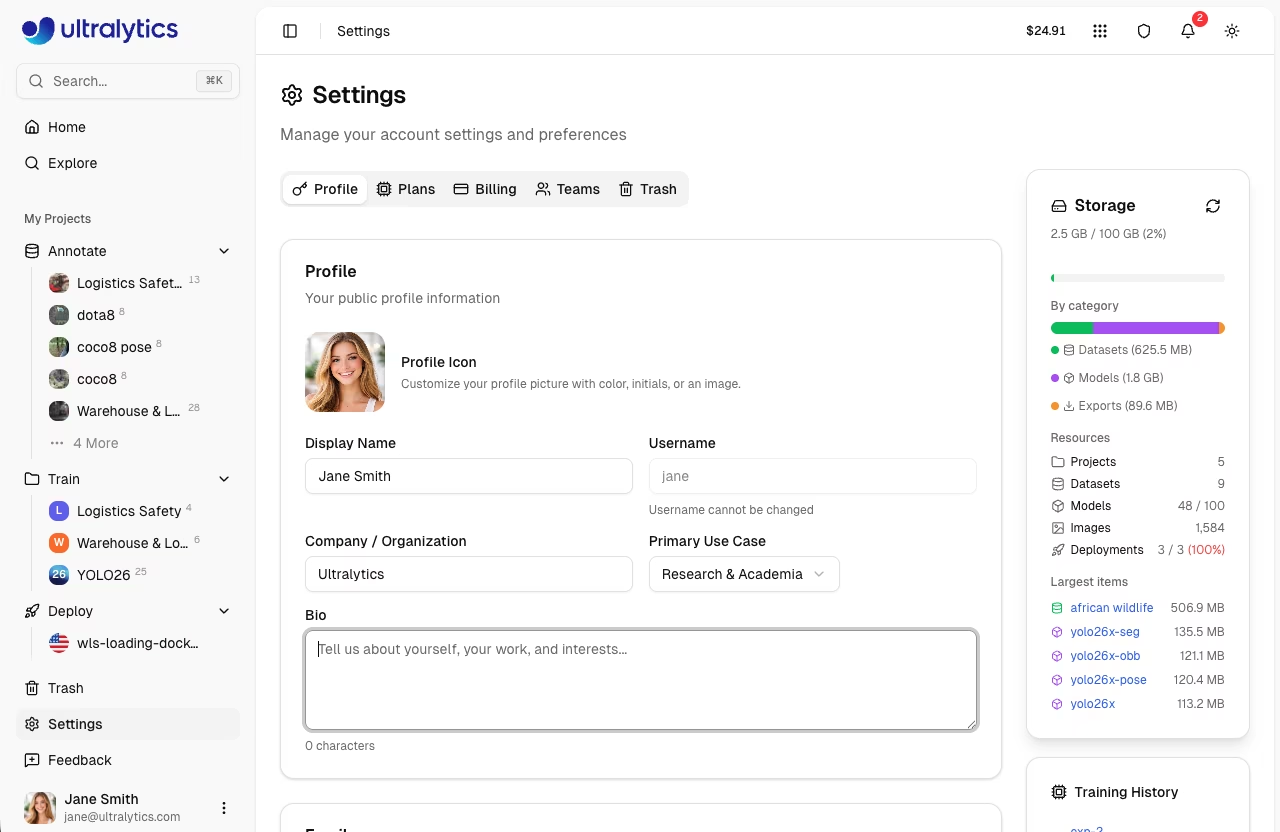
| Field | Description |
|---|---|
| Display Name | Your public name |
| Username | Unique identifier (set at signup) |
| Company | Company or organization name |
| Use Case | Primary application (select from list) |
| Bio | Short description (minimum 10 characters) |
| Profile Icon | Avatar with color, initials, or image |
Username Rules
- 4-32 characters
- Lowercase letters, numbers, hyphens
- Cannot start/end with hyphen
- Must be unique
Username is Permanent
Your username is set during onboarding and cannot be changed. It appears in all your public URLs (e.g., platform.ultralytics.com/username).
Use Case Options
| Use Case | Description |
|---|---|
| Manufacturing & QC | Quality control workflows |
| Retail & Inventory | Retail and inventory tasks |
| Security & Surveillance | Security monitoring |
| Healthcare & Medical | Medical imaging |
| Automotive & Robotics | Self-driving and robotics |
| Agriculture | Agricultural monitoring |
| Research & Academia | Academic research |
| Personal Project | Personal or hobby projects |
Edit Profile
- Go to Settings > Profile
- Update fields (display name, company, use case, bio)
- Click Save Changes
Social Links
Connect your professional profiles:
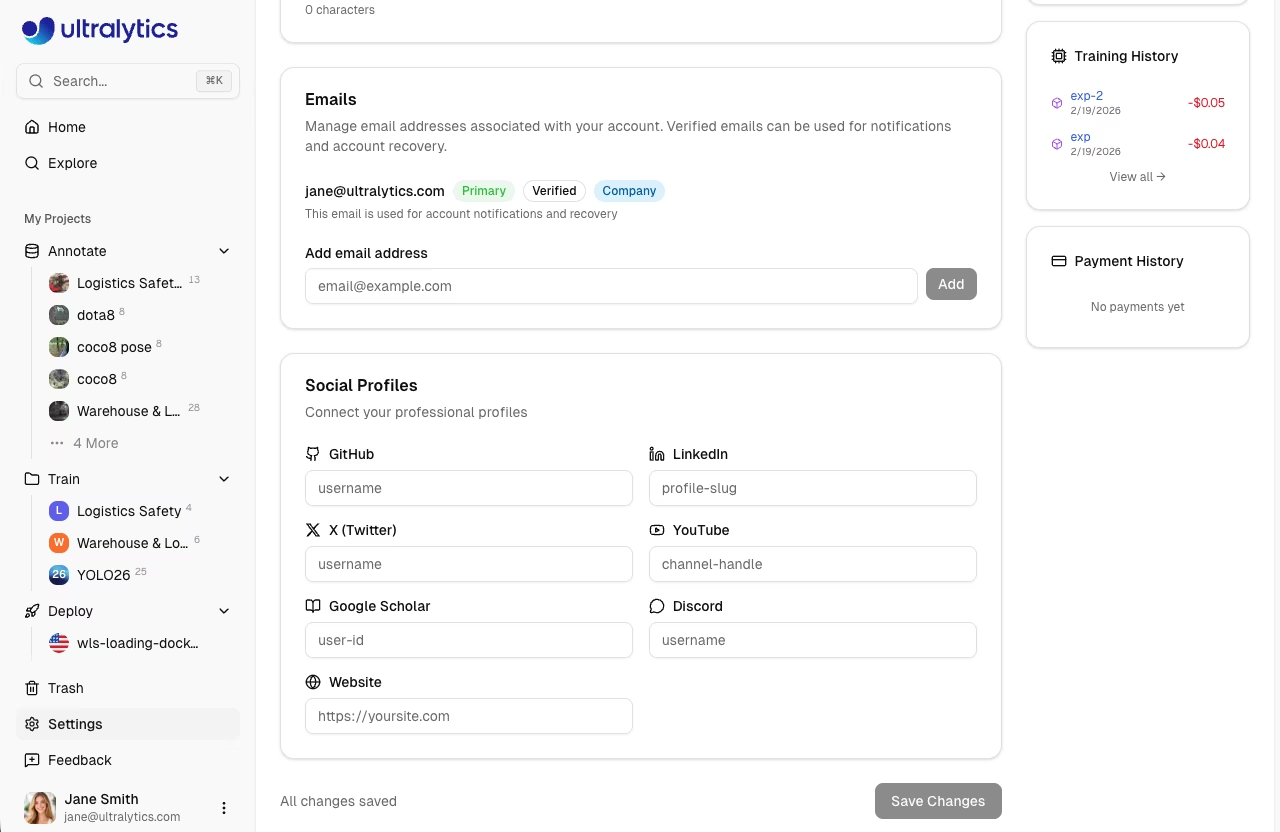
| Platform | Format |
|---|---|
| GitHub | username |
| profile-slug | |
| X (Twitter) | username |
| YouTube | channel-handle |
| Bilibili | user-id |
| Google Scholar | user-id |
| Discord | username |
| username |
Social links appear on your public profile page.
Emails
Manage email addresses linked to your account in the Profile tab:
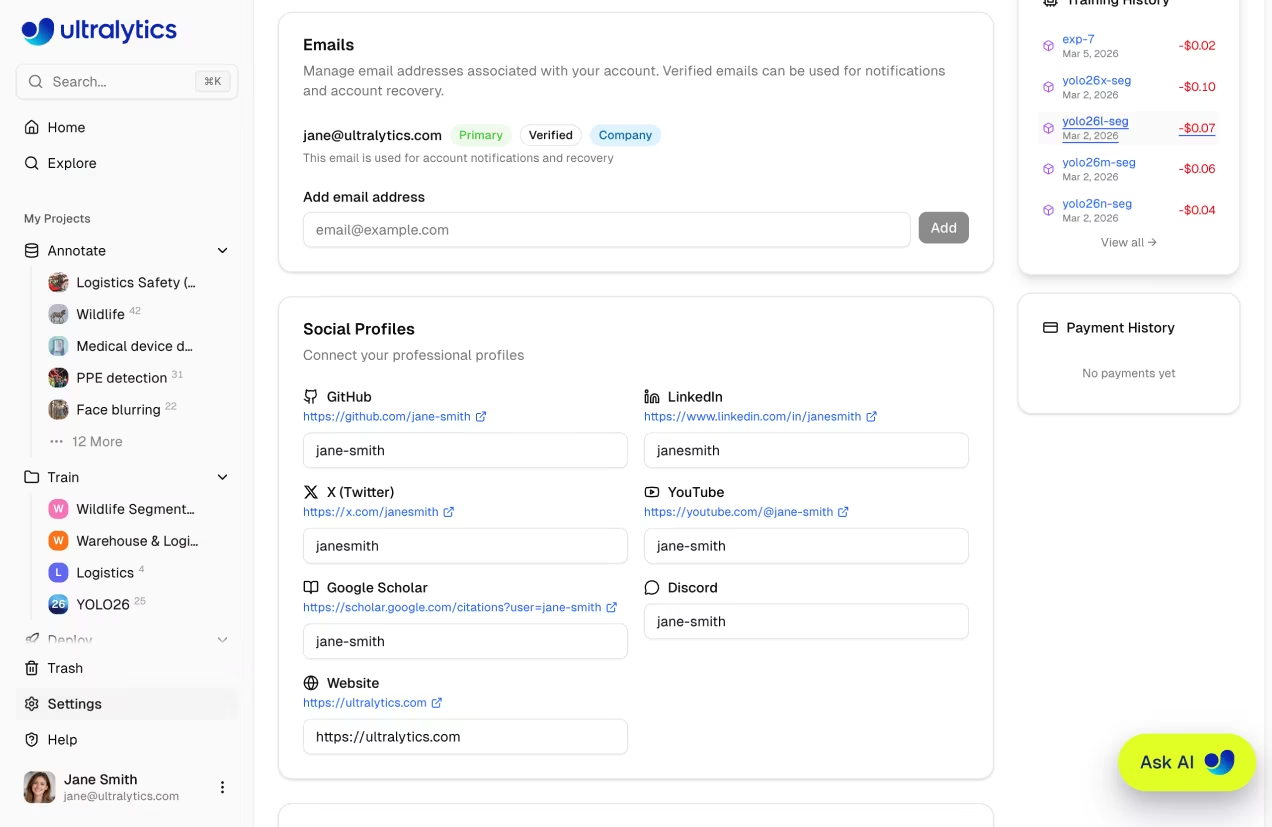
| Action | Description |
|---|---|
| Add Email | Add a new email address to your account |
| Remove | Remove a non-primary email address |
| Verify | Send a verification email to confirm ownership |
| Set as Primary | Set a verified email as your primary address |
Primary Email
Your primary email is used for notifications and account recovery. Only verified emails can be set as primary.
API Keys
API keys are managed directly on the Profile tab. See API Keys for full documentation.
Data Region
View your data region on the Profile tab:
| Region | Location | Best For |
|---|---|---|
| US | United States | Americas users |
| EU | Europe | European users, GDPR compliance |
| AP | Asia Pacific | Asia-Pacific users |
Region is Permanent
Data region is selected during signup and cannot be changed. All your data stays in this region.
Storage Usage
Monitor your storage consumption on the Profile tab and the Home page:
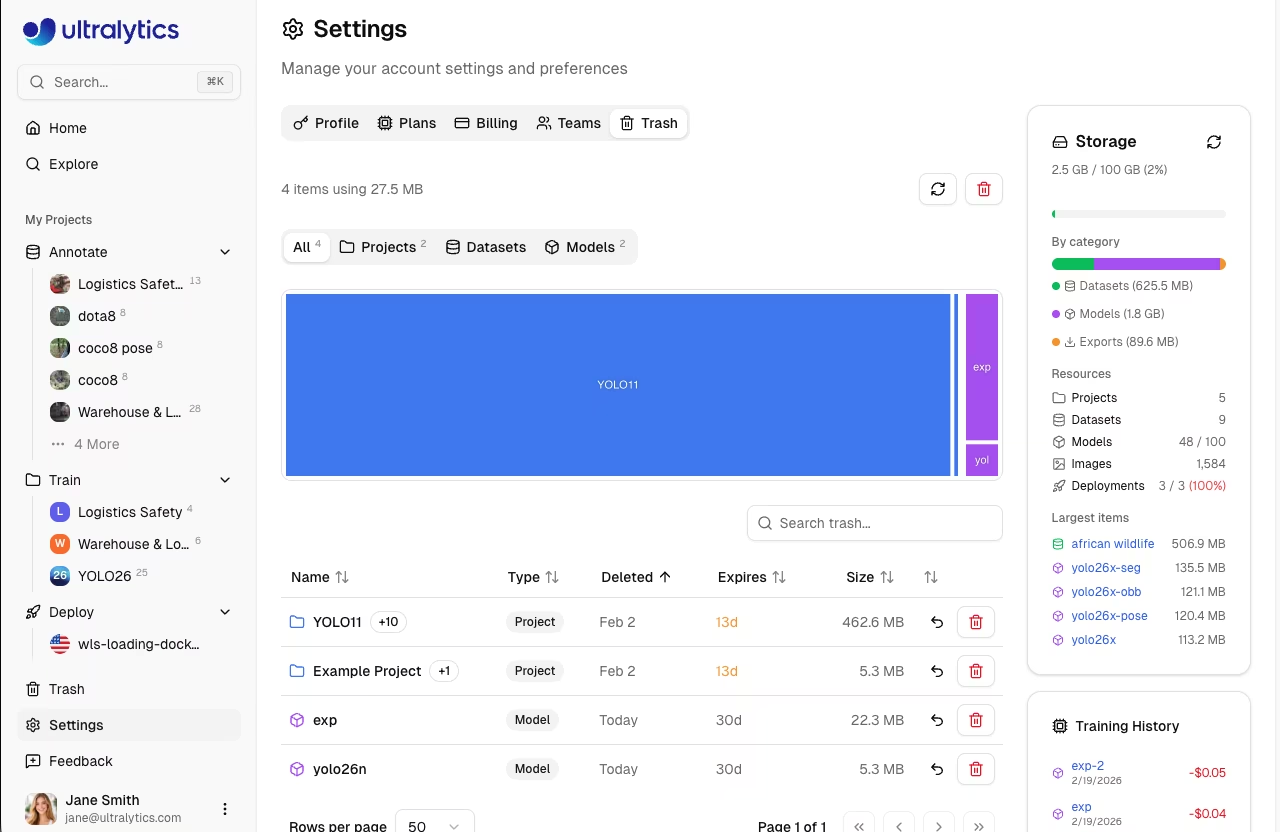
The storage card shows:
- Overall progress bar with color-coded status (green under 70%, amber 70-89%, red 90%+)
- Category breakdown for datasets, models, and exports
- Resource counts for projects, datasets, models, images, and deployments
- Largest items to help identify what consumes the most space
| Category | Description |
|---|---|
| Datasets | Uploaded images, videos, labels, and annotation files |
| Models | Trained model checkpoints (.pt files) |
| Exports | Exported model formats (ONNX, TensorRT, CoreML, etc) |
Recalculate Storage
To refresh your storage values, click the Recalculate button on the storage card.
Storage Limits
| Plan | Storage | Models | Deployments |
|---|---|---|---|
| Free | 100 GB | 100 | 3 |
| Pro | 500 GB | 500 | 10 |
| Enterprise | Unlimited | Unlimited | Unlimited |
Upload Size Limits
| File Type | Free | Pro | Enterprise |
|---|---|---|---|
| Image | 50 MB | 50 MB | 50 MB |
| Video | 1 GB | 1 GB | 1 GB |
| Model (.pt) | 1 GB | 1 GB | 1 GB |
Dataset (ZIP/TAR incl. .tar.gz/.tgz/NDJSON) | 10 GB | 20 GB | 50 GB |
Trash and Storage
Items in the trash still count toward your storage quota. To free up space, permanently delete items from the trash. Trash items are automatically removed after 30 days. See Trash for details.
Reduce Storage
To free up storage:
- Delete unused datasets or remove unnecessary images
- Remove old model checkpoints
- Delete exported model formats you no longer need
- Empty trash in Settings > Trash
Security
The Profile tab includes a Security card at the bottom:
- Two-Factor Authentication: Coming soon. Currently handled by your OAuth provider (Google, GitHub)
- Connected Accounts: Shows your linked OAuth provider (e.g., Google)
GDPR Compliance
Ultralytics Platform supports GDPR rights:
Data Export
Download all your data:
- Go to Settings > Profile
- Scroll to the bottom section
- Click Export Data
- Receive download link via email
Export includes:
- Profile information
- Dataset metadata
- Model metadata
- Training history
- API key metadata (not secrets)
Account Deletion
Permanently delete your account:
- Go to Settings > Profile
- Scroll to the bottom section
- Click Delete Account
- Confirm deletion
Irreversible Action
Account deletion is permanent. All data is removed within 30 days per GDPR requirements.
What's Deleted
- All projects and trained models
- All datasets and images
- All API keys and credentials
- All activity history
- Credit balance
What's Retained
- Anonymized analytics
- Server logs (90 days)
- Legal compliance records
Plans Tab
The Plans tab lets you compare available plans and upgrade or downgrade your subscription.
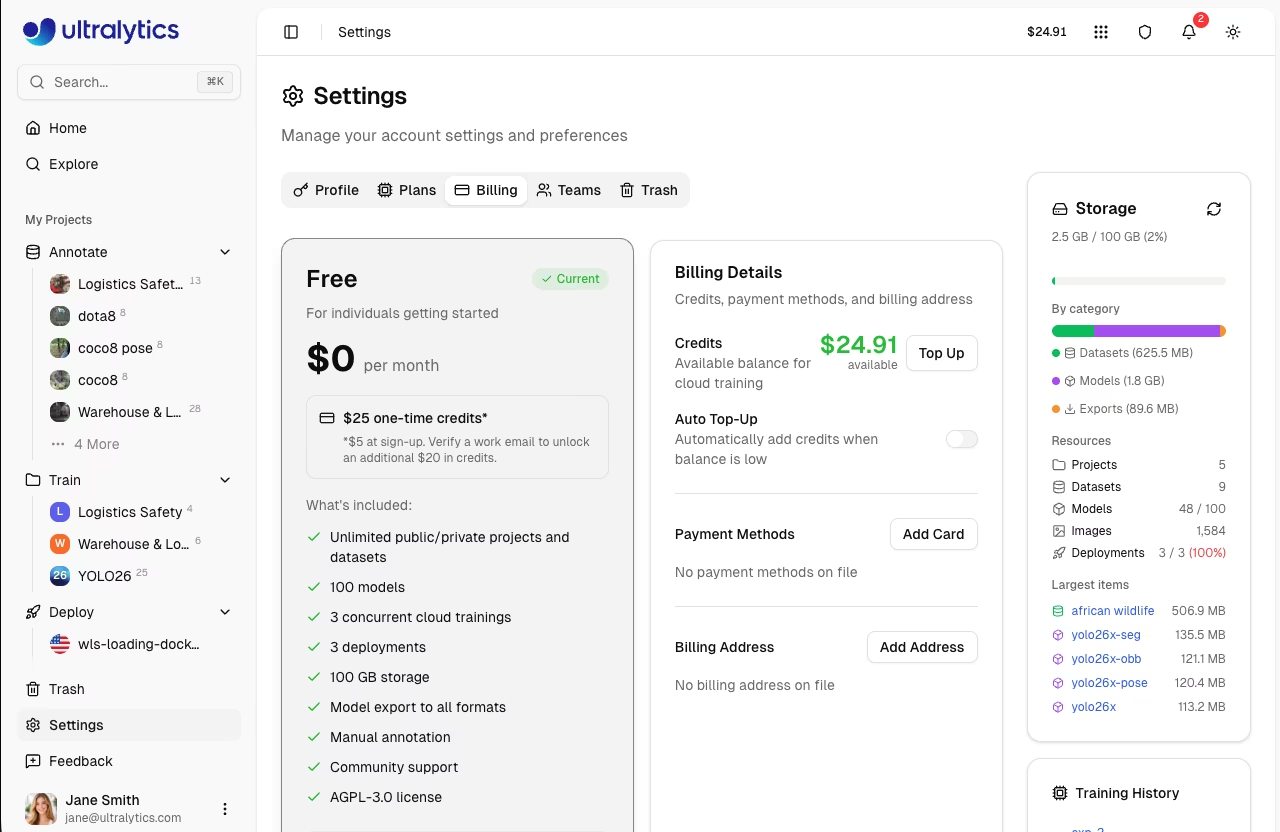
| Plan | Storage | Models | Deployments | Concurrent Trainings | Team Seats |
|---|---|---|---|---|---|
| Free | 100 GB | 100 | 3 | 3 | — |
| Pro | 500 GB | 500 | 10 | 10 | Up to 5 |
| Enterprise | Unlimited | Unlimited | Unlimited | Unlimited | Up to 50 |
From this tab you can:
- Compare features across Free, Pro, and Enterprise tiers
- Upgrade to Pro to unlock more storage, models, team collaboration, and priority GPU access
- Contact Sales for Enterprise needs including SSO/SAML and commercial licensing
See Billing for detailed plan information, pricing, and upgrade instructions.
Billing Tab
The Billing tab is where you manage credits, payment methods, and review transaction history. Credits are the currency used for cloud training and deployments on the platform.
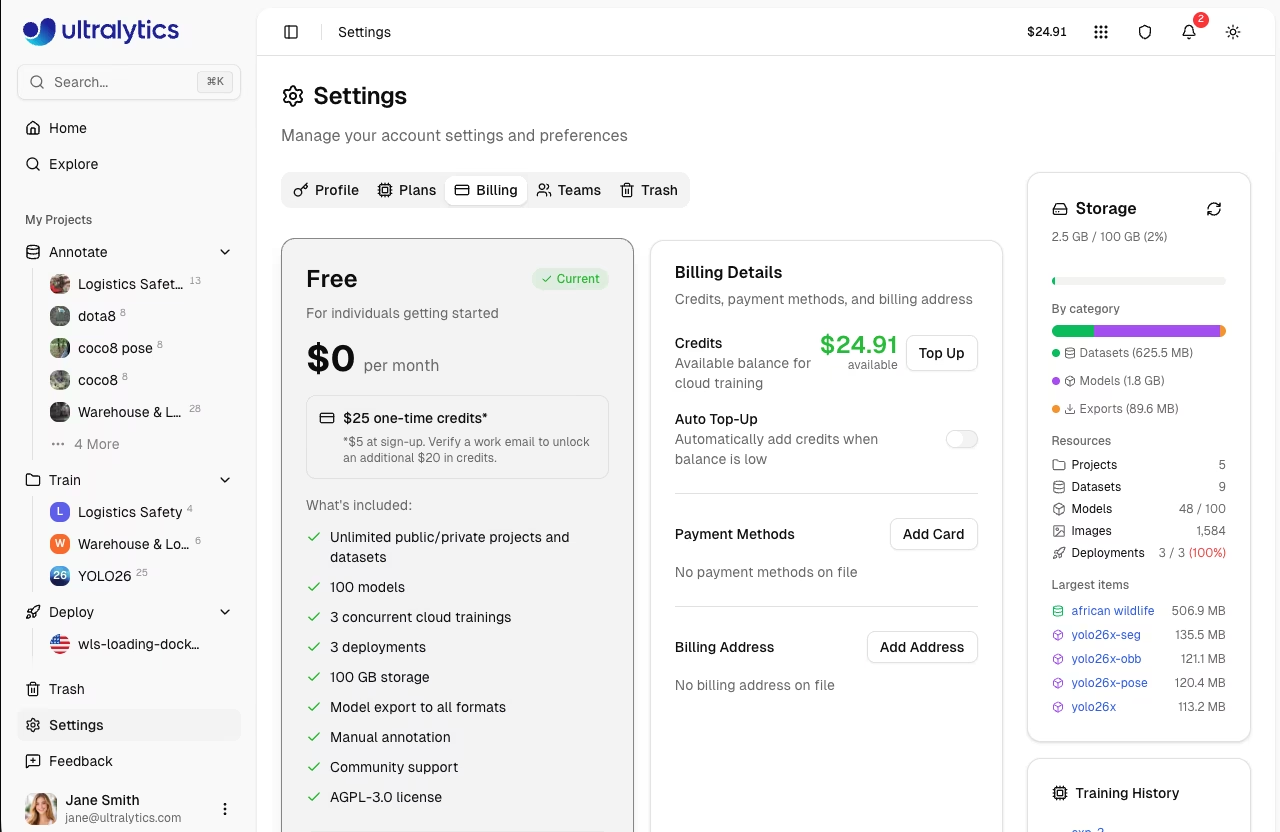
From this tab you can:
- View credit balance and monitor remaining credits
- Add credits via manual top-up (presets from $10–$500 or custom amounts up to $1,000)
- Enable auto top-up to automatically add credits when your balance falls below a threshold, preventing training interruptions
- Manage payment methods and update your billing address
- Review transaction history to track all credit movements including purchases, training costs, and refunds
Training Costs
Before each training run, the platform estimates the cost based on your selected GPU, dataset size, and epochs. You're charged for actual usage upon completion — unused estimated credits are returned to your balance.
See Billing for full documentation on credits, payment, and plan management.
Teams Tab
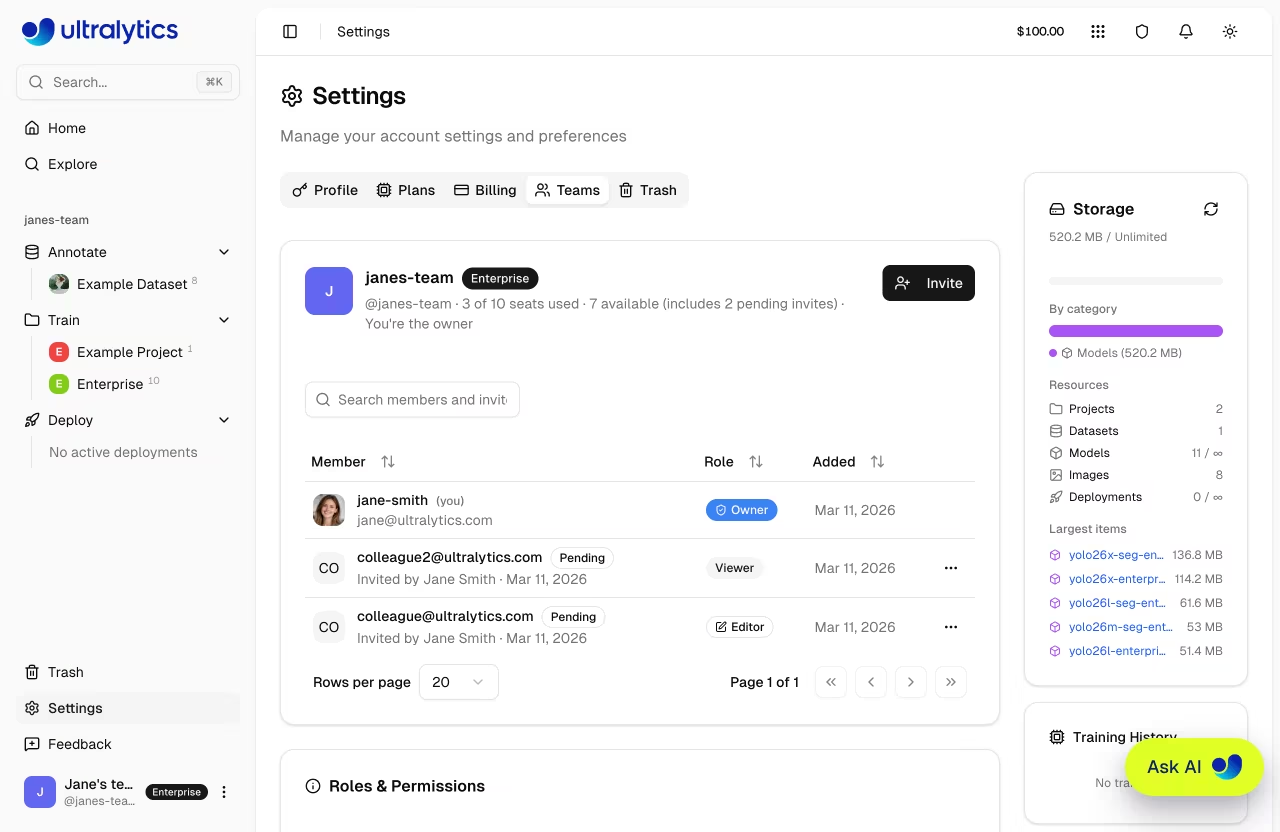
The Teams tab lets you manage workspace members, roles, and invitations. Teams are available on Pro and Enterprise plans.
Roles and Permissions
| Role | Description |
|---|---|
| Owner | Full control including billing, member management, and team deletion |
| Admin | Manage members, resources, and settings (cannot delete team) |
| Editor | Create and edit projects, datasets, and models |
| Viewer | Read-only access to shared resources |
Manage Members
Owners and admins can manage the team:
- Invite members via email (invitations expire after 7 days)
- Change roles: Click the role dropdown next to a member (only the owner can assign/remove the admin role)
- Remove members: Click the menu and select Remove
- Cancel invites: Cancel pending invitations that haven't been accepted
- Resend invites: Resend invitation emails
- Transfer ownership: Transfer workspace ownership to another member (Owner only)
Shared Resources
All resources created in a team workspace belong to the team, not individual members. Team members share:
- Datasets, projects, and models — accessible by all members based on their role
- Credit balance — a single shared pool for training and deployments
- Storage and resource limits — counted at the team level
Team Billing
On Pro plans, each team member is a paid seat. The team credit balance is shared across all members.
See Teams for full documentation on team creation, switching workspaces, and enterprise features.
Trash Tab
The Trash tab shows all deleted items and lets you restore or permanently remove them. Deleted items follow a 30-day soft delete policy before automatic permanent deletion.
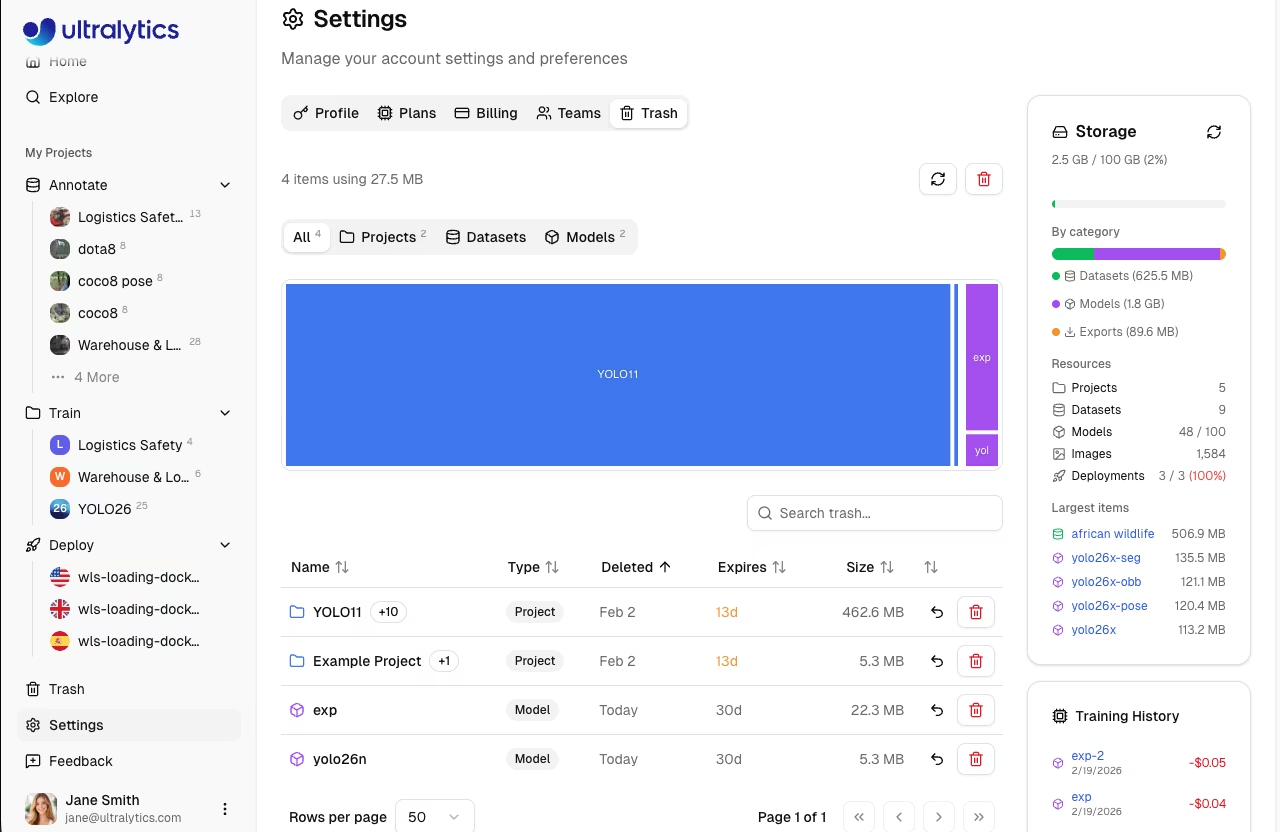
From this tab you can:
- Browse deleted items filtered by type (All, Projects, Datasets, Models)
- View the storage treemap to see the relative size of trashed items
- Restore items to their original location with all data intact
- Permanently delete individual items or use Empty Trash to remove everything at once
Storage Impact
Items in the trash still count toward your storage quota. To free up space immediately, permanently delete items you no longer need.
See Trash for full documentation including cascade behavior and API access.
Help & Feedback
The Help page is accessible from the sidebar footer. Use it to:
- Rate your experience with a 1-5 star rating
- Choose a feedback type: Bug Report, Feature Request, or General
- Describe the issue with a text message
- Attach screenshots for visual context
Feedback is private and sent directly to the Ultralytics team to help prioritize features and fix issues.
FAQ
How do I change my email?
Manage your email addresses directly on the platform:
- Go to Settings > Profile
- Scroll to the Emails section
- Add a new email, verify it, and set it as primary
Can I have multiple accounts?
You can create accounts in different regions, but:
- Each needs a unique email
- Data doesn't transfer between accounts
- Billing is separate
How do I change my password?
If you signed up with email and password, use the password reset flow on the sign-in page. If you signed up with an OAuth provider, manage your password through that provider:
- Google: accounts.google.com
- GitHub: github.com/settings/security
Is two-factor authentication available?
2FA is handled by your OAuth provider. Enable 2FA in:
- Google Account settings
- GitHub Security settings
How long until deleted data is removed?
| Type | Timeline |
|---|---|
| Trash items | 30 days |
| Account deletion | Up to 30 days |
| Backups | 90 days |


