Neptune has entered into an agreement to be acquired by OpenAI and will wind down its hosted (SaaS) service after a transition period ending March 4, 2026. Review the official announcement and plan migrations or exports accordingly.
Experiment Tracking with Neptune#
Neptune is a metadata store for MLOps, built for teams that run a lot of experiments. It gives you a single place to log, store, display, organize, compare, and query all your model building metadata.
Ultralytics YOLO26 integrates with Neptune to streamline experiment tracking. This integration allows you to automatically log training metrics, visualize model predictions, and store model artifacts without writing custom logging code.
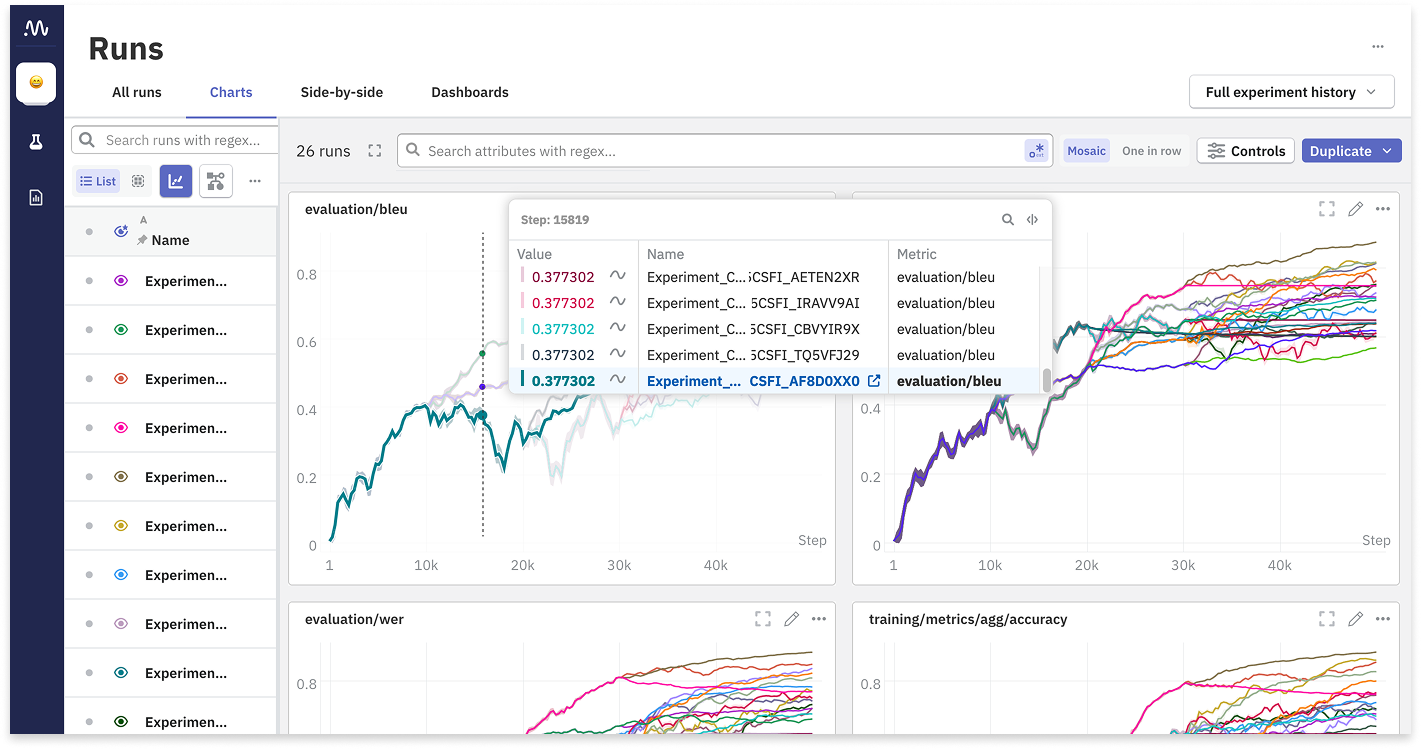
Key Features#
- Automated Logging: Automatically log key training metrics such as box loss, classification loss, and mAP.
- Image Visualization: View training mosaics and validation predictions directly in the Neptune dashboard.
- Model Checkpointing: Upload and version control your trained model weights (
best.pt) automatically at the end of training. - Hyperparameter Tracking: Log all configuration parameters to ensure full reproducibility of your experiments.
- Interactive Plots: Visualize confusion matrices and precision-recall curves to analyze model performance.
Installation#
To use Neptune with Ultralytics, you will need to install the neptune client package along with ultralytics.
# Install the required packages
pip install ultralytics neptune

# Enable Neptune integration in Ultralytics settings
yolo settings neptune=TrueConfiguration#
Before you start training, you need to connect your local environment to your Neptune project. You will need your API Token and Project Name from your Neptune dashboard.
1. Get Your Credentials#
- Log in to Neptune.ai.
- Create a new project (or select an existing one).
- Go to your user menu and get your API Token.
2. Set Environment Variables#
The securest way to handle credentials is via environment variables. Note that the Ultralytics Neptune callback reads the YOLO project argument and does not use NEPTUNE_PROJECT. Pass the full Neptune slug (e.g., workspace/name) via project= in your training command; otherwise Neptune will try to use the literal default "Ultralytics" and the run will fail.
export NEPTUNE_API_TOKEN="your_long_api_token_here" # requiredUsage#
Once configured, you can start training your YOLO26 models. The Neptune integration works automatically when the neptune package is installed and the integration is enabled in settings.
Training Example#
from ultralytics import YOLO

# Load a model
model = YOLO("yolo26n.pt")

# Train the model
# Pass the Neptune project slug as the 'project' argument (workspace/name)
results = model.train(data="coco8.yaml", epochs=10, project="my-workspace/my-project", name="experiment-1")
Understanding the Integration#
The following diagram illustrates how the Ultralytics Training pipeline interacts with Neptune to log various artifacts and metrics.
graph LR
    A[YOLO Training Loop]:::start --> B{Neptune Callback}:::decide
    B -->|Log Scalars| C[Loss, mAP, LR]:::proc
    B -->|Log Images| D[Mosaics, Preds]:::proc
    B -->|Log Artifacts| E[Model Weights]:::proc
    B -->|Log Metadata| F[Hyperparameters]:::proc

    C --> G[Neptune Server]:::extern
    D --> G
    E --> G
    F --> G

    G --> H[Neptune Web Dashboard]:::out

    classDef start fill:#4CAF50,color:#fff
    classDef proc fill:#2196F3,color:#fff
    classDef decide fill:#FF9800,color:#fff
    classDef out fill:#9C27B0,color:#fff
    classDef extern fill:#607D8B,color:#fff
What is Logged?#
When you run the training command, the Neptune integration automatically captures the following data structure in your run:
- Configuration/Hyperparameters: All training arguments (epochs, lr0, optimizer, etc.) are logged under the Configuration section.
- Configuration/Model: The model architecture and definition.
- Metrics:
- Train:
box_loss,cls_loss,dfl_loss,lr(learning rate). - Metrics:
precision,recall,mAP50,mAP50-95.
- Train:
- Images:
Mosaic: Training batches showing data augmentation.Validation: Ground truth labels and model predictions on validation data.Plots: Confusion matrices, Precision-Recall curves.
- Weights: The final trained model (
best.pt) is uploaded to theweightsfolder in the Neptune run.
Advanced Usage#
Organizing Runs#
You can use the standard Ultralytics project and name arguments to organize your runs in Neptune.
project: Must be the Neptune project slugworkspace/name; this is what the callback passes toneptune.init_run.name: Acts as the identifier for the specific run.
Custom Logging#
If you need to log additional custom metrics alongside the automatic logging, you can access the Neptune run instance. Note that you will need to modify the trainer logic or create a custom callback to access the specific run object, as the Ultralytics integration handles the run lifecycle internally.
FAQ#
If you have installed
neptunebut wish to disable logging for a specific session or globally, you can modify the YOLO settings.# Disable Neptune integration yolo settings neptune=FalseEnsure that your network allows connections to Neptune's servers. Additionally, image logging usually occurs at specific intervals (e.g., end of epochs or end of training). If you interrupt training early using
Ctrl+C, some final artifacts like confusion matrices or the best model weights might not be uploaded.The current integration automatically creates a new run for each training session. To resume logging to an existing run, you would typically need to handle the Neptune initialization manually in Python code, which falls outside the scope of the automatic integration. However, Ultralytics supports resuming training locally, which will create a new run in Neptune to track the resumed epochs.
In your Neptune dashboard, navigate to the Artifacts or All Metadata section. You will find a
weightsfolder containing yourbest.ptfile, which you can download for deployment.