Ultralytics YOLO26을 활용한 대기열 관리
대기열 관리란 무엇인가요?#

Ultralytics YOLO26을 사용한 대기열 관리는 대기 시간을 줄이고 효율성을 높이기 위해 사람이나 차량의 대기 줄을 모니터링하는 작업입니다. YOLO26은 대기 구역에 있는 모든 사람을 감지하고 추적하여 실시간 대기열 길이를 알려줍니다. 이를 통해 소매점, 은행, 공항, 의료 시설 등에서 고객 만족도와 운영 효율성을 높일 수 있습니다.
시청: Ultralytics YOLO26으로 대기열 관리 시스템을 구축하는 방법 | 실시간 대기열 분석 🚀
대기열 관리의 장점#
- 대기 시간 단축: 대기열 관리 시스템은 줄을 효율적으로 정리하여 고객의 대기 시간을 최소화합니다. 고객이 기다리는 시간은 줄고 제품이나 서비스를 이용하는 시간은 늘어나므로 만족도가 향상됩니다.
- 효율성 향상: 대기열 관리를 도입하면 기업은 리소스를 보다 효과적으로 배분할 수 있습니다. 대기열 데이터를 분석하고 직원 배치를 최적화하면 운영을 간소화하고 비용을 절감하며 전반적인 생산성을 높일 수 있습니다.
- 실시간 인사이트: YOLO26 기반 대기열 관리는 대기열 길이와 대기 시간에 대한 데이터를 즉시 제공하므로 관리자가 신속하게 정보에 입각한 결정을 내릴 수 있습니다.
- 고객 경험 향상: 긴 대기 시간으로 인한 불편을 줄여 기업은 고객 만족도와 충성도를 높일 수 있습니다.
실제 애플리케이션#
| 물류 | 소매 |
|---|---|
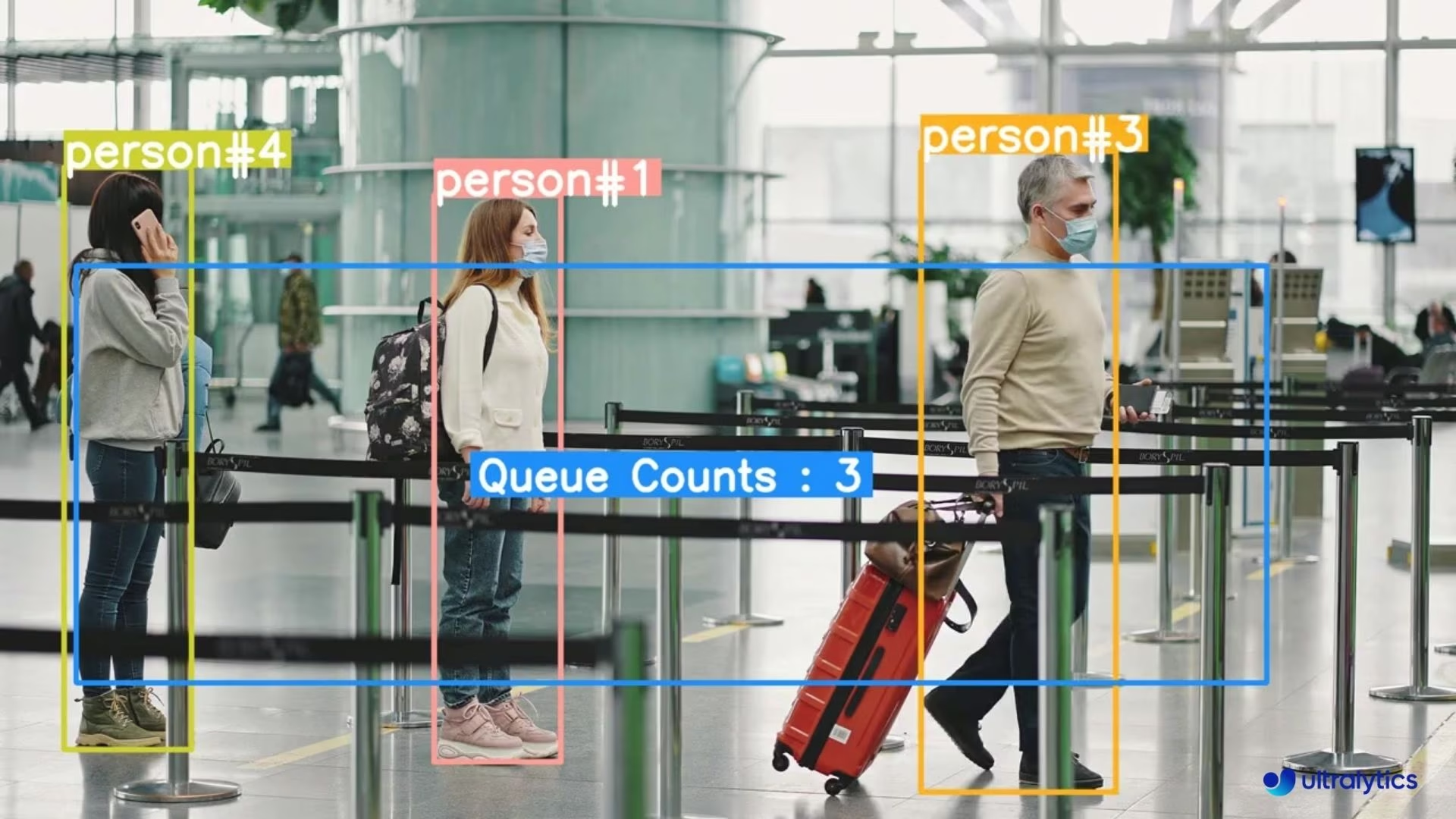 | 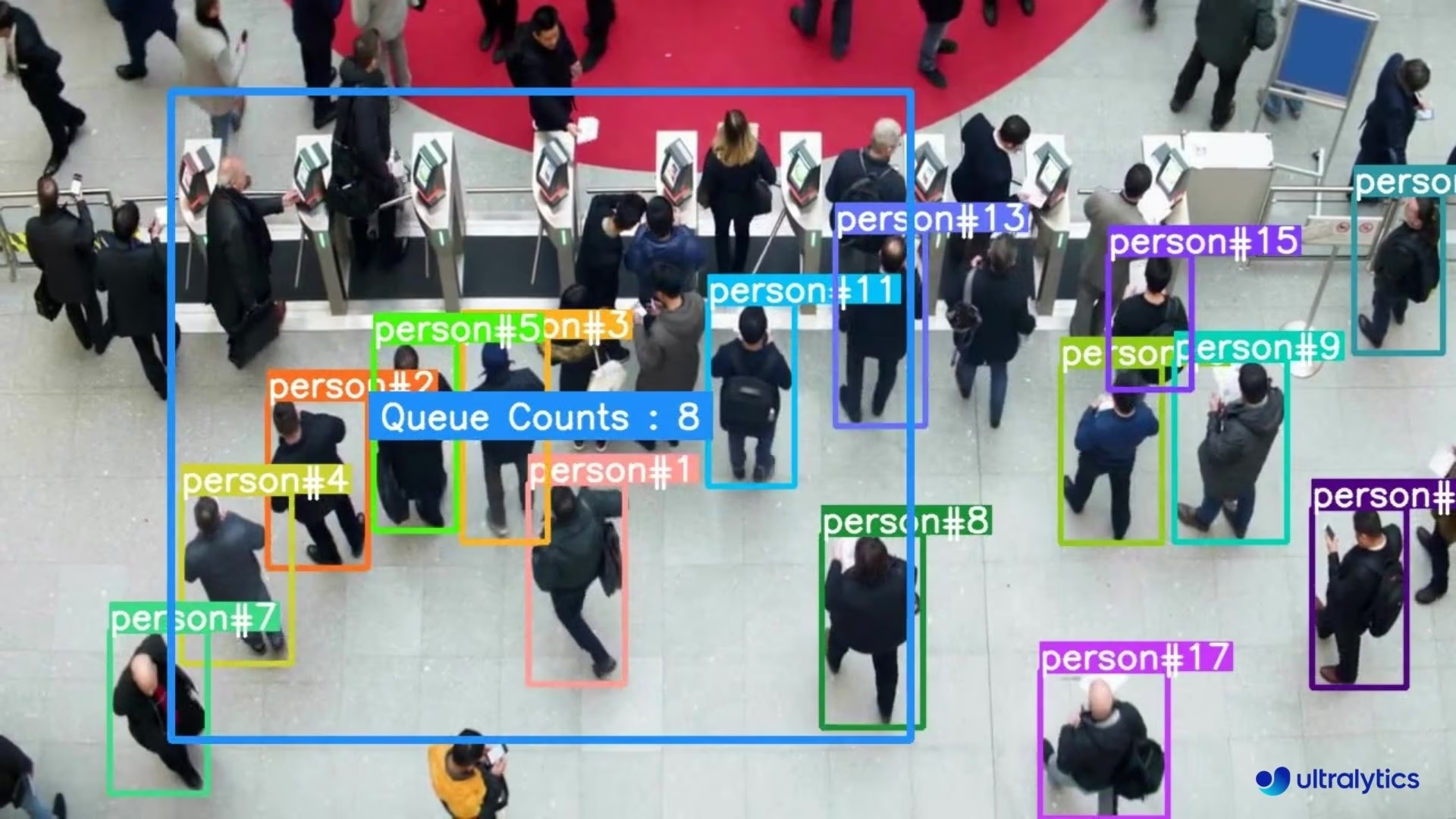 |
| Ultralytics YOLO26을 활용한 공항 매표소 대기열 관리 | Ultralytics YOLO26을 활용한 군중 속 대기열 모니터링 |
YOLO26으로 대기열 관리하기#
QueueManager 솔루션은 매 프레임에서 지정된 영역 안의 추적 객체를 카운팅하여 출력 비디오에 기록할 수 있는 실시간 대기열 길이를 제공합니다. 대기 구역을 포함하는 다각형 영역을 지정한 다음, Python API 또는 CLI를 사용해 비디오 입력에 적용합니다.
# Run a queue example
yolo solutions queue show=True

# Pass a source video
yolo solutions queue source="path/to/video.mp4"

# Pass queue coordinates
yolo solutions queue region="[(20, 400), (1080, 400), (1080, 360), (20, 360)]"
QueueManager 인수#
다음은 QueueManager 인수 표입니다:
| 인수 | 유형 | 기본값 | 설명 |
|---|---|---|---|
model | str | None | Ultralytics YOLO 모델 파일의 경로입니다. |
region | list 또는 dict | None | 관심 영역을 정의하는 점입니다. (x, y) 튜플 목록 또는 여러 영역에 대해 영역 이름을 점 목록에 매핑하는 사전(RegionCounter만 해당)으로 지정할 수 있습니다. None이면 영역이 필요한 Solutions는 사전 정의된 기본값을 사용합니다. |
line_width | int | 2 | Solution에서 그리는 상자, 키포인트 및 개수 표시의 선 두께입니다. |
verbose | bool | True | 프레임별 입력 형태, 클래스 개수 및 처리 속도 로그를 활성화합니다. 추적 호출 자체는 항상 로그를 출력하지 않습니다. |
QueueManager 솔루션은 track 인수도 지원합니다.
| 인수 | 유형 | 기본값 | 설명 |
|---|---|---|---|
tracker | str | 'tracktrack.yaml' | 사용할 추적 알고리즘을 지정합니다. 기본 제공 옵션: botsort.yaml, bytetrack.yaml, ocsort.yaml, deepocsort.yaml, fasttrack.yaml, tracktrack.yaml. |
conf | float | 0.25 | 탐지에 대한 신뢰도 임계값을 설정합니다. 값을 낮추면 추적할 수 있는 객체가 늘어나지만 오탐이 포함될 수 있습니다. |
iou | float | 0.5 | 중복 탐지를 필터링하기 위한 교집합 대비 합집합 (IoU) 임계값을 설정합니다. |
classes | list | None | 클래스 인덱스로 결과를 필터링합니다. 예를 들어 classes=[0, 2, 3]은 지정된 클래스만 추적합니다. |
device | str | None | 추론에 사용할 장치를 지정합니다(예: cpu, cuda:0 또는 0). 사용자는 모델 실행에 사용할 CPU, 특정 GPU 또는 기타 연산 장치를 선택할 수 있습니다. |
imgsz | int or tuple | 640 | 추론 대상 이미지 크기입니다. 정사각형을 나타내는 정수 또는 (height, width) 쌍을 지정합니다. 모델 stride에 맞춰 형태가 조정됩니다. |
max_det | int | 300 | 추적 전에 프레임별로 유지할 최대 탐지 수를 지정하여 밀집된 장면에서 솔루션이 처리하는 객체 수를 제한합니다. |
quantize | int or str | None | 추론 정밀도: CPU 이외의 환경에서 PyTorch 및 TorchScript 모델은 16(FP16) 또는 32/unset(FP32)을 사용하며, 다른 형식은 아티팩트와 런타임이 선택하는 정밀도를 사용합니다. 더 이상 사용되지 않는 half 인수를 대체합니다. |
또한 다음 시각화 매개변수를 사용할 수 있습니다.
| 인수 | 유형 | 기본값 | 설명 |
|---|---|---|---|
show | bool | False | True이면 주석이 추가된 이미지나 비디오를 창에 표시합니다. 개발 또는 테스트 중 즉각적인 시각적 피드백을 얻는 데 유용합니다. |
show_conf | bool | True | 각 감지 결과의 레이블 옆에 신뢰도 점수를 표시합니다. 각 감지 결과에 대한 모델의 확신도를 파악할 수 있습니다. |
show_labels | bool | True | 시각화 출력에 각 감지 결과의 레이블을 표시합니다. 감지된 객체를 즉시 파악할 수 있습니다. |
구현 전략#
YOLO26으로 대기열 관리를 구현할 때는 다음 모범 사례를 고려하세요.
- 전략적인 카메라 배치: 장애물 없이 대기열 영역 전체를 촬영할 수 있도록 카메라를 배치합니다.
- 적절한 대기열 영역 정의: 공간의 물리적 구조를 바탕으로 대기열 경계를 신중하게 설정합니다.
- 감지 신뢰도 조정: 조명 조건과 군중 밀도에 따라 신뢰도 임계값을 미세 조정합니다.
- 기존 시스템과 통합: 자동 응답을 위해 대기열 관리 솔루션을 디지털 사이니지 또는 직원 알림 시스템과 연결합니다.
자주 묻는 질문#
실시간 대기열 관리에 Ultralytics YOLO26을 사용하려면 다음 단계를 따르세요.
cv2.VideoCapture을 사용하여 동영상 피드를 캡처합니다.- 대기열 관리를 위한 관심 영역(ROI)을 정의합니다.
solutions.QueueManager을yolo26n.pt과 같은 YOLO26 모델 및 영역으로 초기화합니다.- 프레임을 처리하여 객체를 감지하고 대기열을 관리합니다.
다음은 최소 예제입니다.
import cv2

from ultralytics import solutions

cap = cv2.VideoCapture("path/to/video.mp4")
queue_region = [(20, 400), (1080, 400), (1080, 360), (20, 360)]

queuemanager = solutions.QueueManager(
    model="yolo26n.pt",
    region=queue_region,
    line_width=3,
    show=True,
)

while cap.isOpened():
    success, im0 = cap.read()
    if not success:
        break
    results = queuemanager(im0)

cap.release()
cv2.destroyAllWindows()
Ultralytics Platform에서 대기열 관리 솔루션을 위한 모델을 학습하고 배포할 수 있습니다.
대기열 관리에 Ultralytics YOLO26을 사용하면 다음과 같은 여러 이점을 얻을 수 있습니다.
- 대기 시간 단축: 대기열을 효율적으로 정리해 고객 대기 시간을 줄이고 만족도를 높입니다.
- 효율성 향상: 대기열 데이터를 분석해 직원 배치와 운영을 최적화함으로써 비용을 절감합니다.
- 실시간 인사이트: 모든 프레임의 실시간 대기열 수를 제공하여 줄이 길어질 때 신속하게 대응할 수 있습니다.
- 확장성: 소매점, 공항, 의료 시설 등 다양한 환경에서 쉽게 확장할 수 있습니다.
Ultralytics YOLO26은 대기열 관리에서 TensorFlow 기반 감지기와 Detectron2에 비해 여러 장점을 제공합니다:
- 실시간 성능: YOLO26은 실시간 감지를 위해 설계되어 프레임을 빠르게 처리합니다.
- 사용 편의성: Ultralytics는 Python 또는 Ultralytics Platform에서 학습부터 배포까지 전체 워크플로를 지원합니다.
- 사전 학습 모델: 다양한 사전 학습 모델을 이용할 수 있어 설정에 필요한 시간을 최소화합니다.
- 커뮤니티 지원: 폭넓은 문서와 활발한 커뮤니티 지원으로 문제를 더 쉽게 해결할 수 있습니다.
Ultralytics YOLO 시작 방법을 알아보세요.
예. Ultralytics YOLO26은 공항 및 소매 환경의 대기열을 비롯해 다양한 유형의 대기열을 관리할 수 있습니다. 특정 영역과 설정으로 QueueManager를 구성하면 YOLO26이 다양한 대기열 배치와 밀도에 맞게 대응할 수 있습니다.
공항용 예제:
queue_region_airport = [(50, 600), (1200, 600), (1200, 550), (50, 550)] queue_airport = solutions.QueueManager( model="yolo26n.pt", region=queue_region_airport, line_width=3, )Ultralytics YOLO26은 대기열 관리의 다양한 실제 응용 분야에서 사용됩니다.
- 소매점: 계산대 줄을 모니터링하여 대기 시간을 줄이고 고객 만족도를 높입니다.
- 공항: 매표소와 보안 검색대의 대기열을 관리하여 승객이 더 원활하게 이동하도록 지원합니다.
- 의료: 클리닉과 병원의 환자 흐름을 최적화합니다.
- 은행: 은행의 대기열을 효율적으로 관리하여 고객 서비스를 향상합니다.
컴퓨터 비전이 다양한 산업 분야의 대기열 모니터링을 어떻게 혁신하는지 자세히 알아보려면 실제 대기열 관리에 관한 블로그를 확인하세요.


댓글18
질문을 하거나 결과를 공유하거나 다른 사람을 도와주세요.
CharanPrasadK
Like in_counts and out_counts methods in objectCounter class, I want get Queue Count in real time to print and use on out side but the method you provided 'counts' in QueueManager class is refreshing to 0, so I made some changes in code in my local system used private variable to get the count out side in real time. How can I make it better?
 Glenn JocherUltralytics(수정됨)
@TechWolf21 to get the real-time queue count, read it from the results returned for each frame (
queue_count) instead of modifyingQueueManager:results = queue(im0) print(results.queue_count)For details, please refer to the Queue Management documentation.
Alexts166
Have a nice day. I made several queue areas, but I can't find the code to get a separate counter to count the total number of people who passed through these areas.
- Glenn JocherUltralytics(수정됨)
@Alexts166 hello!
Thank you for your question.
QueueManagercounts the people currently inside its region on each frame (results.queue_countorqueue.counts), so with several queue areas you can create oneQueueManagerper region and sum their counts:import cv2 from ultralytics import solutions cap = cv2.VideoCapture("path/to/video/file.mp4") assert cap.isOpened(), "Error reading video file" w, h, fps = (int(cap.get(x)) for x in (cv2.CAP_PROP_FRAME_WIDTH, cv2.CAP_PROP_FRAME_HEIGHT, cv2.CAP_PROP_FPS)) video_writer = cv2.VideoWriter("queue_management.avi", cv2.VideoWriter_fourcc(*"mp4v"), fps, (w, h)) # Define multiple queue regions queue_regions = [ [(20, 400), (1080, 404), (1080, 360), (20, 360)], [(30, 300), (1070, 304), (1070, 260), (30, 260)], ] # Initialize a QueueManager for each region (person class only) queues = [solutions.QueueManager(model="yolo26n.pt", region=region, classes=[0], show=False) for region in queue_regions] while cap.isOpened(): success, im0 = cap.read() if not success: print("Video frame is empty or video processing has been successfully completed.") break for queue in queues: queue(im0) # draws on im0 total_in_queues = sum(queue.counts for queue in queues) # people currently inside all queue regions print(f"People currently in the queue areas: {total_in_queues}") video_writer.write(im0) cap.release() video_writer.release() cv2.destroyAllWindows()Note this is a per-frame count of people currently in the regions, not a running total of everyone who has passed through. For cumulative in/out crossing counts, use
solutions.ObjectCounterinstead.For more details on queue management and additional examples, you can refer to our Queue Management Guide.
If you encounter any issues or have further questions, please provide a reproducible example, and ensure you are using the latest version of the packages. This will help us assist you more effectively.
Thanks for the code. I tweaked it a little to fit my needs. There is no summation of objects in queues. Maybe where is the error?
import cv2 from ultralytics import YOLO, solutions # Load the YOLOv8 model model = YOLO("best.pt") cap = cv2.VideoCapture("gf.mp4") assert cap.isOpened(), "Error reading video file" w, h, fps = (int(cap.get(x)) for x in (cv2.CAP_PROP_FRAME_WIDTH, cv2.CAP_PROP_FRAME_HEIGHT, cv2.CAP_PROP_FPS)) video_writer = cv2.VideoWriter("queue_management.avi", cv2.VideoWriter_fourcc(*"mp4v"), fps, (w, h)) # Define multiple queue regions queue_regions = [ [(20, 200), (1200, 200), (1200, 150), (20, 150)], [(20, 600), (1200, 600), (1200, 550), (20, 550)] ] # Initialize QueueManager for each region queues = [solutions.QueueManager( classes_names=model.names, reg_pts=region, line_thickness=3, fontsize=1.0, region_color=(255, 144, 31) ) for region in queue_regions] total_count = 0 while cap.isOpened(): success, im0 = cap.read() if success: tracks = model.track(im0, show=False, persist=True, verbose=False) for queue in queues: out = queue.process_queue(im0, tracks) total_count += queue.counts # Accumulate the count from each queue region color_black = (0, 0, 0) cv2.rectangle(im0, (15, 25), (250, 110), (0, 255, 255), -15) cv2.putText(im0, ('Summ - ') + str(total_count), (20, 50), cv2.FONT_HERSHEY_DUPLEX, 0.8, color_black, 2, cv2.LINE_AA) video_writer.write(im0) if cv2.waitKey(1) & 0xFF == ord("q"): break continue print("Video frame is empty or video processing has been successfully completed.") break cap.release() cv2.destroyAllWindows()- Glenn JocherUltralytics
Hi! It looks like the issue might be with how the counts are being accumulated. Ensure that
queue.countsis correctly accessed and reset after each frame. Also, make sure you're using the latest version of the packages. If the problem persists, please provide more details. Happy coding!
QuifaAbas
Despite multiple attempts, I'm still facing the same problem. The code isn't generating the expected results. Even with the provided inputs, the results aren't found. Additionally, when trying to generate a video file, the output turns out to be empty. I input a 2.3 MB video file, and it is not an empty file. The code snippet I've been using is,
Install required packages
!pip install opencv-python torch
Import necessary libraries
from ultralytics import YOLO from ultralytics.solutions import distance_calculation import cv2
Load YOLO model
model = YOLO("/content/drive/MyDrive/YOLOv8_1/Distance/yolov8s.pt") # Update the path to yolov8s.pt names = model.model.names
Load video file
video_path = "/content/drive/MyDrive/YOLOv8_1/Distance/vid2.mp4" # Update the path to your video file cap = cv2.VideoCapture(video_path) assert cap.isOpened(), "Error reading video file" w, h, fps = (int(cap.get(x)) for x in (cv2.CAP_PROP_FRAME_WIDTH, cv2.CAP_PROP_FRAME_HEIGHT, cv2.CAP_PROP_FPS))
Video writer
output_video_path = "/content/drive/MyDrive/YOLOv8_1/Distance/distance_calculation.mp4" video_writer = cv2.VideoWriter(output_video_path, cv2.VideoWriter_fourcc(*'MP4V'), # Or try 'MP4V' for .mp4 files fps, (w, h))
Init distance-calculation obj
dist_obj = distance_calculation.DistanceCalculation() dist_obj.set_args(names=names, view_img=False) # Change view_img to False
while cap.isOpened(): success, im0 = cap.read() if not success: print("End of video or read error encountered.") break
tracks = model.track(im0, persist=True, show=False)

# Check if any tracks were found
if len(tracks) > 0:  # Using len() to get the count of elements
    im0 = dist_obj.start_process(im0, tracks)

    # Debugging: Save frame only if it's not empty
    if im0 is not None and im0.any():
        cv2.imwrite('/content/drive/MyDrive/YOLOv8_1/Distance/Copy of Copy of DJI_0083.JPG', im0)  # Save a frame as an image for debugging
        video_writer.write(im0)
    else:
        print("Empty frame detected. Skipping saving to file.")
else:
    print("No tracks found. Skipping frame processing.")
Release resources
video_writer.release() cap.release()
Provide the download link for the output video
output_video_path
The specific error message I'm receiving is "Empty frame detected. Skipping saving to file. End of video or read error encountered.". Strangely, the resulting video file is only 258 bytes in size, indicating an issue with its generation.
In my pursuit to find a solution, I came across your YouTube video [YouTube Video Link: "https://www.youtube.com/watch?v=LE8am1QoVn4&ab_channel=Ultralytics", where the results showcased are exactly what I'm aiming for. Specifically, I'm keen on measuring the distance between two bounded boxes in both photos and videos.
Could you please provide a YOLOv8 Google Colab code for both video files and image files that addresses these issues and ensures error-free execution?Specifically, I would need two separate codes: one for processing video files and another for processing image files. Could you include instructions on what file paths I should replace in each code?
I've made several attempts to correct and run the code, but unfortunately, I keep encountering the same issue. It seems to persist despite my efforts. I hope you understand my actual problem and can provide a solution that resolves the issue. Could you please provide the complete code along with a detailed explanation to help me better understand and address the problem?
[ I want to attach your comment to my screenshot. How can I do that?I would like to include your comment in my screenshot for reference. Could you please provide guidance on how to attach your comment to the screenshot? ]
- Glenn JocherUltralytics(수정됨)
It looks like you're encountering a common issue with video processing where no tracks are found and your output frames are empty. Let's try a couple of things to resolve this:
-
Check Video Input: Confirm the video path and contents to ensure it's being read correctly. You have already done this, but double-check if the path is accessible and the video is not corrupted.
-
Model Loading: Verify the model path for loading the YOLO model. Ensure that
yolov8s.ptis the correct model file and path. -
Debugging Output: Try increasing the verbosity of your video processing to get more details:
tracks = model.track(im0, persist=True, show=True, verbose=True) -
Update Your Installation: Ensure your
ultralyticspackage is up to date as fixes are frequently released. Use:pip install --upgrade ultralytics -
Modify Export Code: If the issue persists, simplify the frame processing code to check if any frames are being written to the file at all:
while cap.isOpened(): ret, frame = cap.read() if not ret: break video_writer.write(frame) # write raw frames to see if writing is the issue -
Permissions and Path: Ensure that the output path for your video file is correct and your environment has write permissions for that directory.
Try these steps and see if the issue persists. If it does, you might want to check out a Colab example: Ultralytics YOLO Example Colab.
Regarding attaching a comment to a screenshot, if you're using screenshot tools like Snipping Tool or Snagit, you can usually add text directly on the image. Alternatively, you can use image editing software like Photoshop or free tools like GIMP to add text annotations.
Please let me know if these suggestions help resolve your issues or if there’s anything else I can assist you with!
-
I've attempted to run the code multiple times, but I'm consistently encountering errors. I ran the code that you provided with the suggested changes, but unfortunately, the issue persists. The code I've been using is,
Install required packages
!pip install opencv-python torch !pip install --upgrade ultralytics
Import necessary libraries
from ultralytics import YOLO from ultralytics.solutions import distance_calculation import cv2
Load YOLO model
model = YOLO("/content/drive/MyDrive/YOLOv8_1/Distance/yolov8s.pt") # Update the path to yolov8s.pt names = model.model.names
Load video file
video_path = "/content/drive/MyDrive/YOLOv8_1/Distance/vid2.mp4" # Update the path to your video file cap = cv2.VideoCapture(video_path) assert cap.isOpened(), "Error reading video file" w, h, fps = (int(cap.get(x)) for x in (cv2.CAP_PROP_FRAME_WIDTH, cv2.CAP_PROP_FRAME_HEIGHT, cv2.CAP_PROP_FPS))
Video writer
output_video_path = "/content/drive/MyDrive/YOLOv8_1/Distance/distance_calculation.mp4" video_writer = cv2.VideoWriter(output_video_path, cv2.VideoWriter_fourcc(*'MP4V'), # Or try 'MP4V' for .mp4 files fps, (w, h))
Init distance-calculation obj
dist_obj = distance_calculation.DistanceCalculation() dist_obj.set_args(names=names, view_img=False) # Change view_img to False
while cap.isOpened(): ret, frame = cap.read() if not ret: break video_writer.write(frame) # write raw frames to see if writing is the issue
tracks = model.track(im0, persist=True, show=True, verbose=True)

# Check if any tracks were found
if len(tracks) > 0:  # Using len() to get the count of elements
    im0 = dist_obj.start_process(im0, tracks)

    # Debugging: Save frame only if it's not empty
    if im0 is not None and im0.any():
        cv2.imwrite('/content/drive/MyDrive/YOLOv8_1/Distance/Copy of Copy of DJI_0083.JPG', im0)  # Save a frame as an image for debugging
        video_writer.write(im0)
    else:
        print("Empty frame detected. Skipping saving to file.")
else:
    print("No tracks found. Skipping frame processing.")
Release resources
video_writer.release() cap.release()
Provide the download link for the output video
output_video_path
and the resulting output is,
Requirement already satisfied: torchvision>=0.9.0 in /usr/local/lib/python3.10/dist-packages (from ultralytics) (0.17.1+cu121) Requirement already satisfied: tqdm>=4.64.0 in /usr/local/lib/python3.10/dist-packages (from ultralytics) (4.66.2) Requirement already satisfied: psutil in /usr/local/lib/python3.10/dist-packages (from ultralytics) (5.9.5) Requirement already satisfied: py-cpuinfo in /usr/local/lib/python3.10/dist-packages (from ultralytics) (9.0.0) Requirement already satisfied: thop>=0.1.1 in /usr/local/lib/python3.10/dist-packages (from ultralytics) (0.1.1.post2209072238) Requirement already satisfied: pandas>=1.1.4 in /usr/local/lib/python3.10/dist-packages (from ultralytics) (2.0.3) Requirement already satisfied: seaborn>=0.11.0 in /usr/local/lib/python3.10/dist-packages (from ultralytics) (0.13.1) Requirement already satisfied: contourpy>=1.0.1 in /usr/local/lib/python3.10/dist-packages (from matplotlib>=3.3.0->ultralytics) (1.2.1) Requirement already satisfied: cycler>=0.10 in /usr/local/lib/python3.10/dist-packages (from matplotlib>=3.3.0->ultralytics) (0.12.1) Requirement already satisfied: fonttools>=4.22.0 in /usr/local/lib/python3.10/dist-packages (from matplotlib>=3.3.0->ultralytics) (4.51.0) Requirement already satisfied: kiwisolver>=1.0.1 in /usr/local/lib/python3.10/dist-packages (from matplotlib>=3.3.0->ultralytics) (1.4.5) Requirement already satisfied: numpy>=1.20 in /usr/local/lib/python3.10/dist-packages (from matplotlib>=3.3.0->ultralytics) (1.25.2) Requirement already satisfied: packaging>=20.0 in /usr/local/lib/python3.10/dist-packages (from matplotlib>=3.3.0->ultralytics) (24.0) Requirement already satisfied: pyparsing>=2.3.1 in /usr/local/lib/python3.10/dist-packages (from matplotlib>=3.3.0->ultralytics) (3.1.2) Requirement already satisfied: python-dateutil>=2.7 in /usr/local/lib/python3.10/dist-packages (from matplotlib>=3.3.0->ultralytics) (2.8.2) Requirement already satisfied: pytz>=2020.1 in /usr/local/lib/python3.10/dist-packages (from pandas>=1.1.4->ultralytics) (2023.4) Requirement already satisfied: tzdata>=2022.1 in /usr/local/lib/python3.10/dist-packages (from pandas>=1.1.4->ultralytics) (2024.1) Requirement already satisfied: charset-normalizer<4,>=2 in /usr/local/lib/python3.10/dist-packages (from requests>=2.23.0->ultralytics) (3.3.2) Requirement already satisfied: idna<4,>=2.5 in /usr/local/lib/python3.10/dist-packages (from requests>=2.23.0->ultralytics) (3.7) Requirement already satisfied: urllib3<3,>=1.21.1 in /usr/local/lib/python3.10/dist-packages (from requests>=2.23.0->ultralytics) (2.0.7) Requirement already satisfied: certifi>=2017.4.17 in /usr/local/lib/python3.10/dist-packages (from requests>=2.23.0->ultralytics) (2024.2.2) Requirement already satisfied: filelock in /usr/local/lib/python3.10/dist-packages (from torch>=1.8.0->ultralytics) (3.14.0) Requirement already satisfied: typing-extensions>=4.8.0 in /usr/local/lib/python3.10/dist-packages (from torch>=1.8.0->ultralytics) (4.11.0) Requirement already satisfied: sympy in /usr/local/lib/python3.10/dist-packages (from torch>=1.8.0->ultralytics) (1.12) Requirement already satisfied: networkx in /usr/local/lib/python3.10/dist-packages (from torch>=1.8.0->ultralytics) (3.3) Requirement already satisfied: jinja2 in /usr/local/lib/python3.10/dist-packages (from torch>=1.8.0->ultralytics) (3.1.3) Requirement already satisfied: fsspec in /usr/local/lib/python3.10/dist-packages (from torch>=1.8.0->ultralytics) (2023.6.0) Requirement already satisfied: nvidia-cuda-nvrtc-cu12==12.1.105 in /usr/local/lib/python3.10/dist-packages (from torch>=1.8.0->ultralytics) (12.1.105) Requirement already satisfied: nvidia-cuda-runtime-cu12==12.1.105 in /usr/local/lib/python3.10/dist-packages (from torch>=1.8.0->ultralytics) (12.1.105) Requirement already satisfied: nvidia-cuda-cupti-cu12==12.1.105 in /usr/local/lib/python3.10/dist-packages (from torch>=1.8.0->ultralytics) (12.1.105) Requirement already satisfied: nvidia-cudnn-cu12==8.9.2.26 in /usr/local/lib/python3.10/dist-packages (from torch>=1.8.0->ultralytics) (8.9.2.26) Requirement already satisfied: nvidia-cublas-cu12==12.1.3.1 in /usr/local/lib/python3.10/dist-packages (from torch>=1.8.0->ultralytics) (12.1.3.1) Requirement already satisfied: nvidia-cufft-cu12==11.0.2.54 in /usr/local/lib/python3.10/dist-packages (from torch>=1.8.0->ultralytics) (11.0.2.54) Requirement already satisfied: nvidia-curand-cu12==10.3.2.106 in /usr/local/lib/python3.10/dist-packages (from torch>=1.8.0->ultralytics) (10.3.2.106) Requirement already satisfied: nvidia-cusolver-cu12==11.4.5.107 in /usr/local/lib/python3.10/dist-packages (from torch>=1.8.0->ultralytics) (11.4.5.107) Requirement already satisfied: nvidia-cusparse-cu12==12.1.0.106 in /usr/local/lib/python3.10/dist-packages (from torch>=1.8.0->ultralytics) (12.1.0.106) Requirement already satisfied: nvidia-nccl-cu12==2.19.3 in /usr/local/lib/python3.10/dist-packages (from torch>=1.8.0->ultralytics) (2.19.3) Requirement already satisfied: nvidia-nvtx-cu12==12.1.105 in /usr/local/lib/python3.10/dist-packages (from torch>=1.8.0->ultralytics) (12.1.105) Requirement already satisfied: triton==2.2.0 in /usr/local/lib/python3.10/dist-packages (from torch>=1.8.0->ultralytics) (2.2.0) Requirement already satisfied: nvidia-nvjitlink-cu12 in /usr/local/lib/python3.10/dist-packages (from nvidia-cusolver-cu12==11.4.5.107->torch>=1.8.0->ultralytics) (12.4.127) Requirement already satisfied: six>=1.5 in /usr/local/lib/python3.10/dist-packages (from python-dateutil>=2.7->matplotlib>=3.3.0->ultralytics) (1.16.0) Requirement already satisfied: MarkupSafe>=2.0 in /usr/local/lib/python3.10/dist-packages (from jinja2->torch>=1.8.0->ultralytics) (2.1.5) Requirement already satisfied: mpmath>=0.19 in /usr/local/lib/python3.10/dist-packages (from sympy->torch>=1.8.0->ultralytics) (1.3.0) WARNING ⚠️ Environment does not support cv2.imshow() or PIL Image.show()
NameError Traceback (most recent call last) in <cell line: 31>() 35 video_writer.write(frame) # write raw frames to see if writing is the issue 36 ---> 37 tracks = model.track(im0, persist=True, show=True, verbose=True) 38 39 # Check if any tracks were found
NameError: name 'im0' is not defined
Unfortunately, I'm unable to attach a screenshot directly. Could you please provide the complete code to resolve this issue?
I did try my older code, which is,
Install required packages
!pip install opencv-python torch
Import necessary libraries
from ultralytics import YOLO from ultralytics.solutions import distance_calculation import cv2
Load YOLO model
model = YOLO("/content/drive/MyDrive/YOLOv8_1/Distance/yolov8s.pt") # Update the path to yolov8s.pt names = model.model.names
Load video file
video_path = "/content/drive/MyDrive/YOLOv8_1/Distance/vid2.mp4" # Update the path to your video file cap = cv2.VideoCapture(video_path) assert cap.isOpened(), "Error reading video file" w, h, fps = (int(cap.get(x)) for x in (cv2.CAP_PROP_FRAME_WIDTH, cv2.CAP_PROP_FRAME_HEIGHT, cv2.CAP_PROP_FPS))
Video writer
output_video_path = "/content/drive/MyDrive/YOLOv8_1/Distance/distance_calculation.mp4" video_writer = cv2.VideoWriter(output_video_path, cv2.VideoWriter_fourcc(*'MP4V'), # Or try 'MP4V' for .mp4 files fps, (w, h))
Init distance-calculation obj
dist_obj = distance_calculation.DistanceCalculation() dist_obj.set_args(names=names, view_img=False) # Change view_img to False
while cap.isOpened(): success, im0 = cap.read() if not success: print("End of video or read error encountered.") break
tracks = model.track(im0, persist=True, show=False)

# Check if any tracks were found
if len(tracks) > 0:  # Using len() to get the count of elements
    im0 = dist_obj.start_process(im0, tracks)

    # Debugging: Save frame only if it's not empty
    if im0 is not None and im0.any():
        cv2.imwrite('/content/drive/MyDrive/YOLOv8_1/Distance/Copy of Copy of DJI_0083.JPG', im0)  # Save a frame as an image for debugging
        video_writer.write(im0)
    else:
        print("Empty frame detected. Skipping saving to file.")
else:
    print("No tracks found. Skipping frame processing.")
Release resources
video_writer.release() cap.release()
Provide the download link for the output video
output_video_path
and the resulting output was ,
Requirement already satisfied: nvidia-nccl-cu12==2.19.3 in /usr/local/lib/python3.10/dist-packages (from torch) (2.19.3) Requirement already satisfied: nvidia-nvtx-cu12==12.1.105 in /usr/local/lib/python3.10/dist-packages (from torch) (12.1.105) Requirement already satisfied: triton==2.2.0 in /usr/local/lib/python3.10/dist-packages (from torch) (2.2.0) Requirement already satisfied: nvidia-nvjitlink-cu12 in /usr/local/lib/python3.10/dist-packages (from nvidia-cusolver-cu12==11.4.5.107->torch) (12.4.127) Requirement already satisfied: MarkupSafe>=2.0 in /usr/local/lib/python3.10/dist-packages (from jinja2->torch) (2.1.5) Requirement already satisfied: mpmath>=0.19 in /usr/local/lib/python3.10/dist-packages (from sympy->torch) (1.3.0) WARNING ⚠️ Environment does not support cv2.imshow() or PIL Image.show()
requirements: Ultralytics requirement ['lapx>=0.5.2'] not found, attempting AutoUpdate... Collecting lapx>=0.5.2 Downloading lapx-0.5.8-cp310-cp310-manylinux_2_5_x86_64.manylinux1_x86_64.manylinux_2_17_x86_64.manylinux2014_x86_64.whl (1.7 MB) ━━━━━━━━━━━━━━━━━━━━━━━━━━━━━━━━━━━━━━━━ 1.7/1.7 MB 14.6 MB/s eta 0:00:00 Requirement already satisfied: Cython>=0.29.32 in /usr/local/lib/python3.10/dist-packages (from lapx>=0.5.2) (3.0.10) Requirement already satisfied: numpy>=1.21.6 in /usr/local/lib/python3.10/dist-packages (from lapx>=0.5.2) (1.25.2) Installing collected packages: lapx Successfully installed lapx-0.5.8
requirements: AutoUpdate success ✅ 8.7s, installed 1 package: ['lapx>=0.5.2'] requirements: ⚠️ Restart runtime or rerun command for updates to take effect
0: 384x640 (no detections), 566.5ms Speed: 29.6ms preprocess, 566.5ms inference, 4702.4ms postprocess per image at shape (1, 3, 384, 640) Empty frame detected. Skipping saving to file.
0: 384x640 (no detections), 436.2ms Speed: 3.1ms preprocess, 436.2ms inference, 0.9ms postprocess per image at shape (1, 3, 384, 640) Empty frame detected. Skipping saving to file.
0: 384x640 (no detections), 410.8ms Speed: 3.4ms preprocess, 410.8ms inference, 1.5ms postprocess per image at shape (1, 3, 384, 640) Empty frame detected. Skipping saving to file.
0: 384x640 1 potted plant, 412.6ms Speed: 3.1ms preprocess, 412.6ms inference, 15.0ms postprocess per image at shape (1, 3, 384, 640) Empty frame detected. Skipping saving to file.
0: 384x640 1 potted plant, 428.9ms Speed: 3.2ms preprocess, 428.9ms inference, 1.3ms postprocess per image at shape (1, 3, 384, 640) Empty frame detected. Skipping saving to file.
0: 384x640 1 potted plant, 545.6ms Speed: 3.8ms preprocess, 545.6ms inference, 1.9ms postprocess per image at shape (1, 3, 384, 640) Empty frame detected. Skipping saving to file.
0: 384x640 (no detections), 546.6ms Speed: 3.0ms preprocess, 546.6ms inference, 1.3ms postprocess per image at shape (1, 3, 384, 640) Empty frame detected. Skipping saving to file.
0: 384x640 (no detections), 626.9ms Speed: 3.6ms preprocess, 626.9ms inference, 1.2ms postprocess per image at shape (1, 3, 384, 640) Empty frame detected. Skipping saving to file.
0: 384x640 (no detections), 631.8ms Speed: 3.4ms preprocess, 631.8ms inference, 1.2ms postprocess per image at shape (1, 3, 384, 640) Empty frame detected. Skipping saving to file. End of video or read error encountered. /content/drive/MyDrive/YOLOv8_1/Distance/distance_calculation.mp4
The specific error message I'm receiving is "Empty frame detected. Skipping saving to file. End of video or read error encountered.". Strangely, the resulting video file is only 258 bytes in size, indicating an issue with its generation.
- Glenn JocherUltralytics(수정됨)
Hi there! 👋 It seems like you're encountering a persistent issue with detecting objects in your video file. Let's try a couple of adjustments:
-
Ensure Correct Model Load: Double-check if the path to your model (yolov8s.pt) is correct and the model is appropriately loaded.
-
Verify Video Content: Sometimes, if the video does not include the objects the model is trained to detect, it may not find any tracks. Confirm that the target objects are present in the video.
-
Frame Handling: Right before calling the solution (
distancecalculator(frame)), ensure thatframeis your actual frame variable fromret, frame = cap.read(). -
Debugging Output: Increase logging for each step and verify each component's output, such as the captured frames and the model's response.
Here's a simplified snippet to recheck each part:
from ultralytics import solutions

distancecalculator = solutions.DistanceCalculation(model="yolo26n.pt", show=True)  # tracking is handled internally

while cap.isOpened():
    ret, frame = cap.read()
    if not ret:
        print("Failed to read frame.")
        break

    # Debugging: Show frame dimension
    print(f"Frame dimensions: {frame.shape}")

    results = distancecalculator(frame)
    video_writer.write(results.plot_im)

# Cleanup
cap.release()
video_writer.release()
print("Released all resources.")
Adjust the debugging prints as necessary to check the outputs directly. Let me know how it goes, and if there's anything else I can help with! 🚀
-
I have zero knowledge in YOLOv8, as I'm an undergraduate student in Electrical Engineering. My final year project topic is 'Unmanned Aerial Systems (UAS) for Enhanced Vegetation Management in Electric Distribution Networks'. Initially, I aimed to detect vegetation and power lines in single frames. I successfully achieved this using YOLOv8 in Google Colab for images. However, I encountered difficulties when applying the same approach to videos, particularly in detecting power lines accurately.
To enhance the accuracy of power line detection, I plan to collect more photos using a drone. Additionally, I aim to measure the distance between vegetation and power lines. Despite my efforts, I've faced repeated challenges in implementing these tasks.
I have shared a link to my Google Drive , which contains my files. Within this folder, I've included one of the best detection images, the detected video, the final output, and my code.
I kindly request two separate complete codes—one for image tracking and another for video tracking. As I have minimal knowledge about where to make changes in the code, it would greatly assist me if you could run the code using my data and provide the necessary adjustments.
- Glenn JocherUltralytics(수정됨)
Hello! 🚀 It's great to see you using YOLOv8 for your project on unmanned aerial systems for vegetation management. Since you're encountering issues with power line detection in videos, here are a few suggestions:
-
Data Collection: Collecting more diverse images of power lines and vegetation at different times and conditions will definitely help in improving the model's accuracy.
-
Annotation Quality: Ensure that your additional images are accurately annotated to improve learning during training.
-
Model Training for Video: Although you've successfully used YOLOv8 for single frame detections, video processing can be trickier due to motion and different angles. Consider using techniques like temporal smoothing or frame-to-frame tracking to enhance accuracy.
Here's a basic outline on how you could set up your code for video processing using your own data:
import cv2
from ultralytics import YOLO

# Load your pre-trained model
model = YOLO("/path/to/your/model.pt")

# Setup the video capture
cap = cv2.VideoCapture("/path/to/your/video.mp4")
while cap.isOpened():
    ret, frame = cap.read()
    if not ret:
        break

    # Detect objects in the frame
    results = model.predict(frame)

    # Optionally, visualize the results
    annotated_frame = results[0].plot()  # frame with the detections drawn
    cv2.imshow('YOLO Detections', annotated_frame)
    if cv2.waitKey(1) & 0xFF == ord('q'):
        break

cap.release()
cv2.destroyAllWindows()
For measuring distances between detected objects like vegetation and power lines, you'd have to post-process the detection bounding boxes from YOLOv8. Calculating distances could be based on known scales or additional sensors like LiDAR data if your drone setup permits.
If you have any more questions or need further assistance with your code, feel free to ask. Best of luck with your exciting project! 🌿⚡
-
I've tried multiple times, but I haven't been successful in getting the distance calculation code to work properly.
-
Could you please ensure that the distance calculation code is implemented correctly for both my image and video files? [I have asked multiple times for you in providing separate code for processing my image and video files. However, you have only provided code for the video file. As I have zero knowledge in YOLOv8 coding, it's challenging for me to adapt the provided code for my image files. I kindly request your understanding of my situation and would greatly appreciate separate code for both image and video files.]
-
Once you've done so, Could you please provide the results for both my video and image files, which I have attached in the Google Drive folder?
-
Can you share these results with me via your Google Drive link?
I have a tight deadline to complete my project within this week, and your assistance would be immensely valuable. Thank you for understanding my situation. I am seeking results that accurately measure the distance between the vegetation bounded box and powerline bounded box in both my input image and input video. The desired outcome is to achieve results that closely resemble the accuracy and presentation demonstrated in your YouTube video (https://www.youtube.com/watch?v=LE8am1QoVn4&t=5s&ab_channel=Ultralytics).
I have clearly articulated my problem and outlined my specific requests. I kindly request your attention to my three requests and urge you to help me resolve my problem. 🥰
-
- Glenn JocherUltralytics(수정됨)
Hello! Thanks for sharing the details and your Google Drive link. It sounds like you're facing a challenge with adapting the distance calculation code specifically for images, along with your existing video processing.
For processing images separately, you can follow a similar approach as with videos but adapted for single-frame use. Here is a simplified code snippet that processes individual images:
from ultralytics import YOLO
import cv2

# Load the model
model = YOLO('path/to/your/model.pt')

# Load an image
image_path = 'path/to/your/image.jpg'
image = cv2.imread(image_path)

# Predict using the model
results = model.predict(image)

# Display detected objects with bounding boxes
results[0].show()
For the videos, if the provided code doesn't meet expectations, it helps to first manually check a few frames to understand what's missing or incorrect. This could be due to various factors such as the model's sensitivity, training data, or the quality/resolution of the video frame.
I've noticed your tight deadline and understand the importance of precise and timely responses. Please check the code above, and let's ensure it aligns with your project's requirements. If you need adjustments or further assistance, feel free to let me know! 🌟
Once again, I am encountering a problem. I have attached a screenshot of the error I'm facing, along with the image for which I want to measure the distance between the vegetation and powerline. Initially, could you please provide me with the tracked image? Subsequently, I will require the results image corresponding to the attached image. Following that, kindly provide the code necessary to achieve this task.
- Glenn JocherUltralytics(수정됨)
@QuifaAbas hello! Thanks for reaching out and sharing the details and your screenshot. It seems like you're looking to measure distances between detected objects in an image, which is a great application of YOLOv8.
For measuring distances, we would typically process the output of the detection model to obtain bounding boxes, and then calculate the distances based on these coordinates.
Here's a simplified approach to get you started with the image processing:
from ultralytics import YOLO
import cv2

# Load your pre-trained model
model = YOLO('path/to/your/model.pt')

# Load your image
image = cv2.imread('path/to/your/image.jpg')

# Perform detection
results = model.predict(image)

# Extract bounding boxes (for example, for vegetation and power lines)
result = results[0]
for box in result.boxes:
    name = result.names[int(box.cls)]
    if name == 'vegetation':  # replace with your actual class
        veg_box = box.xyxy[0].tolist()  # x1, y1, x2, y2
    elif name == 'power line':  # replace with your actual class
        pline_box = box.xyxy[0].tolist()  # x1, y1, x2, y2

# Calculate distances between objects (simplified Euclidean distance)
distance = ((veg_box[0] - pline_box[0])**2 + (veg_box[1] - pline_box[1])**2)**0.5

# Draw results on image
annotated_image = result.plot()

# Save or display the annotated image
cv2.imwrite('output.jpg', annotated_image)
cv2.imshow('Distance Detection', annotated_image)
cv2.waitKey(0)
cv2.destroyAllWindows()
For video files, you can follow a similar approach by processing each frame for detections and computing distances as outlined above.
If you need further customization or assistance, we're here to help! 🚀
Once again, I am encountering a problem. I have attached a screenshot of the error I'm facing, along with the image for which I want to measure the distance between the vegetation and powerline. My objective is to detect and measure distances between power lines and vegetation. Initially, could you please provide me with the tracked image? Subsequently, I will require the results image corresponding to the attached image. Following that, kindly provide the code necessary to achieve this task.
- Glenn JocherUltralytics(수정됨)
Hello! 🚀 It looks like you've run into some challenges with error handling and distance measurements between detected objects in your images. Let's tackle this step by step.
To help you measure the distances between detected vegetation and power lines in the image, you can utilize the coordinates of the bounding boxes provided by the YOLOv8 detections. Here's a simple code snippet to get you started:
from ultralytics import YOLO
import cv2

# Load your model
model = YOLO('path/to/your/yolov8-model.pt')

# Load your image
image = cv2.imread('path/to/your/image.jpg')

# Detect objects
results = model.predict(image)

# Draw boxes and labels on the image
results[0].show()

# Save or display the image
cv2.imwrite('tracked_image.jpg', results[0].plot())

# Extract bounding boxes for specific classes
veg_boxes = [b.xyxy[0].tolist() for b in results[0].boxes if results[0].names[int(b.cls)] == 'Vegetation']
pline_boxes = [b.xyxy[0].tolist() for b in results[0].boxes if results[0].names[int(b.cls)] == 'Power Line']

# Assuming you want the distance between the closest points, calculate Euclidean distance
from scipy.spatial import distance
if veg_boxes and pline_boxes:
    veg_point = veg_boxes[0][:2]  # Example: top-left corner of the first vegetation box
    pline_point = pline_boxes[0][:2]  # Example: top-left corner of the first powerline box
    dist = distance.euclidean(veg_point, pline_point)
    print(f"Distance between closest points: {dist} pixels")
Make sure to modify the
path/to/your/yolov8-model.ptandpath/to/your/image.jpgaccording to your files. This code will print the Euclidean distance between the top left corners of the first detected vegetation and power line boxes.I hope this helps! Start with this basic functionality and you can tune further based on your project needs. Let me know if there are specific aspects you want to adjust or if you encounter further issues! 🌿⚡