Teams
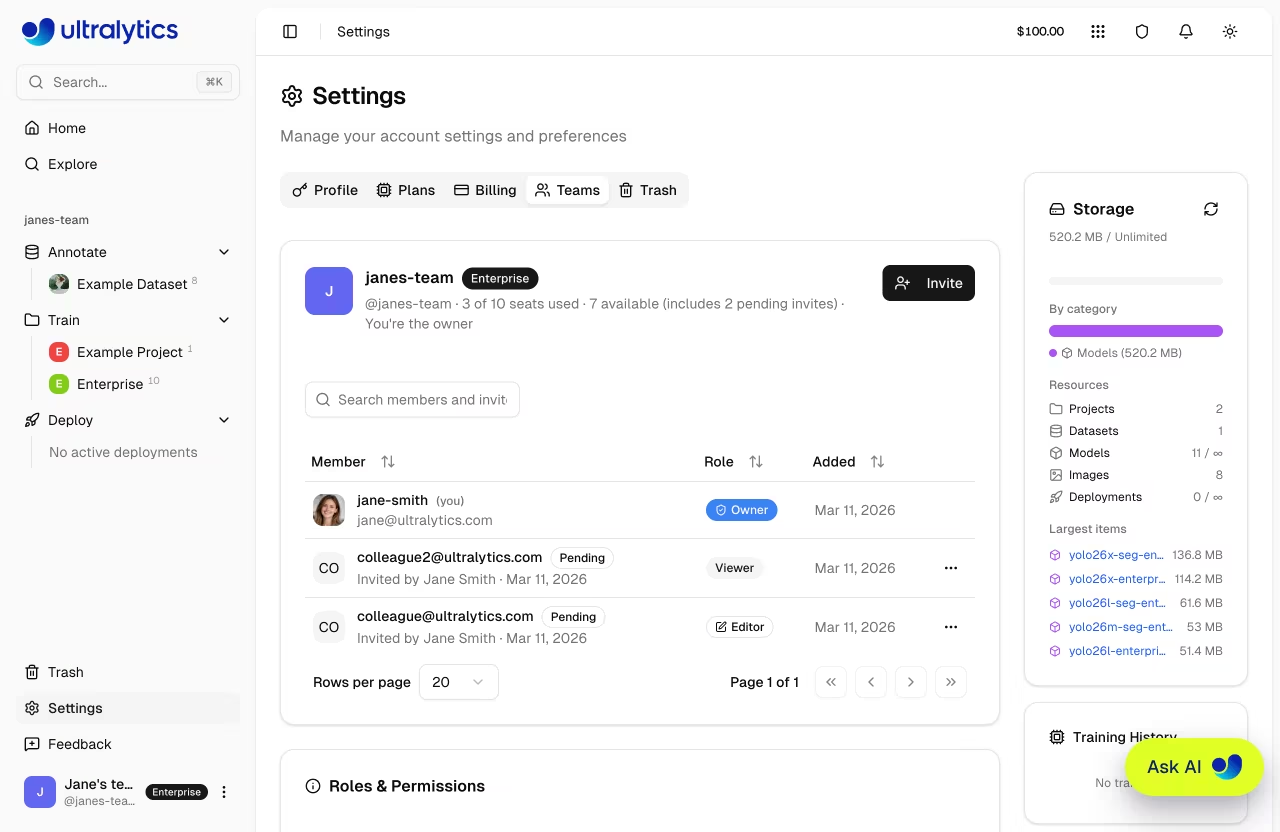
Ultralytics Platform team features enable collaborative computer vision workflows. Create a team workspace to share datasets, projects, models, and deployments with your colleagues using role-based access control.
Overview
Teams allow multiple users to work together under a shared workspace:
- Shared Resources: Datasets, projects, models, and deployments are accessible to all team members
- Role-Based Access: Four roles (Owner, Admin, Editor, Viewer) control what each member can do
- Shared Billing: Team members share the workspace credit balance and resource limits
- Seat Management: Pro teams support up to 5 members, Enterprise teams up to 50
Plan Requirement
Team workspaces require a Pro or Enterprise plan. You can start team setup before upgrading, but the workspace must be on a Pro or Enterprise plan to use team features.
Creating a Team
Create a new team workspace:
- Click on the workspace switcher in the sidebar
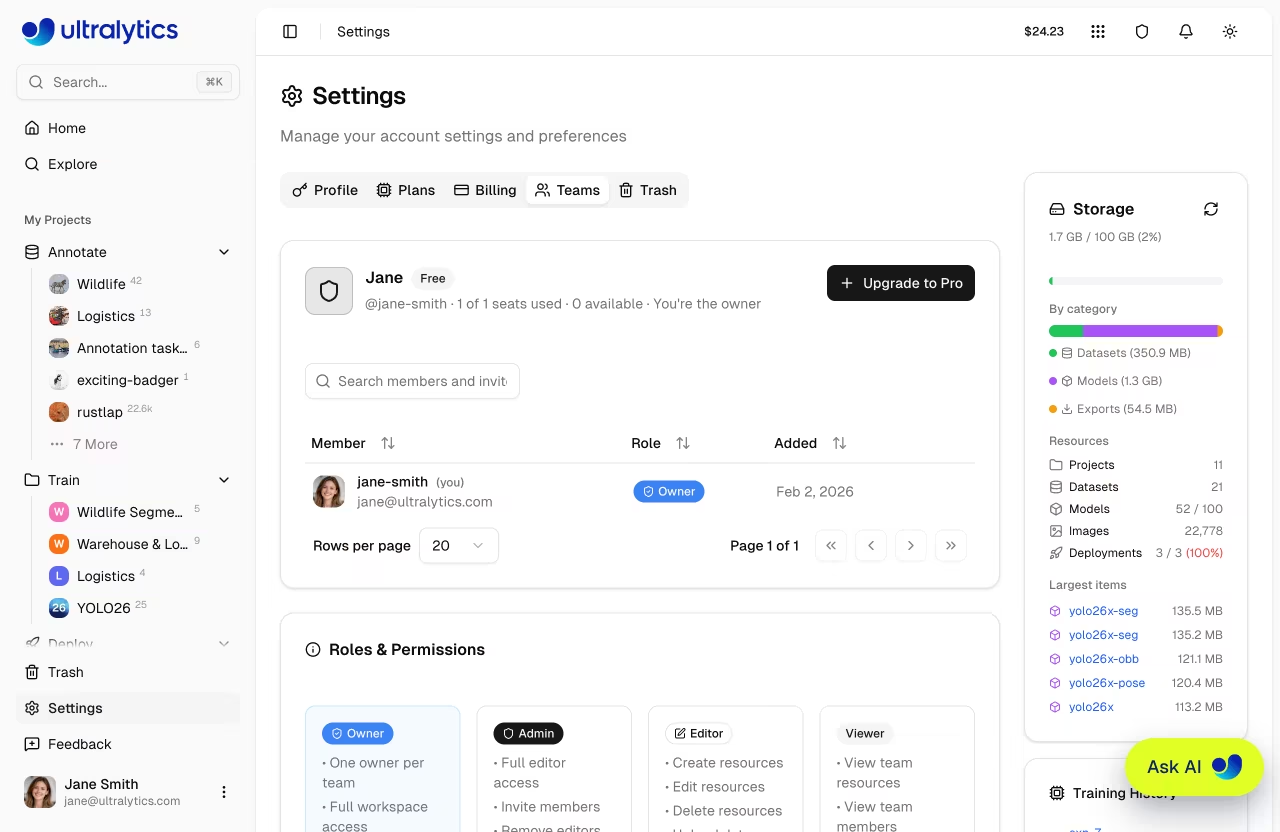
- Click + Create Team to open the Teams tab in Settings
- Click + Upgrade to Pro to open the upgrade dialog
- Enter your team name and username, then complete checkout
Alternatively, upgrade your personal account to Pro first, then create a team from the Teams tab. Once your team is created, you can invite members.
Switching Workspaces
Switch between your personal account and team workspaces using the workspace switcher in the sidebar. All teams you belong to appear in the list.
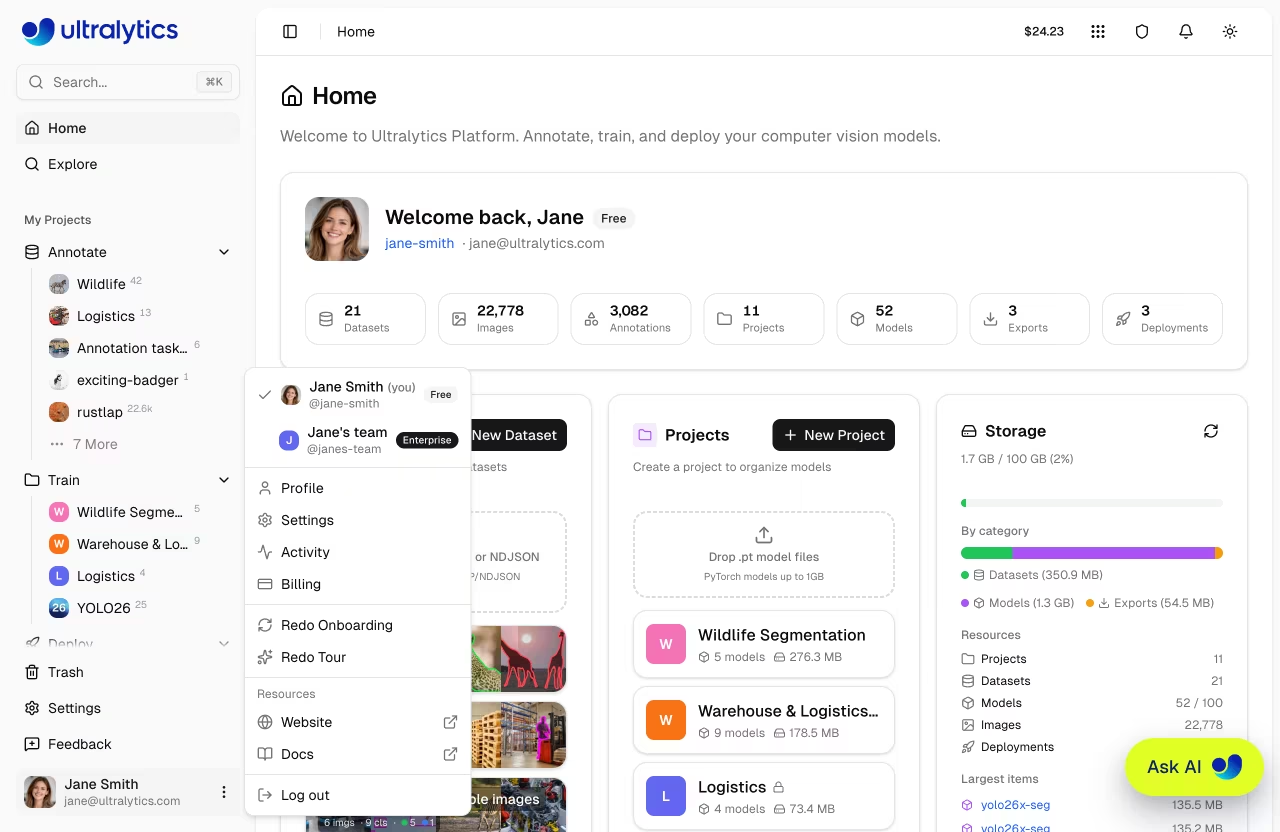
When you switch to a team workspace, all resources you see and create belong to that team. Your personal workspace resources remain separate.
Roles and Permissions
Teams use a four-role hierarchy for access control. Each role inherits all permissions from the roles below it.
| Role | Description |
|---|---|
| Owner | Full control, transfer ownership, assign admin role, remove any member |
| Admin | Invite and remove members, manage billing, create and edit all content |
| Editor | Create and edit projects, datasets, models, start training, deploy |
| Viewer | Read-only access to all team resources |
Single Owner
Each team has exactly one owner. To change the owner, transfer ownership from the Teams tab in Settings. Only the owner can assign or remove the admin role.
Shared Resources
Resources created in a team workspace belong to the team, not the individual. All team members can view projects, datasets, models, and deployments. Editors and above can create and modify resources.
Personal vs Team Resources
Resources in your personal workspace are separate from team workspaces. To share a resource, create it while in the team workspace.
Shared Billing and Limits
Team members share the workspace credit balance and resource limits. All members draw from the same wallet when running cloud training. See Billing for detailed plan limits.
Pro Plan Seat Billing
On the Pro plan, each team member is a paid seat at $29/month (or $290/year, a ~17% saving). Monthly credits of $30/seat are added to the team's shared wallet at the start of every billing cycle.
Inviting Members
Admins and Owners can invite new members to the team:
- Go to Settings > Teams
- Click Invite
- Enter the invitee's email address
- Select a role (Admin, Editor, or Viewer)
- Click Send Invitation
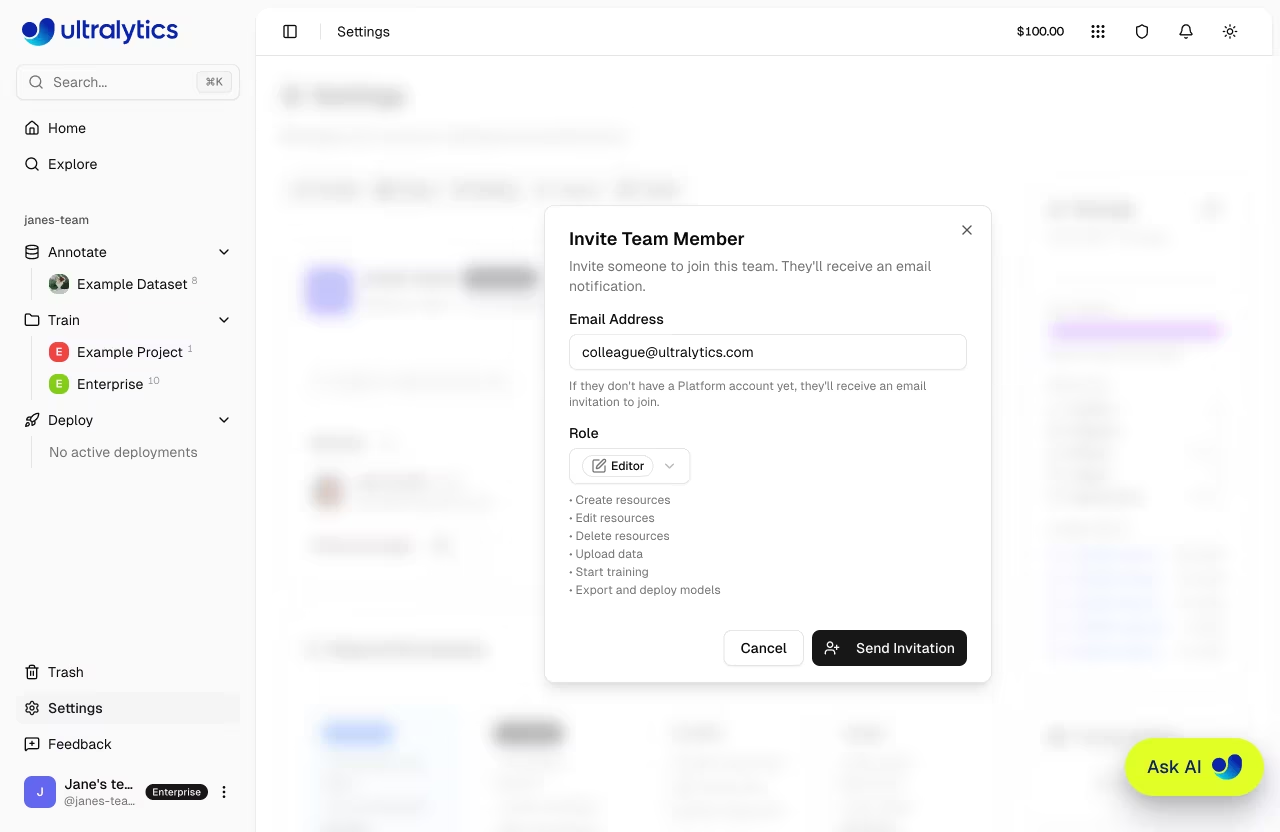
The invitee receives an email invitation with a link to accept and join the team. Invitations remain valid until accepted or canceled. Once accepted, the team workspace appears in the invitee's workspace switcher. If an invite is lost, Resend it from the Teams tab to rotate the token and send a fresh email, or Cancel it to free up the seat.
Admin Invites
Only the team Owner can invite members with the Admin role. Admins can invite Editors and Viewers.
The seat limit includes both active members and pending invitations. If you've reached the limit, remove a member or cancel a pending invite before sending a new one.
Enterprise
Enterprise plans include additional capabilities for organizations with advanced needs, including unlimited resources, commercial licensing, SSO/SAML, and dedicated support. See Billing > Enterprise for the full feature comparison.
License Expiration
If your Enterprise license expires, workspace access is blocked until the license is renewed. See Ultralytics Licensing for details.
Getting Started with Enterprise
Enterprise plans are provisioned by the Ultralytics team. See Ultralytics Licensing for plan details. Once your enterprise configuration is set up, you'll receive a provisioning invite to accept as the team Owner, after which you can invite your team members.
FAQ
Can I be a member of multiple teams?
Yes, you can belong to multiple teams simultaneously. Use the workspace switcher to move between them. Your role may differ in each team.
What happens to team resources if I leave?
Resources you created in the team workspace stay with the team. They are not deleted or transferred to your personal account.
How are credits shared in a team?
All team members share a single credit balance. The Owner and Admins can top up credits and manage billing from Settings > Billing.
How do I upgrade from Pro to Enterprise?
Enterprise pricing and provisioning are handled directly by the Ultralytics team. See Ultralytics Licensing for plan details.


