Ultralytics YOLO26으로 주차 관리 시스템 구축
주차 관리 시스템이란 무엇인가요?#
Ultralytics YOLO26으로 구축한 주차 관리 시스템은 차량을 실시간으로 검출해 주차 공간의 점유 여부를 추적하고, 주차장 전체의 실시간 점유 현황을 보고합니다. YOLO26 객체 검출 기능과 JSON으로 정의한 주차장 레이아웃을 결합해, 단일 동영상 스트림이나 카메라 피드로 전체 주차장을 모니터링할 수 있습니다.
시청: Ultralytics YOLO26으로 주차 관리 시스템을 구축하는 방법 | 실시간 주차 공간 감지 🚗
주차 관리 시스템의 장점#
- 효율성: 주차 공간의 활용도를 최적화하고 주차장 전반의 혼잡을 줄입니다.
- 안전 및 보안: 지속적인 감시를 통해 사람과 차량의 안전을 향상합니다.
- 배출량 감소: 주차장의 공회전 시간과 배출량을 최소화하도록 교통 흐름을 관리합니다.
실제 애플리케이션#
| 주차 관리 시스템 | 주차 관리 시스템 |
|---|---|
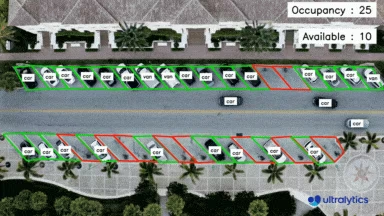 | 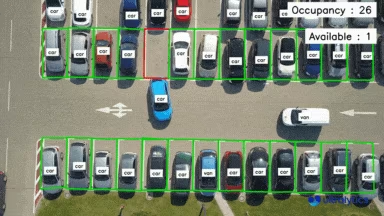 |
| Ultralytics YOLO26을 사용한 주차 관리 항공 뷰 | Ultralytics YOLO26을 사용한 주차 관리 탑 뷰 |
주차 관리 시스템 코드 워크플로#
이제 포인트를 쉽게 선택할 수 있습니다
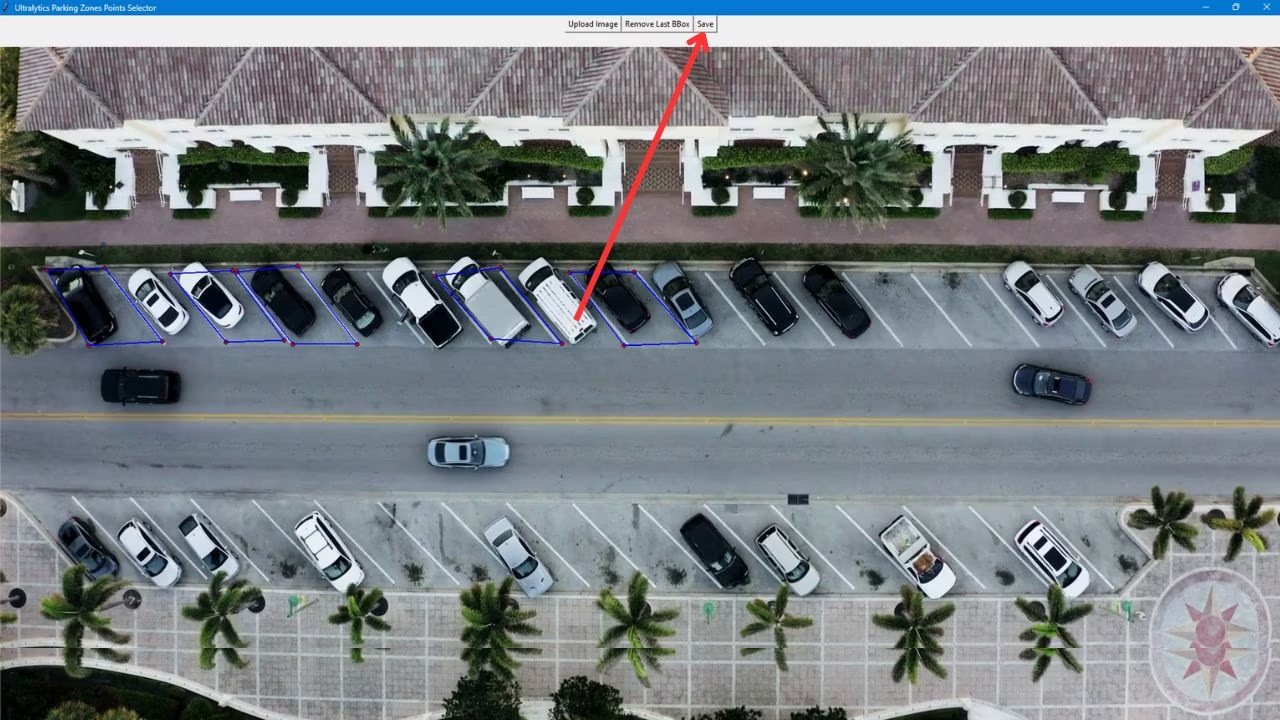
주차 공간을 직접 정의하는 일은 번거롭고 오류가 발생하기 쉽습니다. Ultralytics 주차 슬롯 어노테이터(ParkingPtsSelection)를 사용하면 프레임에 주차 영역을 그리고 저장하여 주차 관리 솔루션에서 사용할 수 있습니다.
1단계: 주차장을 관리하려는 동영상 또는 카메라 스트림에서 프레임을 캡처합니다.
2단계: 제공된 코드를 사용해 그래픽 인터페이스를 실행하고, 이미지를 선택한 후 마우스로 클릭해 다각형을 그리면서 주차 구역의 윤곽을 지정합니다.
`tkinter` 설치를 위한 추가 단계
일반적으로 Python에는 tkinter이 사전 패키징되어 있습니다. 없는 경우 아래 단계에 따라 설치하세요:
- Linux: (Debian/Ubuntu):
sudo apt install python3-tk - Fedora:
sudo dnf install python3-tkinter - Arch:
sudo pacman -S tk - Windows: Python을 다시 설치하고 설치 중 선택적 기능에서
tcl/tk and IDLE확인란을 선택합니다. - macOS: https://www.python.org/downloads/macos/ 또는
brew install python-tk에서 Python을 다시 설치합니다.
from ultralytics import solutions

solutions.ParkingPtsSelection()
3단계: 다각형으로 주차 영역을 정의한 후 save을 클릭해 작업 디렉터리에 데이터를 bounding_boxes.json로 저장합니다. 이 파일명은 아래의 관리 스크립트가 불러오는 파일명과 같습니다.
4단계: 이제 아래 코드를 사용해 주차 관리 솔루션을 실행할 수 있습니다.
import cv2

from ultralytics import solutions

# 동영상 캡처
cap = cv2.VideoCapture("path/to/video.mp4")
assert cap.isOpened(), "Error reading video file"

# 비디오 작성기
w, h, fps = (int(cap.get(x)) for x in (cv2.CAP_PROP_FRAME_WIDTH, cv2.CAP_PROP_FRAME_HEIGHT, cv2.CAP_PROP_FPS))
video_writer = cv2.VideoWriter("parking management.avi", cv2.VideoWriter_fourcc(*"mp4v"), fps, (w, h))

# 주차 관리 객체 초기화
parkingmanager = solutions.ParkingManagement(
    model="yolo26n.pt",  # 모델 파일 경로
    json_file="bounding_boxes.json",  # 주차장 어노테이션 파일 경로
)

while cap.isOpened():
    ret, im0 = cap.read()
    if not ret:
        break

    results = parkingmanager(im0)

    # print(results)  # 출력에 액세스

    video_writer.write(results.plot_im)  # 처리된 프레임을 저장합니다.

cap.release()
video_writer.release()
cv2.destroyAllWindows()  # 열려 있는 모든 창 닫기
ParkingManagement 인수#
다음은 ParkingManagement 인수 표입니다:
| 인수 | 유형 | 기본값 | 설명 |
|---|---|---|---|
model | str | None | Ultralytics YOLO 모델 파일의 경로입니다. |
json_file | str | None | 모든 주차 좌표 데이터가 포함된 JSON 파일의 경로입니다. |
line_width | int | 2 | Solution에서 그리는 상자, 키포인트 및 개수 표시의 선 두께입니다. |
verbose | bool | True | 프레임별 입력 형태, 클래스 개수 및 처리 속도 로그를 활성화합니다. 추적 호출 자체는 항상 로그를 출력하지 않습니다. |
ParkingManagement 솔루션은 여러 track 매개변수를 사용할 수 있습니다.
| 인수 | 유형 | 기본값 | 설명 |
|---|---|---|---|
tracker | str | 'tracktrack.yaml' | 사용할 추적 알고리즘을 지정합니다. 기본 제공 옵션: botsort.yaml, bytetrack.yaml, ocsort.yaml, deepocsort.yaml, fasttrack.yaml, tracktrack.yaml. |
conf | float | 0.25 | 탐지에 대한 신뢰도 임계값을 설정합니다. 값을 낮추면 추적할 수 있는 객체가 늘어나지만 오탐이 포함될 수 있습니다. |
iou | float | 0.5 | 중복 탐지를 필터링하기 위한 교집합 대비 합집합 (IoU) 임계값을 설정합니다. |
classes | list | None | 클래스 인덱스로 결과를 필터링합니다. 예를 들어 classes=[0, 2, 3]은 지정된 클래스만 추적합니다. |
device | str | None | 추론에 사용할 장치를 지정합니다(예: cpu, cuda:0 또는 0). 사용자는 모델 실행에 사용할 CPU, 특정 GPU 또는 기타 연산 장치를 선택할 수 있습니다. |
imgsz | int or tuple | 640 | 추론 대상 이미지 크기입니다. 정사각형을 나타내는 정수 또는 (height, width) 쌍을 지정합니다. 모델 stride에 맞춰 형태가 조정됩니다. |
max_det | int | 300 | 추적 전에 프레임별로 유지할 최대 탐지 수를 지정하여 밀집된 장면에서 솔루션이 처리하는 객체 수를 제한합니다. |
quantize | int or str | None | 추론 정밀도: CPU 이외의 환경에서 PyTorch 및 TorchScript 모델은 16(FP16) 또는 32/unset(FP32)을 사용하며, 다른 형식은 아티팩트와 런타임이 선택하는 정밀도를 사용합니다. 더 이상 사용되지 않는 half 인수를 대체합니다. |
또한 다음 시각화 옵션을 지원합니다.
| 인수 | 유형 | 기본값 | 설명 |
|---|---|---|---|
show | bool | False | True이면 주석이 추가된 이미지나 비디오를 창에 표시합니다. 개발 또는 테스트 중 즉각적인 시각적 피드백을 얻는 데 유용합니다. |
자주 묻는 질문#
Ultralytics YOLO26은 주차 시스템에 실시간 차량 검출 및 모니터링 기능을 제공하여 주차 공간 활용도를 최적화하고, 혼잡을 줄이며, 지속적인 감시로 안전성을 높입니다. 실시간 카메라 피드에서 실행하면 교통 흐름 관리와 차량 공회전 시간 최소화에도 도움이 됩니다. 전체 설정 방법은 주차 관리 시스템 코드 워크플로를 참조하세요.
Ultralytics YOLO26을 스마트 주차에 사용하면 다음과 같은 여러 이점을 얻을 수 있습니다:
- 효율성: 주차 공간의 활용도를 최적화하고 혼잡을 줄입니다.
- 안전 및 보안: 감시 기능을 강화하고 차량과 보행자의 안전을 보장합니다.
- 환경 영향: 차량 공회전 시간을 최소화해 배출량을 줄이는 데 도움이 됩니다. 주차 관리 시스템의 장점 섹션에서 더 많은 이점을 확인하세요.
Ultralytics YOLO26을 사용하면 주차 공간을 간편하게 정의할 수 있습니다.
- 동영상이나 카메라 스트림에서 프레임을 캡처합니다.
- 제공된 코드를 사용해 이미지를 선택하고 주차 공간을 정의하는 다각형을 그릴 수 있는 GUI를 실행하세요.
- 레이블이 지정된 데이터를 JSON 형식으로 저장하여 후속 처리에 활용합니다.
주차장별로 가장 중요한 설정은
json_file입니다. 포인트 어노테이터로 생성한 주차 구역 JSON을 이 설정에 지정하면 새 레이아웃에 맞게 솔루션을 조정할 수 있습니다. 다른 인수를 통해 추가로 조정할 수도 있습니다. 사용자 지정 학습한 검출기를 지정하려면model을 설정하고, 특정 차량classes만 검출하도록 제한하고,conf및iou임계값을 조정하고,tracker을 전환하고,line_width을 사용해 프레임 내 라벨과 점유 현황 표시의 크기를 조정하거나, 추론device를 선택할 수 있습니다. 구역 기반 모니터링에 관한 자세한 내용은 객체 계산 가이드를 참조하세요.Ultralytics YOLO26은 주차장 관리를 비롯한 다양한 실제 애플리케이션에서 사용됩니다:
- 주차 공간 감지: 비어 있는 공간과 점유된 공간을 정확하게 식별합니다.
- 감시: 실시간 모니터링을 통해 보안을 강화합니다.
- 교통 흐름 관리: 효율적인 교통 처리를 통해 공회전 시간과 혼잡을 줄입니다. 이러한 응용 사례를 보여 주는 이미지는 실제 응용 사례에서 확인할 수 있습니다.


댓글122
질문을 하거나 결과를 공유하거나 다른 사람을 도와주세요.
ilyasKerrouche
Hi , when i run the first script i get this error:
File "C:\Users\explo\miniconda3\Lib\site-packages\ultralytics\solutions\parking_management.py", line 71, in upload_image self.canvas.config(width=canvas_width, height=canvas_height) ^^^^^^^^^^^^^^^^^^ AttributeError: 'NoneType' object has no attribute 'config'
How can i solve?
2 Paula DerrengerUltralytics
Hey there! 😊 It looks like you might be encountering an issue due to the
self.canvasobject not being correctly initialized, leading to aNoneTypeerror when you try to use itsconfigmethod.A common reason for this could be that the creation or initialization of the
canvasobject didn't happen as expected beforeupload_imageis called in your script. Double-check to ensure that thecanvasobject is instantiated properly within your class or function before you callupload_image. Here's an example snippet for initializing a canvas in Tkinter:import tkinter as tk class YourClass: def __init__(self, root): # Assuming self.canvas is being created here self.canvas = tk.Canvas(root, width=600, height=400) self.canvas.pack() def upload_image(self): # Your existing logic here pass # Make sure to create an instance of your class and initialize properly root = tk.Tk() app = YourClass(root) root.mainloop()Make sure you've correctly initialized the
canvasbefore trying to configure it. If this doesn't solve your issue, it might help to share more context around how and where you're creating thecanvasobject.Hope this helps, and feel free to reach out if you have more questions!
netpbcl
def upload_image(self): """Upload an image and resize it to fit canvas.""" self.image_path = filedialog.askopenfilename(filetypes=[("Image Files", ".png;.jpg;*.jpeg")]) if not self.image_path: return
self.image = Image.open(self.image_path) self.img_width, self.img_height = self.image.size # Calculate the aspect ratio and resize image aspect_ratio = self.img_width / self.img_height if aspect_ratio > 1: # Landscape orientation canvas_width = min(self.canvas_max_width, self.img_width) canvas_height = int(canvas_width / aspect_ratio) else: # Portrait orientation canvas_height = min(self.canvas_max_height, self.img_height) canvas_width = int(canvas_height * aspect_ratio) # Check if canvas is already initialized if self.canvas: self.canvas.destroy() # Destroy previous canvas self.canvas = tk.Canvas(self.master, bg="white", width=canvas_width, height=canvas_height) self.canvas.pack(side=tk.BOTTOM) self.canvas.bind("<Button-1>", self.on_canvas_click) resized_image = self.image.resize((canvas_width, canvas_height), Image.LANCZOS) self.canvas_image = ImageTk.PhotoImage(resized_image) self.canvas.create_image(0, 0, anchor=tk.NW, image=self.canvas_image) # Reset bounding boxes and current box self.bounding_boxes = [] self.current_box = []1- Paula DerrengerUltralytics
Hi there! It looks like you're encountering an issue where the
canvasobject hasn't been properly initialized before attempting to configure it. Make sure that thecanvasis being created and is notNonewhen you try to configure its properties.Here's a quick check you can add right before you configure the
canvas:if self.canvas is None: print("Canvas not initialized.") else: self.canvas.config(width=canvas_width, height=canvas_height)This snippet helps pinpoint whether the
canvasis indeed initialized at that point. If you see "Canvas not initialized.", you'll need to trace back in your code whereself.canvasshould have been set and ensure this happens beforeupload_image()is called.Check the placement of your
canvasinitialization and make sure it is executed in the right order. Maybe moving thecanvascreation to your class initializer (__init__) if it's not already there could help!Hope this helps you debug the issue! Let me know if there's anything else I can assist you with. 😊
Hello! I suggest to fix the uplad_image function like this: `
      def upload_image(self):
              """Upload an image and resize it to fit canvas."""


              self.image_path = filedialog.askopenfilename(filetypes=[("Image Files", "*.png;*.jpg;*.jpeg")])
              if not self.image_path:
                  return

              self.image = Image.open(self.image_path)
              self.img_width, self.img_height = self.image.size

              # Calculate the aspect ratio and resize image
              aspect_ratio = self.img_width / self.img_height
              if aspect_ratio > 1:
                  # Landscape orientation
                  canvas_width = min(self.canvas_max_width, self.img_width)
                  canvas_height = int(canvas_width / aspect_ratio)
              else:
                  # Portrait orientation
                  canvas_height = min(self.canvas_max_height, self.img_height)
                  canvas_width = int(canvas_height * aspect_ratio)

             # Setup canvas for image display
              self.canvas = tk.Canvas(self.master, bg="white", width=canvas_width, height=canvas_height)
              self.canvas.pack(side=tk.BOTTOM)
              self.canvas.bind("<Button-1>", self.on_canvas_click)


              self.canvas.config(width=canvas_width, height=canvas_height)
              resized_image = self.image.resize((canvas_width, canvas_height), Image.LANCZOS)
              self.canvas_image = ImageTk.PhotoImage(resized_image)
              self.canvas.create_image(0, 0, anchor=tk.NW, image=self.canvas_image)

              # Reset bounding boxes and current box
              self.bounding_boxes = []
              self.current_box = []`
And i tested the code with this video
But the model is not recognizing the cars (cup, microwave ecc instead)
Do you have some videos template to test the code?
- Paula DerrengerUltralytics(수정됨)
@eXplosive57 hello! Thanks for sharing your updated
upload_imagefunction and the scenario you're experimenting with. I appreciate your attention to detail. 😊Regarding the issue of the model not recognizing cars correctly and identifying other objects like cups or microwaves instead, it sounds like it might be a case of model misclassification, which can be due to a variety of factors:
- Model Training: The model may not be trained sufficiently on images similar to those in your video. Consider retraining the model with a more representative dataset of parking lot images.
- Quality and Size of the Input Images: Make sure the images are clear and of sufficient resolution. YOLO models generally perform better with higher-resolution inputs.
- Model Configuration: Check if the right configuration and weights are being used. Ensure that the model is set up to detect objects relevant to parking management.
For testing purposes, you can use standard traffic or parking lot videos which are often used in object detection benchmarks, or you can capture your own dataset from typical parking areas. Here is an example of initializing and using the parking management model:
import cv2

from ultralytics import solutions

# Video capture
cap = cv2.VideoCapture("path/to/your/video.mp4")
assert cap.isOpened(), "Error reading video file"

# Initialize parking management object (json_file is the file created with the point selection tool)
management = solutions.ParkingManagement(model="yolo26n.pt", json_file="path/to/your/bounding_boxes.json")

while cap.isOpened():
    ret, im0 = cap.read()
    if not ret:
        break

    results = management(im0)
    cv2.imshow("Parking Management", results.plot_im)
    cv2.waitKey(1)

cap.release()
cv2.destroyAllWindows()
This setup should help you streamline the detection process. If the issue persists, try fine-tuning the detection model or adjusting the confidence and IOU thresholds. Let me know how it goes or if you need further assistance!
RizwanMunawar
Thank you, @eXplosive57, for providing the prompt solution! I've been able to replicate the issue and will address it promptly. Regarding the model, training it on the visdrone dataset could enhance its ability to detect objects in drone or aerial views. Thanks
VisDrone Dataset Docs: https://docs.ultralytics.com/datasets/detect/visdrone/
Thanks for your answers! @muhammadrizwanmunawar @pderrenger
1@eXplosive57 This issue has been resolved! You can utilize the parking management system by installing the latest ultralytics PYPI package using the command mentioned below!
pip install ultralyticsThanks!
mattiarainieri
Using the ParkingPtsSelection method, and trying to click the Upload image button, this exception is traced and the executable crash.
The platform is macOS. The problem seems to be involved with some Apple library.
*** Terminating app due to uncaught exception 'NSInvalidArgumentException', reason: '*** -[__NSArrayM insertObject:atIndex:]: object cannot be nil'
*** First throw call stack:
(
        0   CoreFoundation                      0x000000019b8e22ec __exceptionPreprocess + 176
        1   libobjc.A.dylib                     0x000000019b3c6158 objc_exception_throw + 60
        2   CoreFoundation                      0x000000019b80d934 -[__NSArrayM insertObject:atIndex:] + 1288
        3   libtk8.6.dylib                      0x00000001414d1964 setAllowedFileTypes + 176
        4   libtk8.6.dylib                      0x00000001414d2370 Tk_GetOpenFileObjCmd + 1408
        5   libtcl8.6.dylib                     0x000000014114fe24 TclNRRunCallbacks + 80
        6   _tkinter.cpython-312-darwin.so      0x0000000117e9c5dc Tkapp_Call + 488
        7   Python                              0x00000001052e66f4 cfunction_call + 108
        8   Python                              0x00000001052959ac _PyObject_Call + 124
        9   Python                              0x000000010538abf8 _PyEval_EvalFrameDefault + 50272
        10  Python                              0x0000000105297d5c method_vectorcall + 372
        11  Python                              0x000000010538abf8 _PyEval_EvalFrameDefault + 50272
        12  Python                              0x0000000105297d5c method_vectorcall + 372
        13  _tkinter.cpython-312-darwin.so      0x0000000117ea14c4 PythonCmd + 208
        14  libtcl8.6.dylib                     0x000000014114fe24 TclNRRunCallbacks + 80
        15  libtk8.6.dylib                      0x00000001414540c4 ButtonWidgetObjCmd + 436
        16  libtcl8.6.dylib                     0x000000014114fe24 TclNRRunCallbacks + 80
        17  libtcl8.6.dylib                     0x0000000141150ba4 TclEvalEx + 1664
        18  libtk8.6.dylib                      0x0000000141428e98 Tk_BindEvent + 4316
        19  libtk8.6.dylib                      0x000000014142e904 TkBindEventProc + 328
        20  libtk8.6.dylib                      0x00000001414361c4 Tk_HandleEvent + 804
        21  libtk8.6.dylib                      0x0000000141436828 WindowEventProc + 112
        22  libtcl8.6.dylib                     0x00000001411fc4d8 Tcl_ServiceEvent + 136
        23  libtcl8.6.dylib                     0x00000001411fc6fc Tcl_DoOneEvent + 136
        24  _tkinter.cpython-312-darwin.so      0x0000000117e9ef64 _tkinter_tkapp_mainloop + 392
        25  Python                              0x00000001052a0c30 method_vectorcall_FASTCALL + 112
        26  Python                              0x000000010538919c _PyEval_EvalFrameDefault + 43524
        27  Python                              0x0000000105294ab8 _PyObject_FastCallDictTstate + 96
        28  Python                              0x000000010530b010 slot_tp_init + 212
        29  Python                              0x00000001053022e8 type_call + 148
        30  Python                              0x0000000105294c94 _PyObject_MakeTpCall + 128
        31  Python                              0x00000001053892fc _PyEval_EvalFrameDefault + 43876
        32  Python                              0x000000010537e528 PyEval_EvalCode + 184
        33  Python                              0x00000001053dfb60 run_eval_code_obj + 88
        34  Python                              0x00000001053ddbf8 run_mod + 132
        35  Python                              0x00000001053dd108 pyrun_file + 156
        36  Python                              0x00000001053dc4e8 _PyRun_SimpleFileObject + 288
        37  Python                              0x00000001053dc134 _PyRun_AnyFileObject + 80
        38  Python                              0x0000000105400f50 pymain_run_file_obj + 164
        39  Python                              0x0000000105400cc8 pymain_run_file + 72
        40  Python                              0x0000000105400250 Py_RunMain + 764
        41  Python                              0x0000000105400740 pymain_main + 304
        42  Python                              0x00000001054007e0 Py_BytesMain + 40
        43  dyld                                0x000000019b403154 start + 2476
)
libc++abi: terminating due to uncaught exception of type NSException
zsh: abort      python3 parking-selector.py
1 Glenn JocherUltralytics
@mattiarainieri thank you for reporting this issue. It appears to be related to macOS-specific library interactions. Please ensure you are using the latest version of the Ultralytics package. If the issue persists, consider running the code on a different platform or environment. For further assistance, you can refer to our parking management guide.
prasadjaywant
When tried to execute {from ultralytics import solutions solutions.ParkingPtsSelection()} , getting following messages;
[ requirements: Ultralytics requirement ['tkinter'] not found, attempting AutoUpdate... ERROR: Could not find a version that satisfies the requirement tkinter (from versions: none) ERROR: No matching distribution found for tkinter Retry 1/2 failed: Command 'pip install --no-cache-dir "tkinter" ' returned non-zero exit status 1. ERROR: Could not find a version that satisfies the requirement tkinter (from versions: none) ERROR: No matching distribution found for tkinter Retry 2/2 failed: Command 'pip install --no-cache-dir "tkinter" ' returned non-zero exit status 1. requirements: ❌ Command 'pip install --no-cache-dir "tkinter" ' returned non-zero exit status 1.]
Please can you help anything needed to install tkinter? Thanks for your attention!
1Additional notes: OS - Windows 11 Home, I noticed that tkinter library files are available in the C:\Python312\Lib\tkinter directory. Env PATH variable is defined as C:\Python312. I tried the steps mentioned by pderrenger in the trail below. Still it is looking for tkinter package to install and produces the error when ParkingPtsSelection() is executed. Is Annotator tool GUI is directly available (like in Roboflow or similar tools) so that we can create polygonic annotations externally, save the file as bounding_boxes.json and carry out the model execution skipping call to the ParkingPtsSelection()?
- Glenn JocherUltralytics(수정됨)
@prasadjaywant hello!
Thank you for reaching out and providing detailed information about your setup and the issue you're encountering. It appears that the
tkinterlibrary is not being recognized by your Python environment, which is necessary for theParkingPtsSelectiontool to function.Steps to Resolve the Issue:
-
Verify
tkinterInstallation: Sincetkinteris included with standard Python installations, it should be available. However, it might not be installed by default in some environments. You can try installing it manually:sudo apt-get install python3-tkFor Windows,
tkintershould be included with the Python installer. Ensure that your Python installation is complete and includes all optional components. -
Check Python Path: Ensure that your Python environment is correctly set up and that the
tkinterlibrary is in the correct path. You can verify this by running:import tkinter print(tkinter.__file__)This should print the path to the
tkintermodule. If it doesn't, there might be an issue with your Python installation. -
Alternative Annotation Tools: If you continue to face issues with
tkinter, you can use external tools like Roboflow to create polygonal annotations. Once you have created the annotations, save them asbounding_boxes.jsonand proceed with the parking management workflow.
Example Workflow Without
ParkingPtsSelection:-
Create Annotations Externally: Use an external tool to create polygonal annotations and save them as
bounding_boxes.json. -
Run Parking Management: Use the following code to execute the parking management system:
import cv2

from ultralytics import solutions

# Video capture
cap = cv2.VideoCapture("Path/to/video/file.mp4")
assert cap.isOpened(), "Error reading video file"
w, h, fps = (int(cap.get(x)) for x in (cv2.CAP_PROP_FRAME_WIDTH, cv2.CAP_PROP_FRAME_HEIGHT, cv2.CAP_PROP_FPS))

# Video writer
video_writer = cv2.VideoWriter("parking_management.avi", cv2.VideoWriter_fourcc(*"mp4v"), fps, (w, h))

# Initialize parking management object (json_file is the file created with the point selection tool)
management = solutions.ParkingManagement(model="yolo26n.pt", json_file="bounding_boxes.json")

while cap.isOpened():
    ret, im0 = cap.read()
    if not ret:
        break

    results = management(im0)
    video_writer.write(results.plot_im)

cap.release()
video_writer.release()
cv2.destroyAllWindows()
For more detailed guidance, please refer to our Parking Management Guide.
If you continue to experience issues, please ensure you are using the latest versions of
torchandultralytics. You can update them using:pip install --upgrade torch ultralyticsFeel free to reach out if you have any further questions or need additional assistance. We're here to help! 😊
-
Thanks glenn-jocher for your effort to look into the problem. The issue with functioning of ParkingPtsSelection tool persists after trying the steps. I tried on local machine as well as in Google Colab. The same error message while installing tkinter appears in both environments.
I did try with roboflow Annotator tool approach and exported the annotated images dataset using COCO JSON format and renamed it as bounding_boxes.json as stated. However, it produces new error as follows while running the Parking Management code as above; " File "..\parking_management.py", line 226, in process_data points = region["points"] ~~~~~~^^^^^^^^^^ TypeError: string indices must be integers, not 'str' . " I think not sure, but some tweaking may be required in JSON file. Please suggest. Thanks again for your help!
- Glenn JocherUltralytics(수정됨)
Hello @prasadjaywant,
Thank you for your detailed follow-up. I'm sorry to hear that the issue with
ParkingPtsSelectionpersists. Let's address the new error you're encountering with the JSON file.JSON File Format
It seems like the JSON format exported from Roboflow might not be directly compatible with the expected format in our
ParkingManagementsystem. The errorTypeError: string indices must be integers, not 'str'suggests that the JSON structure might need some adjustments.Expected JSON Structure
The
ParkingManagementsystem expects a specific structure for the JSON file. Here is an example of the expected format:[ { "region_id": 1, "points": [ [x1, y1], [x2, y2], [x3, y3], [x4, y4] ] }, { "region_id": 2, "points": [ [x1, y1], [x2, y2], [x3, y3], [x4, y4] ] } ]Each region needs a list of
pointsdefining the polygon (extra fields such asregion_idare ignored).Adjusting the JSON File
You can manually adjust the JSON file to match the expected format. Here's a Python snippet to help you convert the COCO JSON format to the required format:
import json

# Load the COCO JSON file
with open('bounding_boxes.json', 'r') as f:
    coco_data = json.load(f)

# Convert to the required format
parking_regions = []
for i, annotation in enumerate(coco_data['annotations']):
    region = {
        "region_id": i + 1,
        "points": annotation['segmentation'][0]  # Assuming segmentation points are in the correct format
    }
    parking_regions.append(region)

# Save the new JSON file
with open('parking_regions.json', 'w') as f:
    json.dump(parking_regions, f, indent=4)
Running the Parking Management Code
After adjusting the JSON file, you can proceed with the parking management code:
import cv2

from ultralytics import solutions

# Video capture
cap = cv2.VideoCapture("Path/to/video/file.mp4")
assert cap.isOpened(), "Error reading video file"
w, h, fps = (int(cap.get(x)) for x in (cv2.CAP_PROP_FRAME_WIDTH, cv2.CAP_PROP_FRAME_HEIGHT, cv2.CAP_PROP_FPS))

# Video writer
video_writer = cv2.VideoWriter("parking_management.avi", cv2.VideoWriter_fourcc(*"mp4v"), fps, (w, h))

# Initialize parking management object (json_file is the file created with the point selection tool)
management = solutions.ParkingManagement(model="yolo26n.pt", json_file="parking_regions.json")

while cap.isOpened():
    ret, im0 = cap.read()
    if not ret:
        break

    results = management(im0)
    video_writer.write(results.plot_im)

cap.release()
video_writer.release()
cv2.destroyAllWindows()
Additional Resources
For more detailed guidance, please refer to our Parking Management Guide.
If you continue to experience issues, please ensure you are using the latest versions of
torchandultralytics. You can update them using:pip install --upgrade torch ultralyticsFeel free to reach out if you have any further questions or need additional assistance. We're here to help! 😊
That's brilliant glenn-jocher. The code absolutely worked good for the conversion. COCO JSON and Parking Regions JSON are quite different. I could also run main code and produced 'parking management.avi'. Some miss-outs and misrepresentation of 'Points of Interest' has happened in the .avi, which I would now probe into. But that's not point of query at the moment. Thanks for your great help. Will keep in touch......
1Dear @glenn-jocher,
Greetings.
We tried the simplest model of Instance Segmentation (yolov8n-seg.pt) as per snippet on the guide page; https://docs.ultralytics.com/guides/instance-segmentation-and-tracking/#samples. We used 2 video paths below viz. https://videos.pexels.com/video-files/5587732/5587732-hd_1280_720_30fps.mp4 and https://videos.pexels.com/video-files/3858833/3858833-hd_1280_720_24fps.mp4 as a source in the snippet. However we couldn't see results as expected. There isn't much for user to parameterize in the code except the video path. Minimum expected results are as follows;
- Every parked or moving vehicle to be marked as 'Car' if not further possible to segment them into subclasses such as 'Truck', 'Van' etc.
- Some movement of people is also seen in the video. Those entities need also to be marked as 'Person' label.
- Other entities such as 'Pet', 'Shop Trolley' etc. that could be possible near a park area, should be in the training data set.
- A few incorrect identities such as 'Board', 'Clock', 'Toilet' were appearing in the generated .avi. These need to be eliminated.
- Query - Is it possible to parameterize yolov8n-seg.pt for desired class labels so that epoch over hundreds of unrelated classes could be saved. Model could then efficiently run only for possible classes in the subject domain. For example in Parking Management use case, classes such as 'Car', 'Van', 'Truck', 'Person', 'Pet', 'Shopping Cart', 'Bag', 'Box and 'Other' could be relevant and be given as label parameters to the model. Rest hundreds of class labels may be irrelevant in this case.
Please help suggest a way to achieve the expected results as above. Thanks for your attention.....
- Glenn JocherUltralytics(수정됨)
Hello @prasadjaywant,
Thank you for reaching out and providing detailed information about your use case and the issues you're encountering. Let's address your concerns step-by-step.
1. Expected Results for Vehicle and Person Detection
To ensure that vehicles and people are correctly identified, please verify that you are using the latest versions of
torchandultralytics. You can update them using:pip install --upgrade torch ultralytics2. Incorrect Class Labels
To filter out irrelevant classes and focus on specific ones like 'Car', 'Van', 'Truck', 'Person', etc., you can use the
classesargument ofParkingManagement. Here’s an example:management = solutions.ParkingManagement(model="yolo26n.pt", json_file="bounding_boxes.json", classes=[0, 1, 2, 3, 15, 16, 17])Replace the class indices with the ones relevant to your use case.
3. Customizing the Model for Specific Classes
If you want to train the model to recognize only specific classes, you can fine-tune the model on a custom dataset that includes only those classes. This will help in reducing the number of epochs and improving efficiency. You can create a custom dataset and train the model as follows:
from ultralytics import YOLO

# Load a model
model = YOLO('yolo26n.pt')  # Load a pretrained model

# Train the model on your custom dataset
model.train(data='path/to/custom_dataset.yaml', epochs=50, imgsz=640)
Ensure your custom dataset YAML file is properly configured with the relevant classes.
4. Handling Incorrect Identifications
To handle incorrect identifications, you can adjust the
confandiouarguments ofParkingManagement. Increasing the confidence threshold can help reduce false positives:management = solutions.ParkingManagement(model="yolo26n.pt", json_file="bounding_boxes.json", conf=0.5, iou=0.6)Example Code
Here’s a revised version of your code snippet incorporating the above suggestions:
import cv2

from ultralytics import solutions

# Video capture
cap = cv2.VideoCapture("Path/to/video/file.mp4")
assert cap.isOpened(), "Error reading video file"
w, h, fps = (int(cap.get(x)) for x in (cv2.CAP_PROP_FRAME_WIDTH, cv2.CAP_PROP_FRAME_HEIGHT, cv2.CAP_PROP_FPS))

# Video writer
video_writer = cv2.VideoWriter("parking_management.avi", cv2.VideoWriter_fourcc(*"mp4v"), fps, (w, h))

# Initialize parking management object (json_file is the file created with the point selection tool)
management = solutions.ParkingManagement(model="yolo26n.pt", json_file="bounding_boxes.json", classes=[0, 1, 2, 3, 15, 16, 17], conf=0.5, iou=0.6)

while cap.isOpened():
    ret, im0 = cap.read()
    if not ret:
        break

    results = management(im0)
    video_writer.write(results.plot_im)

cap.release()
video_writer.release()
cv2.destroyAllWindows()
For more detailed guidance, please refer to our Parking Management Guide.
Feel free to reach out if you have any further questions or need additional assistance. We're here to help! 😊
Thanks @glenn-jocher and @[pderrenger] for your quick help. My further working is summarized as follows. Observations:
- Parking Annotator persists the 'tkinter not found error'. But surprisingly UI widget opens up, it accepts image for upload, allows polygonic annotations and creates bounding_boxes.json successfully as enclosed below.
- For annotation image was created out of one of the frames in the video.
- All code runs successfully. It's executed with pretrained model as-is. No customization with any new dataset is done yet.
- .avi is generated.
- Seemingly followed all steps and also the pip install --upgrade torch ultralytics.
- However, no single object detection/segmentation label is generated during the processing and final .avi. The Python code execution was performed on local CPU and also in Google Colab. Same behavior is observed on both.
- Are we missing something or anything not in order? The case was tried with 1 more video https://videos.pexels.com/video-files/3858833/3858833-hd_1280_720_24fps.mp4 and relevant bounding_boxes points. Result is same.
bounding_boxes_5587732-hd_1280_720_30fps.json:
[ { "points": [ [ 293, 129 ], [ 375, 128 ], [ 375, 159 ], [ 293, 161 ] ] }, { "points": [ [ 291, 195 ], [ 373, 195 ], [ 373, 225 ], [ 290, 225 ] ] }, { "points": [ [ 1214, 144 ], [ 1291, 140 ], [ 1293, 170 ], [ 1209, 173 ] ] }, { "points": [ [ 1315, 367 ], [ 1384, 368 ], [ 1383, 397 ], [ 1315, 395 ] ] }, { "points": [ [ 1297, 591 ], [ 1368, 591 ], [ 1368, 622 ], [ 1296, 619 ] ] }, { "points": [ [ 1770, 368 ], [ 1837, 367 ], [ 1839, 392 ], [ 1768, 394 ] ] }, { "points": [ [ 946, 442 ], [ 980, 440 ], [ 983, 504 ], [ 948, 500 ] ] } ]
import cv2 from ultralytics import solutions
Path to json file created with an external tool
polygon_json_path = "bounding_boxes_5587732-hd_1280_720_30fps.json"
Video capture
cap = cv2.VideoCapture("https://videos.pexels.com/video-files/5587732/5587732-hd_1280_720_30fps.mp4") assert cap.isOpened(), "Error reading video file" w, h, fps = (int(cap.get(x)) for x in (cv2.CAP_PROP_FRAME_WIDTH, cv2.CAP_PROP_FRAME_HEIGHT, cv2.CAP_PROP_FPS))
Video writer
video_writer = cv2.VideoWriter("parking_management_5587732-hd_1280_720_30fps.avi", cv2.VideoWriter_fourcc(*"mp4v"), fps, (w, h))
Initialize parking management object
management = solutions.ParkingManagement(model_path="yolov8n-seg.pt") ''' management = solutions.ParkingManagement( model_path="yolov8n-seg.pt", txt_color=(0, 0, 0), bg_color=(255, 255, 255), occupied_region_color=(0, 255, 0), available_region_color=(0, 0, 255), margin=10 ) '''
while cap.isOpened(): ret, im0 = cap.read() if not ret: breakjson_data = management.parking_regions_extraction(polygon_json_path) results = management.model.track(im0, persist=True, show=False, classes=[0, 1, 2, 3, 7], conf=0.5, iou=0.6)classes=[0-person, 1-bicycle, 2-car, 3-motorcycle, 7-truck, 15-cat, 16-dog, 17-horse, 26-handbag, 28-suitcase]
if results[0].boxes.id is not None:
    boxes = results[0].boxes.xyxy.cpu().tolist()
    clss = results[0].boxes.cls.cpu().tolist()
    management.process_data(json_data, im0, boxes, clss)

management.display_frames(im0)
video_writer.write(im0)
cap.release() video_writer.release() cv2.destroyAllWindows()
- Glenn JocherUltralytics(수정됨)
Hello @prasadjaywant,
Thank you for your detailed summary and for providing the JSON file and code snippet. Let's address the issues you're encountering:
Observations and Issues:
tkinterError: It's good to know that despite the error, the UI widget opens and functions correctly. This might be a minor issue with the environment setup but doesn't seem to affect the functionality.- No Object Detection/Segmentation Labels: The main issue appears to be that no objects are being detected or segmented in your video.
Steps to Resolve:
-
Verify Model and Dependencies: Ensure you are using the latest versions of
torchandultralytics. You can update them using:pip install --upgrade torch ultralytics -
Check Class Labels: Ensure that the class labels you are filtering for are correct. The COCO dataset class indices are as follows:
- 0: 'person'
- 1: 'bicycle'
- 2: 'car'
- 3: 'motorcycle'
- 7: 'truck'
- 15: 'cat'
- 16: 'dog'
- 17: 'horse'
- 26: 'handbag'
- 28: 'suitcase'
Make sure these indices match the classes you expect in your video.
-
Adjust Confidence and IoU Thresholds: Sometimes, adjusting the confidence and IoU thresholds can help in detecting objects more accurately. You can try lowering the confidence threshold to see if it helps:
management = solutions.ParkingManagement(model="yolo26n.pt", json_file="bounding_boxes.json", classes=[0, 1, 2, 3, 7], conf=0.3, iou=0.5) -
Debugging: Add some print statements to check if any detections are being made:
results = management(im0)
print(f"Detected boxes: {management.boxes}")
print(f"Detected classes: {management.clss}")
Example Code:
Here’s the revised code snippet incorporating the above suggestions:
import cv2

from ultralytics import solutions

# Video capture
cap = cv2.VideoCapture("https://videos.pexels.com/video-files/5587732/5587732-hd_1280_720_30fps.mp4")
assert cap.isOpened(), "Error reading video file"
w, h, fps = (int(cap.get(x)) for x in (cv2.CAP_PROP_FRAME_WIDTH, cv2.CAP_PROP_FRAME_HEIGHT, cv2.CAP_PROP_FPS))

# Video writer
video_writer = cv2.VideoWriter("parking_management_5587732-hd_1280_720_30fps.avi", cv2.VideoWriter_fourcc(*"mp4v"), fps, (w, h))

# Initialize parking management object (json_file is the file created with the point selection tool)
management = solutions.ParkingManagement(model="yolo26n.pt", json_file="bounding_boxes_5587732-hd_1280_720_30fps.json", classes=[0, 1, 2, 3, 7], conf=0.3, iou=0.5)

while cap.isOpened():
    ret, im0 = cap.read()
    if not ret:
        break

    results = management(im0)
    print(f"Detected boxes: {management.boxes}")
    print(f"Detected classes: {management.clss}")
    video_writer.write(results.plot_im)

cap.release()
video_writer.release()
cv2.destroyAllWindows()
Additional Resources:
For more detailed guidance, please refer to our Parking Management Guide.
Feel free to reach out if you have any further questions or need additional assistance. We're here to help! 😊
Dear @glenn-jocher and @pederrenger,
Terminal is showing preprocessing and postprocessing execution with class names as 'car', 'person' etc. but at very low scores of conf=0.05 and iou=0.1. The .avi doesn't show any detection label, box, mask or segment etc. for any of the objects. It just forms a vanilla clip same as source video. Also no execution of print() statements seen in the terminal. Any clue for rendering the annotations properly? Thanks very much......
- Glenn JocherUltralytics(수정됨)
Hello @prasadjaywant,
Thank you for your detailed report and for providing the context. Let's address the issue you're encountering with the annotations not rendering properly in the
.avifile.Steps to Resolve:
-
Verify Package Versions: Ensure you are using the latest versions of
torchandultralytics. You can update them using:pip install --upgrade torch ultralytics -
Adjust Confidence and IoU Thresholds: Since you mentioned that the terminal shows low confidence scores, try adjusting the confidence and IoU thresholds to higher values to filter out low-confidence detections:
management = solutions.ParkingManagement(model="yolo26n.pt", json_file="bounding_boxes.json", classes=[0, 1, 2, 3, 7], conf=0.5, iou=0.6) -
Check for Detections: Add print statements to check if any detections are being made and to ensure the results are being processed correctly:
results = management(im0) print(f"Detected boxes: {management.boxes}") print(f"Detected classes: {management.clss}") -
Rendering Annotations: Ensure that
results.plot_imcontains the annotations. You can also try displaying the frames directly to verify:cv2.imshow("Frame", results.plot_im) cv2.waitKey(1)
Example Code:
Here’s the revised code snippet incorporating the above suggestions:
import cv2

from ultralytics import solutions

# Video capture
cap = cv2.VideoCapture("https://videos.pexels.com/video-files/5587732/5587732-hd_1280_720_30fps.mp4")
assert cap.isOpened(), "Error reading video file"
w, h, fps = (int(cap.get(x)) for x in (cv2.CAP_PROP_FRAME_WIDTH, cv2.CAP_PROP_FRAME_HEIGHT, cv2.CAP_PROP_FPS))

# Video writer
video_writer = cv2.VideoWriter("parking_management_5587732-hd_1280_720_30fps.avi", cv2.VideoWriter_fourcc(*"mp4v"), fps, (w, h))

# Initialize parking management object (json_file is the file created with the point selection tool)
management = solutions.ParkingManagement(model="yolo26n.pt", json_file="bounding_boxes_5587732-hd_1280_720_30fps.json", classes=[0, 1, 2, 3, 7], conf=0.5, iou=0.6)

while cap.isOpened():
    ret, im0 = cap.read()
    if not ret:
        break

    results = management(im0)
    print(f"Detected boxes: {management.boxes}")
    print(f"Detected classes: {management.clss}")
    cv2.imshow("Parking Management", results.plot_im)
    cv2.waitKey(1)
    video_writer.write(results.plot_im)

cap.release()
video_writer.release()
cv2.destroyAllWindows()
Additional Resources:
For more detailed guidance, please refer to our Parking Management Guide.
Feel free to reach out if you have any further questions or need additional assistance. We're here to help! 😊
-
connorsharpmckinnis
Hello, and thanks for making this great tool! I'm building a prototype system that uses this solution to monitor parking space usage in a mid-size municipal lot. It's been working well and returning counts of occupied spaces and available spaces, which is excellent for my first use-case. However, I've thought about another possible use-case that would be helpful, but I'm not sure if it is feasible with the out-of-the-box solution.
I'd like to be able to track occupancy of individual parking spaces by id, so that I can store data as 'space #101 is Occupied at 01/20/2026-10:00:00AM'. That would require storing the JSON bounding boxes with an id and returning a dictionary of ids and occupancy values. Is this something that has been done by you or others, and if so, any advice on how to implement this would be great.
Thanks!
- Glenn JocherUltralytics
Yes—per-slot occupancy is feasible, it’s just not returned out-of-the-box today; the simplest approach is to add an
idfield per region in your JSON (or treat the region list index as the id), then afterresults = parkingmanager(im0)compute adict[id] -> boolusing the same polygon test used inParkingManagement.process()(see the implementation in the ParkingManagement reference and the end-to-end flow in the Parking Management guide).import json import cv2 import numpy as np from datetime import datetime from ultralytics import solutions def add_ids(in_json="bounding_boxes.json", out_json="bounding_boxes_with_ids.json", start_id=101): data = json.load(open(in_json, encoding="utf-8")) for i, r in enumerate(data, start=start_id): r["id"] = str(i) json.dump(data, open(out_json, "w", encoding="utf-8"), indent=4) def slot_status(parkingmanager, json_file): regions = json.load(open(json_file, encoding="utf-8")) status = {} for idx, region in enumerate(regions): rid = region.get("id", str(idx)) poly = np.array(region["points"], dtype=np.int32).reshape((-1, 1, 2)) occupied = False for box in parkingmanager.boxes: xc, yc = int((box[0] + box[2]) / 2), int((box[1] + box[3]) / 2) if cv2.pointPolygonTest(poly, (xc, yc), False) >= 0: occupied = True break status[rid] = occupied return status add_ids() parkingmanager = solutions.ParkingManagement(model="yolo26n.pt", json_file="bounding_boxes_with_ids.json") results = parkingmanager(im0) # your frame ts = datetime.now().strftime("%m/%d/%Y-%I:%M:%S%p") status = slot_status(parkingmanager, "bounding_boxes_with_ids.json") print(ts, status)If you want this mapping returned directly inside
SolutionResults, please open a feature request (or drop the desired output format here) so we can consider adding a standardslot_statusfield to the solution. SHAHFAISAL80
Per-slot parking occupancy detection is feasible, although it is not provided by default in the current implementation. A practical approach is to assign a unique ID to each parking region in the JSON configuration file, or alternatively use the region index as the identifier. After executing results = parkingmanager(im0), you can compute a dictionary that maps each slot ID to its occupancy status. This is done by applying the same polygon containment logic used internally in the ParkingManagement.process() method. For each detected vehicle bounding box, the center point is calculated. The function cv2.pointPolygonTest() is then used to determine whether that center point lies inside a parking polygon. If the point falls within a region, the corresponding slot is marked as occupied. The final output becomes a structured mapping such as {slot_id: True/False}. This method provides a simple and efficient way to track individual slot availability. For future improvements, this mapping could be integrated directly into SolutionResults as a standardized slot_status field.
- Glenn JocherUltralytics
That’s the right approach, and one useful detail is that
solutions.ParkingManagementcurrently readsregion["points"]from the JSON, so adding extra fields likeid,name, orcamera_idshould not break the default flow shown in the ParkingManagement reference; if you’d like native per-slot output inSolutionResults, please open a feature request with the exactslot_statusformat you want returned.
Caoo7
Hi, what camera do you recommend for working with this model?
- Glenn JocherUltralytics
@greviewer-edt Para datos de ejemplo, puedes crear tu propio conjunto de prueba capturando un frame de cualquier video de parking y usando el anotador de plazas incluido. También puedes encontrar videos de muestra en el repositorio de Ultralytics o usar cualquier video de parking disponible públicamente para tus pruebas iniciales.
@Caoo7 For parking management, I recommend cameras with at least 1080p resolution, wide-angle lens (to cover more parking spaces), good low-light performance, and stable mounting. IP cameras with RTSP streams work well with YOLO11, and the specific model depends on your installation height and coverage area requirements.
UltralyticsAssistantUltralytics
👋 Hola, ¡gracias por compartir tu interés en Ultralytics y las soluciones de gestión de aparcamiento con YOLO11! 🚗🔍 Te recomendamos visitar la documentación oficial donde encontrarás información detallada sobre la optimización de plazas de aparcamiento y la detección inteligente de vehículos en tiempo real.
Si este es un 🐛 Reporte de Bug, por favor proporciona un ejemplo mínimo reproducible para ayudarnos a diagnosticar y resolver el problema.
Si tienes dudas sobre entrenamiento personalizado ❓, incluye la mayor cantidad de información posible, como ejemplos de imágenes del dataset y logs de entrenamiento. Además, asegúrate de seguir nuestros consejos para mejores resultados.
Únete a la comunidad de Ultralytics donde prefieras. Para chat en tiempo real, visita Discord 🎧. Si prefieres debates más extensos, revisa Discourse, o comparte experiencias en nuestro Subreddit.
Actualización
Actualiza el paquete
ultralyticsy todos los requisitos en un entorno Python>=3.8 con PyTorch>=1.8 para verificar que tu problema no esté ya resuelto en la última versión:pip install -U ultralyticsEntornos
YOLO puede ejecutarse en cualquiera de los siguientes entornos verificados y actualizados (con todas las dependencias incluidas CUDA/CUDNN, Python y PyTorch preinstalados):
- Notebooks con GPU gratis:


- Google Cloud Deep Learning VM. Consulta la Guía de inicio rápido en GCP
- Amazon Deep Learning AMI. Consulta la Guía de inicio rápido en AWS
- Imagen Docker. Consulta la Guía de inicio rápido en Docker
Estado

Si esta insignia está en verde, todas las pruebas de Ultralytics CI están pasando actualmente. Estas pruebas verifican el funcionamiento correcto de todos los Modos y Tareas de YOLO en macOS, Windows y Ubuntu cada 24 horas y en cada commit.
ℹ️ Esta es una respuesta automatizada. Un ingeniero de Ultralytics también te asistirá pronto.
greviewer-edt
gracias, podrian por favor poner los videos de ejemplo, gracias
- Notebooks con GPU gratis:
buen día, podrias indicar unos videos y json de input para replicar los experimentos, esta genial, pero antes de grabar, quisiera probarlo
por ciero, buen trabajo con todas estas soluciones
Thanks for the tip.
On Sun, Feb 16, 2025 at 10:47 AM Glenn Jocher @.***> wrote:
@SHAHFAISAL80 https://github.com/SHAHFAISAL80 for static video processing in parking management, ensure your JSON annotations align perfectly with the camera view. If using a fixed camera, try setting persist=True in model.track() to maintain object IDs between frames. You can find specific implementation details in our Parking Management guide https://docs.ultralytics.com/guides/parking-management/#parking-management-system-code-workflow .
— Reply to this email directly, view it on GitHub https://github.com/orgs/ultralytics/discussions/11093#discussioncomment-12213407, or unsubscribe https://github.com/notifications/unsubscribe-auth/A6MTUN5BHP3PZTHUMJ3NZFL2QAQ6LAVCNFSM6AAAAABHCDMGSGVHI2DSMVQWIX3LMV43URDJONRXK43TNFXW4Q3PNVWWK3TUHMYTEMRRGM2DANY . You are receiving this because you were mentioned.Message ID: @.*** com>
- Glenn JocherUltralytics(수정됨)
@SHAHFAISAL80 for additional help with parking management configurations, you can explore adjusting tracking parameters like
tracker(trybytetrack.yaml) or confidence thresholds in yourParkingManagementarguments. The full parameter details are available in our Parking Management guide: https://docs.ultralytics.com/guides/parking-management/#parkingmanagement-arguments
I think are you single the moving streaming video can you try the static video not moving etx
On Mon, Feb 10, 2025, 22:26 Peymankar @.***> wrote:
unfortunately it doesn't work even by changing the confident threshold also the video resolution is good and in the specified criteria, do you have another solution?
— Reply to this email directly, view it on GitHub https://github.com/orgs/ultralytics/discussions/11093#discussioncomment-12124392, or unsubscribe https://github.com/notifications/unsubscribe-auth/A6MTUN3PF4CMJKAMQS73JZL2PDOKXAVCNFSM6AAAAABHCDMGSGVHI2DSMVQWIX3LMV43URDJONRXK43TNFXW4Q3PNVWWK3TUHMYTEMJSGQZTSMQ . You are receiving this because you were mentioned.Message ID: @.*** com>
- Glenn JocherUltralytics(수정됨)
@SHAHFAISAL80 for static video processing in parking management, ensure your JSON annotations align perfectly with the camera view.
ParkingManagementalready tracks objects between frames internally, so you don't need to callmodel.track()yourself. You can find specific implementation details in our Parking Management guide.
Ok, will do that.
On Sat, Feb 8, 2025, 02:58 Glenn Jocher @.***> wrote:
@SHAHFAISAL80 https://github.com/SHAHFAISAL80 thanks for sharing the details. For inconsistent detection across videos, first verify that all videos meet the 1920x1080 resolution limit mentioned in our docs. If detection fails in specific cases, try adjusting the confidence threshold ( conf=0.25) and enable persistence (persist=True) in your tracker arguments. Ensure your parking region polygons in bounding_boxes.json precisely match the camera perspective in each video. For further debugging, please share specific examples of problematic frames and your exact code/arguments used.
— Reply to this email directly, view it on GitHub https://github.com/orgs/ultralytics/discussions/11093#discussioncomment-12099180, or unsubscribe https://github.com/notifications/unsubscribe-auth/A6MTUN5I66HFLNY46D27T4D2OUUATAVCNFSM6AAAAABHCDMGSGVHI2DSMVQWIX3LMV43URDJONRXK43TNFXW4Q3PNVWWK3TUHMYTEMBZHEYTQMA . You are receiving this because you were mentioned.Message ID: @.*** com>
