추론을 위해 Vertex AI에서 Ultralytics 사전 학습 YOLO 모델 배포하기#
이 가이드에서는 Ultralytics를 사용해 사전 학습된 YOLO26 모델을 컨테이너화하고, 해당 모델을 위한 FastAPI 추론 서버를 구축한 다음, Google Cloud Vertex AI에 추론 서버와 함께 모델을 배포하는 방법을 설명합니다. 예제 구현에서는 YOLO26의 객체 감지 사용 사례를 다루지만, 동일한 원칙을 다른 YOLO 작업에도 적용할 수 있습니다.
시작하기 전에 Google 클라우드 플랫폼(GCP) 프로젝트를 만들어야 합니다. 신규 사용자는 무료로 사용할 수 있는 GCP 크레딧 $300를 받으며, 이 금액이면 실행 중인 설정을 테스트하기에 충분합니다. 이후 이 설정을 학습이나 배치 및 스트리밍 추론을 비롯한 다른 YOLO26 사용 사례로 확장할 수 있습니다.
학습할 내용#
- FastAPI를 사용하여 Ultralytics YOLO26 모델용 추론 백엔드를 만듭니다.
- Docker 이미지를 저장할 GCP Artifact Registry 저장소를 만듭니다.
- 모델이 포함된 Docker 이미지를 빌드하고 Artifact Registry에 푸시합니다.
- Vertex AI로 모델을 가져옵니다.
- Vertex AI 엔드포인트를 만들고 모델을 배포합니다.
- Ultralytics를 통한 완전한 모델 제어: 전처리, 후처리, 응답 형식을 완전히 제어하면서 사용자 지정 추론 로직을 사용할 수 있습니다.
- 나머지는 Vertex AI가 처리: 자동으로 확장되며 컴퓨팅 리소스, 메모리, GPU 구성을 유연하게 설정할 수 있습니다.
- GCP 네이티브 통합 및 보안: Cloud Storage, BigQuery, Cloud Functions, VPC 제어, IAM 정책, 감사 로그를 원활하게 설정할 수 있습니다.
사전 요구 사항#
- 컴퓨터에 Docker를 설치합니다.
- Google Cloud SDK를 설치하고 gcloud CLI 사용을 위한 인증을 완료합니다.
- 이 가이드를 따라가려면 공식 Ultralytics Docker 이미지 중 하나를 확장해야 하므로, Ultralytics Docker 빠른 시작 가이드를 먼저 살펴보는 것을 강력히 권장합니다.
1. FastAPI로 추론 백엔드 만들기#
먼저 YOLO26 모델 추론 요청을 처리할 FastAPI 애플리케이션을 만들어야 합니다. 이 애플리케이션은 모델 로드, 이미지 전처리, 추론(예측) 로직을 처리합니다.
Vertex AI 규정 준수 기본 사항#
Vertex AI에서는 컨테이너가 다음 두 가지 특정 엔드포인트를 구현해야 합니다.
-
상태 확인(Health) 엔드포인트(
/health): 서비스가 준비되면 HTTP 상태200 OK을 반환해야 합니다. -
예측(Predict) 엔드포인트(
/predict): base64로 인코딩된 이미지와 선택적 매개변수를 포함하는 구조화된 예측 요청을 받습니다. 엔드포인트 유형에 따라 페이로드 크기 제한이 적용됩니다./predict엔드포인트의 요청 페이로드는 다음 JSON 구조를 따라야 합니다.{ "instances": [{ "image": "base64_encoded_image" }], "parameters": { "confidence": 0.5 } }
프로젝트 폴더 구조#
빌드 작업 대부분은 Docker 컨테이너 안에서 진행되며 Ultralytics가 사전 학습된 YOLO26 모델도 로드하므로, 로컬 폴더 구조는 간단하게 유지할 수 있습니다.
YOUR_PROJECT/
├── src/
│   ├── __init__.py
│   ├── app.py              # Core YOLO26 inference logic
│   └── main.py             # FastAPI inference server
├── tests/
├── .env                    # Environment variables for local development
├── Dockerfile              # Container configuration
├── LICENSE                 # AGPL-3.0 License
└── pyproject.toml # Python dependencies and project configUltralytics YOLO26 모델과 프레임워크는 AGPL-3.0 라이선스를 따르며, 이 라이선스에는 중요한 준수 요건이 있습니다. 라이선스 약관 준수 방법에 대한 Ultralytics 문서를 반드시 읽어보세요.
종속성을 포함한 pyproject.toml 만들기#
프로젝트를 편리하게 관리하려면 다음 종속성을 포함하는 pyproject.toml 파일을 만듭니다.
[project]
name = "YOUR_PROJECT_NAME"
version = "0.0.1"
description = "YOUR_PROJECT_DESCRIPTION"
requires-python = ">=3.10,<3.13"
dependencies = [
   "ultralytics>=8.4.0",
   "fastapi[all]>=0.89.1",
   "uvicorn[standard]>=0.20.0",
   "pillow>=9.0.0",
   "loguru",
]

[build-system]
requires = ["setuptools>=61.0"]
build-backend = "setuptools.build_meta"- FastAPI 서버를 실행하는 데
uvicorn을 사용합니다. - FastAPI 서버의 로깅에
loguru을 사용합니다. - 이미지 처리에
pillow을 사용하지만 PIL 이미지에만 국한되지는 않습니다. Ultralytics는 다양한 다른 형식도 지원합니다.
Ultralytics YOLO26으로 추론 로직 만들기#
프로젝트 구조와 종속성 설정이 끝났으므로 이제 YOLO26 핵심 추론 로직을 구현할 수 있습니다. Ultralytics Python API를 사용하여 모델 로드, 이미지 처리, 예측을 담당할 src/app.py 파일을 만듭니다.
# src/app.py

from ultralytics import YOLO

# Model initialization and readiness state
model_yolo = None
_model_ready = False

def _initialize_model():
    """Initialize the YOLO model."""
    global model_yolo, _model_ready

    try:
        # Use pretrained YOLO26n model from Ultralytics base image
        model_yolo = YOLO("yolo26n.pt")
        _model_ready = True

    except Exception as e:
        print(f"Error initializing YOLO model: {e}")
        _model_ready = False
        model_yolo = None

# Initialize model on module import
_initialize_model()

def is_model_ready() -> bool:
    """Check if the model is ready for inference."""
    return _model_ready and model_yolo is not None
컨테이너가 시작될 때 모델이 한 번 로드되며, 모든 요청에서 모델을 공유합니다. 모델의 추론 부하가 클 경우, 이후 단계에서 Vertex AI로 모델을 가져올 때 메모리가 더 큰 머신 유형을 선택하는 것이 좋습니다.
다음으로 pillow을 사용하여 입력 및 출력 이미지 처리를 위한 유틸리티 함수를 두 개 만듭니다. YOLO26은 PIL 이미지를 기본적으로 지원합니다.
def get_image_from_bytes(binary_image: bytes) -> Image.Image:
    """Convert image from bytes to PIL RGB format."""
    input_image = Image.open(io.BytesIO(binary_image)).convert("RGB")
    return input_image
def get_bytes_from_image(image: Image.Image) -> bytes:
"""Convert PIL image to bytes."""
return_image = io.BytesIO()
image.save(return_image, format="JPEG", quality=85)
return_image.seek(0)
return return_image.getvalue()마지막으로 객체 감지를 처리할 run_inference 함수를 구현합니다. 이 예제에서는 모델 예측 결과에서 경계 상자, 클래스 이름, 신뢰도 점수를 추출합니다. 함수는 감지 결과와 추가 처리 또는 주석 작업을 위한 원시 결과가 담긴 딕셔너리를 반환합니다.
def run_inference(input_image: Image.Image, confidence_threshold: float = 0.5) -> Dict[str, Any]:
    """Run inference on an image using YOLO26n model."""
    # Check if model is ready
    if not is_model_ready():
        print("Model not ready for inference")
        return {"detections": [], "results": None}

    try:
        # Make predictions and get raw results
        results = model_yolo.predict(
            imgsz=640, source=input_image, conf=confidence_threshold, save=False, augment=False, verbose=False
        )

        # Extract detections (bounding boxes, class names, and confidences)
        detections = []
        if results and len(results) > 0:
            result = results[0]
            if result.boxes is not None and len(result.boxes.xyxy) > 0:
                boxes = result.boxes

                # Convert tensors to numpy for processing
                xyxy = boxes.xyxy.cpu().numpy()
                conf = boxes.conf.cpu().numpy()
                cls = boxes.cls.cpu().numpy().astype(int)

                # Create detection dictionaries
                for i in range(len(xyxy)):
                    detection = {
                        "xmin": float(xyxy[i][0]),
                        "ymin": float(xyxy[i][1]),
                        "xmax": float(xyxy[i][2]),
                        "ymax": float(xyxy[i][3]),
                        "confidence": float(conf[i]),
                        "class": int(cls[i]),
                        "name": model_yolo.names.get(int(cls[i]), f"class_{int(cls[i])}"),
                    }
                    detections.append(detection)

        return {
            "detections": detections,
            "results": results,  # Keep raw results for annotation
        }
    except Exception as e:
        # If there's an error, return empty structure
        print(f"Error in YOLO detection: {e}")
        return {"detections": [], "results": None}
선택 사항으로 Ultralytics 내장 플로팅 메서드를 사용해 경계 상자와 레이블을 이미지에 표시하는 함수를 추가할 수 있습니다. 예측 응답에 주석이 추가된 이미지를 반환하려는 경우 유용합니다.
def get_annotated_image(results: list) -> Image.Image:
    """Get annotated image using Ultralytics built-in plot method."""
    if not results or len(results) == 0:
        raise ValueError("No results provided for annotation")

    result = results[0]
    # PIL 출력을 사용하여 Ultralytics 내장 plot 메서드 사용
    return result.plot(pil=True)
FastAPI로 HTTP 추론 서버 만들기#
YOLO26 핵심 추론 로직이 준비되었으므로 이를 제공할 FastAPI 애플리케이션을 만들 수 있습니다. 여기에는 Vertex AI에 필요한 상태 확인 및 예측 엔드포인트가 포함됩니다.
먼저 src/main.py을 만들고, import 문을 추가하고, FastAPI 앱을 생성한 다음 Vertex AI용 로깅을 구성합니다. Vertex AI는 stderr를 오류 출력으로 처리하므로 로그를 stdout으로 전달하는 것이 좋습니다.
# src/main.py

import sys

from fastapi import FastAPI
from loguru import logger

app = FastAPI()

# 로거 구성
logger.remove()
logger.add(
    sys.stdout,
    colorize=True,
    format="<green>{time:HH:mm:ss}</green> | <level>{message}</level>",
    level=10,
)
logger.add("log.log", rotation="1 MB", level="DEBUG", compression="zip")
Vertex AI 규정을 완전히 준수하려면 환경 변수에 필수 엔드포인트를 정의하고 요청 크기 제한을 설정합니다. 프로덕션 배포에는 비공개 Vertex AI 엔드포인트를 사용하는 것이 좋습니다. 이렇게 하면 강력한 보안 및 액세스 제어와 함께 더 큰 요청 페이로드 제한(공개 엔드포인트의 1.5 MB 대신 10 MB)을 이용할 수 있습니다.
# Vertex AI 환경 변수
AIP_HTTP_PORT = int(os.getenv("AIP_HTTP_PORT", "8080"))
AIP_HEALTH_ROUTE = os.getenv("AIP_HEALTH_ROUTE", "/health")
AIP_PREDICT_ROUTE = os.getenv("AIP_PREDICT_ROUTE", "/predict")

# 요청 크기 제한(비공개 엔드포인트 10 MB, 공개 엔드포인트 1.5 MB)
MAX_REQUEST_SIZE = 10 * 1024 * 1024  # 10 MB를 바이트로 변환
요청과 응답을 검증하기 위해 Pydantic 모델 두 개를 추가합니다.
# 요청/응답용 Pydantic 모델
class PredictionRequest(BaseModel):
    instances: list
    parameters: Optional[Dict[str, Any]] = None

class PredictionResponse(BaseModel):
    predictions: list
모델의 준비 상태를 확인하기 위한 상태 확인 엔드포인트를 추가합니다. 이는 Vertex AI에서 중요합니다. 전용 상태 확인 기능이 없으면 오케스트레이터가 임의의 소켓에 핑을 보내게 되어 모델의 추론 준비 여부를 확인할 수 없습니다. 확인 결과가 성공이면 200 OK을, 실패이면 503 Service Unavailable을 반환해야 합니다.
# 상태 확인 엔드포인트
@app.get(AIP_HEALTH_ROUTE, status_code=status.HTTP_200_OK)
def health_check():
    """Health check endpoint for Vertex AI."""
    if not is_model_ready():
        raise HTTPException(status_code=503, detail="Model not ready")
    return {"status": "healthy"}
이제 추론 요청을 처리할 예측 엔드포인트를 구현할 준비가 되었습니다. 이 엔드포인트는 이미지 파일을 받아 추론을 실행하고 결과를 반환합니다. 이미지가 base64로 인코딩되어야 하며, 이로 인해 페이로드 크기가 최대 33% 증가한다는 점에 유의하세요.
@app.post(AIP_PREDICT_ROUTE, response_model=PredictionResponse)
async def predict(request: PredictionRequest):
    """Prediction endpoint for Vertex AI."""
    try:
        predictions = []

        for instance in request.instances:
            if isinstance(instance, dict):
                if "image" in instance:
                    image_data = base64.b64decode(instance["image"])
                    input_image = get_image_from_bytes(image_data)
                else:
                    raise HTTPException(status_code=400, detail="Instance must contain 'image' field")
            else:
                raise HTTPException(status_code=400, detail="Invalid instance format")

            # Extract YOLO26 parameters if provided
            parameters = request.parameters or {}
            confidence_threshold = parameters.get("confidence", 0.5)
            return_annotated_image = parameters.get("return_annotated_image", False)

            # Run inference with YOLO26n model
            result = run_inference(input_image, confidence_threshold=confidence_threshold)
            detections_list = result["detections"]

            # Format predictions for Vertex AI
            detections = []
            for detection in detections_list:
                formatted_detection = {
                    "class": detection["name"],
                    "confidence": detection["confidence"],
                    "bbox": {
                        "xmin": detection["xmin"],
                        "ymin": detection["ymin"],
                        "xmax": detection["xmax"],
                        "ymax": detection["ymax"],
                    },
                }
                detections.append(formatted_detection)

            # Build prediction response
            prediction = {"detections": detections, "detection_count": len(detections)}

            # Add annotated image if requested and detections exist
            if (
                return_annotated_image
                and result["results"]
                and result["results"][0].boxes is not None
                and len(result["results"][0].boxes) > 0
            ):
                annotated_image = get_annotated_image(result["results"])
                img_bytes = get_bytes_from_image(annotated_image)
                prediction["annotated_image"] = base64.b64encode(img_bytes).decode("utf-8")

            predictions.append(prediction)

        logger.info(
            f"Processed {len(request.instances)} instances, found {sum(len(p['detections']) for p in predictions)} total detections"
        )

        return PredictionResponse(predictions=predictions)

    except HTTPException:
        # Re-raise HTTPException as-is (don't catch and convert to 500)
        raise
    except Exception as e:
        logger.error(f"Prediction error: {e}")
        raise HTTPException(status_code=500, detail=f"Prediction failed: {e}")
마지막으로 FastAPI 서버를 실행할 애플리케이션 진입점을 추가합니다.
if __name__ == "__main__":
    import uvicorn

    logger.info(f"Starting server on port {AIP_HTTP_PORT}")
    logger.info(f"Health check route: {AIP_HEALTH_ROUTE}")
    logger.info(f"Predict route: {AIP_PREDICT_ROUTE}")
    uvicorn.run(app, host="0.0.0.0", port=AIP_HTTP_PORT)
이제 YOLO26 추론 요청을 처리할 수 있는 완전한 FastAPI 애플리케이션이 준비되었습니다. 종속성을 설치하고 예를 들어 uv로 서버를 실행하여 로컬에서 테스트할 수 있습니다.
# Install dependencies
uv pip install -e .

# Run the FastAPI server directly
uv run src/main.py
서버를 테스트하려면 cURL을 사용해 /health 및 /predict 엔드포인트를 모두 호출할 수 있습니다. 테스트 이미지를 tests 폴더에 넣습니다. 그런 다음 터미널에서 다음 명령을 실행합니다.
# Test health endpoint
curl http://localhost:8080/health

# Test predict endpoint with base64 encoded image
curl -X POST -H "Content-Type: application/json" -d "{\"instances\": [{\"image\": \"$(base64 -i tests/test_image.jpg)\"}]}" http://localhost:8080/predict
감지된 객체가 포함된 JSON 응답이 반환됩니다. 첫 요청에서는 Ultralytics가 YOLO26 모델을 가져와 로드해야 하므로 약간의 지연이 발생할 수 있습니다.
2. 애플리케이션으로 Ultralytics Docker 이미지 확장하기#
Ultralytics는 애플리케이션 이미지의 기반으로 사용할 수 있는 여러 Docker 이미지를 제공합니다. 해당 이미지에는 Ultralytics와 필요한 CUDA 라이브러리가 포함되어 있으므로 그 위에 애플리케이션만 추가하면 됩니다.
Ultralytics YOLO 모델의 모든 기능을 활용하려면 GPU 추론에 최적화된 CUDA 이미지를 선택해야 합니다. 하지만 작업에 CPU 추론만으로 충분하다면 CPU 전용 이미지를 선택하여 컴퓨팅 리소스를 절약할 수도 있습니다.
- Dockerfile: YOLO26 단일/다중 GPU 학습 및 추론에 최적화된 CUDA 이미지입니다.
- Dockerfile-cpu: YOLO26 추론용 CPU 전용 이미지입니다.
애플리케이션용 Docker 이미지 만들기#
프로젝트 루트에 다음 내용으로 Dockerfile을 만듭니다.
# Extends official Ultralytics Docker image for YOLO26
FROM ultralytics/ultralytics:latest

ENV PYTHONUNBUFFERED=1

# Install FastAPI and dependencies
RUN uv pip install --system fastapi[all] uvicorn[standard] loguru

WORKDIR /app
COPY src/ ./src/
COPY pyproject.toml ./

# Install the application package
RUN uv pip install --system -e .

RUN mkdir -p /app/logs
ENV PYTHONPATH=/app/src

# Port for Vertex AI
EXPOSE 8080

# Start the inference server
ENTRYPOINT ["python", "src/main.py"]
이 예제에서는 공식 Ultralytics Docker 이미지 ultralytics:latest을 기반 이미지로 사용합니다. 이 이미지에는 YOLO26 모델과 필요한 모든 종속성이 이미 포함되어 있습니다. 서버의 진입점은 FastAPI 애플리케이션을 로컬에서 테스트할 때 사용한 것과 같습니다.
Docker 이미지 빌드 및 테스트#
이제 다음 명령으로 Docker 이미지를 빌드할 수 있습니다.
docker build --platform linux/amd64 -t IMAGE_NAME:IMAGE_VERSION .IMAGE_NAME과 IMAGE_VERSION을 원하는 값으로 바꿉니다(예: yolo26-fastapi:0.1). Vertex AI에 배포하려면 linux/amd64 아키텍처용으로 이미지를 빌드해야 합니다. Apple Silicon Mac이나 다른 비 x86 아키텍처에서 이미지를 빌드하는 경우 --platform 매개변수를 명시적으로 설정해야 합니다.
이미지 빌드가 완료되면 Docker 이미지를 로컬에서 테스트할 수 있습니다.
docker run --platform linux/amd64 -p 8080:8080 IMAGE_NAME:IMAGE_VERSION이제 Docker 컨테이너에서 포트 8080을 사용하는 FastAPI 서버가 실행 중이며 추론 요청을 받을 준비가 되었습니다. 앞에서 사용한 것과 동일한 cURL 명령으로 /health 및 /predict 엔드포인트를 모두 테스트할 수 있습니다.
# Test health endpoint
curl http://localhost:8080/health

# Test predict endpoint with base64 encoded image
curl -X POST -H "Content-Type: application/json" -d "{\"instances\": [{\"image\": \"$(base64 -i tests/test_image.jpg)\"}]}" http://localhost:8080/predict
3. Docker 이미지를 GCP Artifact Registry에 업로드하기#
컨테이너화된 모델을 Vertex AI로 가져오려면 Docker 이미지를 Google Cloud Artifact Registry에 업로드해야 합니다. 아직 Artifact Registry 저장소가 없다면 먼저 저장소를 만들어야 합니다.
Google Cloud Artifact Registry에 저장소 만들기#
Google Cloud Console에서 Artifact Registry 페이지를 엽니다. Artifact Registry를 처음 사용하는 경우 먼저 Artifact Registry API를 사용 설정하라는 메시지가 표시될 수 있습니다.

- 저장소 만들기를 선택합니다.
- 저장소 이름을 입력합니다. 원하는 리전을 선택하고, 특별히 변경할 필요가 없다면 다른 옵션은 기본값으로 둡니다.
리전 선택에 따라 머신 사용 가능 여부와 Enterprise 사용자가 아닌 경우의 일부 컴퓨팅 제한이 달라질 수 있습니다. 자세한 내용은 Vertex AI 공식 문서인 Vertex AI 할당량 및 한도를 참조하세요.
- 저장소가 생성되면 PROJECT_ID, 위치(리전), 저장소 이름을 비밀 정보 보관소나
.env파일에 저장합니다. 나중에 Docker 이미지에 태그를 지정하고 Artifact Registry에 푸시할 때 필요합니다.
Artifact Registry에 Docker 인증하기#
방금 만든 Artifact Registry 저장소에 Docker 클라이언트를 인증합니다. 터미널에서 다음 명령을 실행합니다.
gcloud auth configure-docker YOUR_REGION-docker.pkg.devArtifact Registry에 이미지 태그 지정 및 푸시하기#
Docker 이미지에 태그를 지정하고 Google Artifact Registry에 푸시합니다.
이미지를 업데이트할 때마다 고유한 태그를 사용하는 것이 좋습니다. Vertex AI를 비롯한 대부분의 GCP 서비스는 자동 버전 관리 및 확장을 위해 이미지 태그를 사용하므로, 시맨틱 버전 관리나 날짜 기반 태그를 사용하는 것이 좋은 방법입니다.
Artifact Registry 저장소 URL을 사용해 이미지에 태그를 지정합니다. 자리 표시자를 앞서 저장한 값으로 바꿉니다.
docker tag IMAGE_NAME:IMAGE_VERSION YOUR_REGION-docker.pkg.dev/YOUR_PROJECT_ID/YOUR_REPOSITORY_NAME/IMAGE_NAME:IMAGE_VERSION태그가 지정된 이미지를 Artifact Registry 저장소에 푸시합니다.
docker push YOUR_REGION-docker.pkg.dev/YOUR_PROJECT_ID/YOUR_REPOSITORY_NAME/IMAGE_NAME:IMAGE_VERSION프로세스가 완료될 때까지 기다립니다. 이제 Artifact Registry 저장소에서 이미지를 확인할 수 있습니다.
Artifact Registry에서 이미지를 사용하는 방법에 대한 자세한 안내는 Artifact Registry 문서를 참조하세요. 이미지 푸시 및 풀을 확인하세요.
4. Vertex AI에서 모델 가져오기#
방금 푸시한 Docker 이미지를 사용하여 이제 Vertex AI에서 모델을 가져올 수 있습니다.
-
Google Cloud 탐색 메뉴에서 Vertex AI > Model Registry로 이동합니다. 또는 Google Cloud Console 상단의 검색창에서 "Vertex AI"를 검색합니다.

-
가져오기를 클릭합니다.
-
새 모델로 가져오기를 선택합니다.
-
리전을 선택합니다. Artifact Registry 저장소와 동일한 리전을 선택할 수 있지만, 리전에서 사용할 수 있는 머신 유형과 할당량을 고려하여 리전을 선택해야 합니다.
-
기존 모델 컨테이너 가져오기를 선택합니다.

-
컨테이너 이미지 필드에서 이전에 만든 Artifact Registry 저장소를 찾아 방금 푸시한 이미지를 선택합니다.
-
아래로 스크롤하여 환경 변수 섹션으로 이동한 다음, FastAPI 애플리케이션에서 정의한 predict 및 health 엔드포인트와 포트를 입력합니다.

-
가져오기를 클릭합니다. Vertex AI가 모델을 등록하고 배포를 준비하는 데 몇 분 정도 걸립니다. 가져오기가 완료되면 이메일 알림을 받게 됩니다.
5. Vertex AI Endpoint를 생성하고 모델 배포하기#
Vertex AI 용어에서 엔드포인트는 추론 요청을 보내는 HTTP 엔드포인트를 나타내므로 배포된 모델을 의미하며, 모델은 Model Registry에 저장된 학습된 ML 아티팩트를 의미합니다.
모델을 배포하려면 Vertex AI에서 Endpoint를 생성해야 합니다.
-
Vertex AI 탐색 메뉴에서 Endpoints로 이동합니다. 모델을 가져올 때 사용한 리전을 선택합니다. Create를 클릭합니다.

-
엔드포인트 이름을 입력합니다.
-
액세스 설정의 경우 Vertex AI는 비공개 Vertex AI 엔드포인트 사용을 권장합니다. 보안상의 이점 외에도 비공개 엔드포인트를 선택하면 페이로드 한도가 높아지지만, 엔드포인트에 액세스할 수 있도록 VPC 네트워크와 방화벽 규칙을 구성해야 합니다. 자세한 내용은 Vertex AI 문서의 비공개 엔드포인트를 참조하세요.
-
계속을 클릭합니다.
-
모델 설정 대화상자에서 이전에 가져온 모델을 선택합니다. 이제 모델의 머신 유형, 메모리 및 GPU 설정을 구성할 수 있습니다. 높은 추론 부하가 예상되는 경우 적절한 YOLO26 성능을 위해 I/O 병목 현상이 발생하지 않도록 메모리를 충분히 할당합니다.
-
가속기 유형에서 추론에 사용할 GPU 유형을 선택합니다. 어떤 GPU를 선택해야 할지 모르겠다면 CUDA를 지원하는 NVIDIA T4로 시작할 수 있습니다.
일부 리전은 컴퓨팅 할당량이 매우 제한적이므로 해당 리전에서 특정 머신 유형이나 GPU를 선택하지 못할 수 있습니다. 이것이 중요한 경우 배포 리전을 할당량이 더 큰 리전으로 변경합니다. 자세한 내용은 Vertex AI 공식 문서의 Vertex AI 할당량 및 한도를 참조하세요.
- 머신 유형을 선택한 후 Continue를 클릭합니다. 이 단계에서 모델 성능을 추적하고 동작에 대한 인사이트를 제공하는 추가 서비스인 Vertex AI의 모델 모니터링을 사용하도록 설정할 수 있습니다. 이 기능은 선택 사항이며 추가 비용이 발생하므로 필요에 따라 선택합니다. Create를 클릭합니다.
Vertex AI에서 모델을 배포하는 데 몇 분 정도 걸립니다(일부 리전에서는 최대 30분). 배포가 완료되면 이메일 알림을 받게 됩니다.
6. 배포된 모델 테스트하기#
배포가 완료되면 Vertex AI에서 모델 테스트용 샘플 API 인터페이스를 제공합니다.
원격 추론을 테스트하려면 제공된 cURL 명령을 사용하거나 배포된 모델에 요청을 보내는 다른 Python 클라이언트 라이브러리를 만들 수 있습니다. /predict 엔드포인트로 보내기 전에 이미지를 base64로 인코딩해야 합니다.
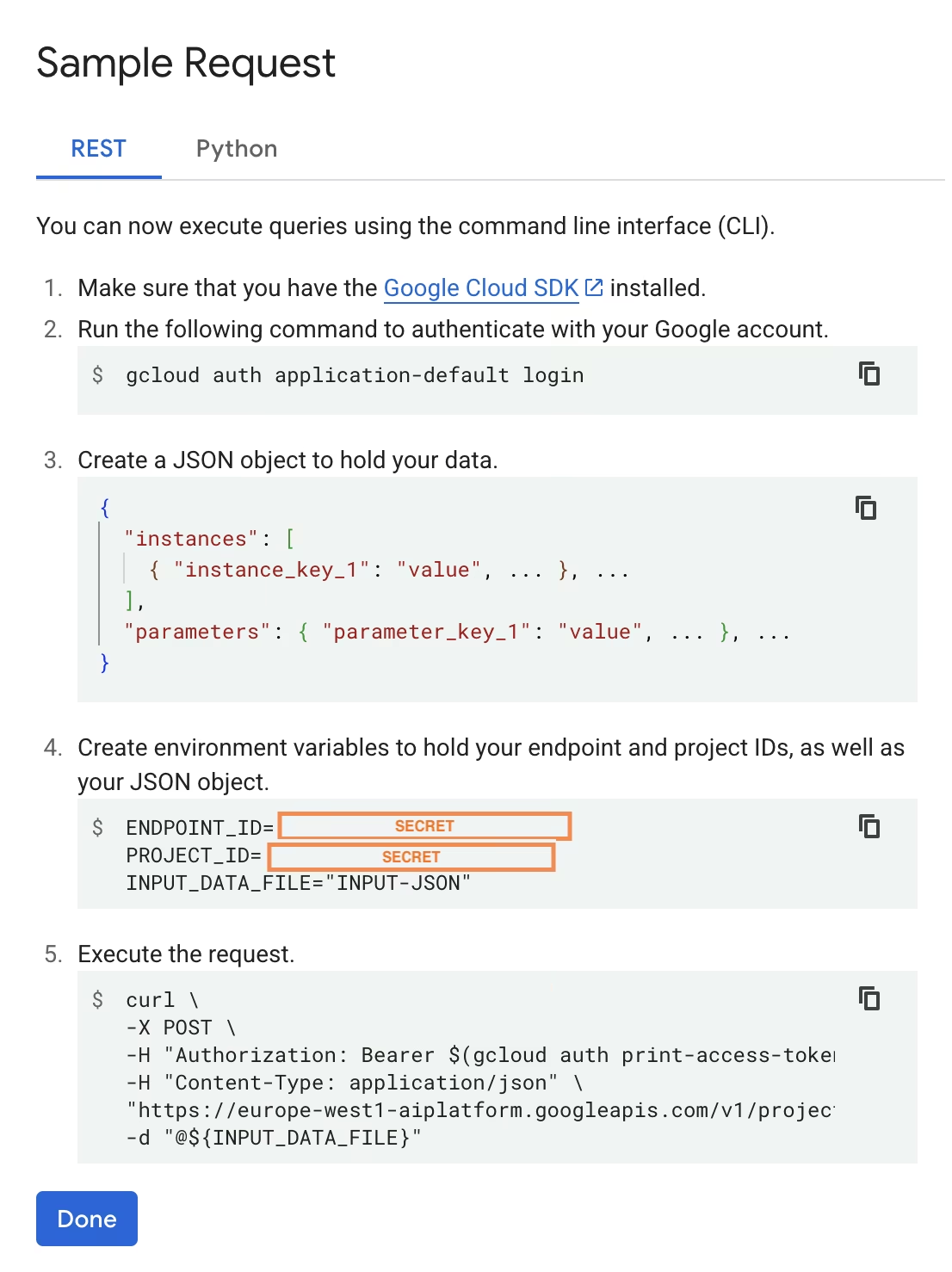
로컬 테스트와 마찬가지로 첫 번째 요청은 약간 지연될 수 있습니다. 실행 중인 컨테이너에서 Ultralytics가 YOLO26 모델을 가져와 로드해야 하기 때문입니다.
Ultralytics를 사용하여 Google Cloud Vertex AI에 사전 학습된 YOLO26 모델을 성공적으로 배포했습니다.
자주 묻는 질문#
예. 하지만 먼저 모델을 TensorFlow, Scikit-learn 또는 XGBoost와 같이 Vertex AI와 호환되는 형식으로 내보내야 합니다. Google Cloud는 변환 과정에 대한 전체 개요와 함께 Vertex에서
.pt모델을 실행하는 가이드를 제공합니다. Vertex AI에서 PyTorch 모델 실행을 참조하세요.이 설정은 Vertex AI 표준 서빙 계층에만 의존하며 고급 Ultralytics 프레임워크 기능은 지원하지 않는다는 점에 유의하세요. Vertex AI는 컨테이너화된 모델을 완전히 지원하고 배포 구성에 따라 모델을 자동으로 확장할 수 있으므로, 다른 형식으로 변환하지 않고도 Ultralytics YOLO 모델의 모든 기능을 활용할 수 있습니다.
FastAPI는 추론 워크로드에 높은 처리량을 제공합니다. 비동기 지원을 통해 메인 스레드를 차단하지 않고 여러 요청을 동시에 처리할 수 있으며, 이는 컴퓨터 비전 모델을 서빙할 때 중요합니다.
FastAPI의 자동 요청/응답 검증은 프로덕션 추론 서비스의 런타임 오류를 줄여줍니다. 입력 형식의 일관성이 중요한 객체 탐지 API에서 특히 유용합니다.
FastAPI는 추론 파이프라인에 추가되는 계산 오버헤드가 최소화되어 모델 실행 및 이미지 처리 작업에 더 많은 리소스를 사용할 수 있습니다.
FastAPI는 SSE(Server-Sent Events)도 지원하므로 추론 결과를 스트리밍하는 시나리오에 유용합니다.
이는 Google Cloud Platform의 유연한 기능으로, 사용하는 각 서비스마다 리전을 선택해야 합니다. Vertex AI에 컨테이너화된 모델을 배포할 때 가장 중요한 리전 선택은 Model Registry의 리전입니다. 이 설정에 따라 모델 배포에 사용할 수 있는 머신 유형과 할당량이 결정됩니다.
또한 설정을 확장하여 예측 데이터나 결과를 Cloud Storage 또는 BigQuery에 저장하는 경우 지연 시간을 최소화하고 데이터 액세스의 처리량을 높이려면 Model Registry와 동일한 리전을 사용해야 합니다.