Annotation Editor#
Ultralytics Platform includes an annotation editor for labeling images with bounding boxes, polygons, keypoints, oriented boxes, and classifications. The editor supports manual drawing, SAM-powered smart annotation, and predictions from compatible YOLO models or, on detection datasets with 1–200 classes, class-prompted models: hosted open-source models or paid provider models.
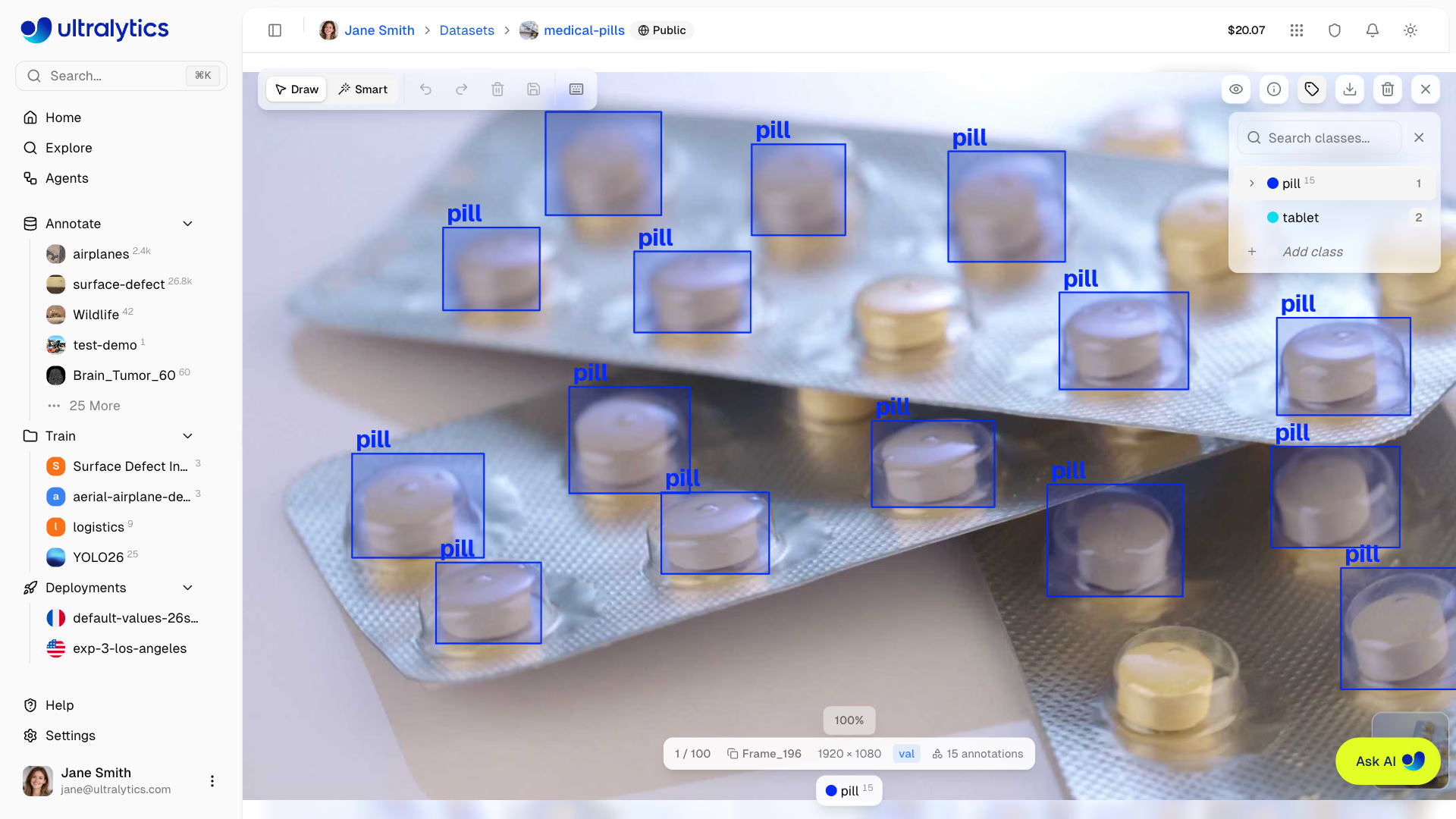
Supported Task Types#
The annotation editor provides annotation tools for 6 YOLO task types:
| Task | Tool | Annotation Format |
|---|---|---|
| Detect | Rectangle | Bounding boxes (x, y, width, height) |
| Segment | Polygon | Pixel-precise masks (polygon vertices) |
| Semantic | Polygon | Per-class region masks (polygon vertices) |
| Classify | Class Selector | Image-level labels |
| Pose | Keypoint | Skeleton templates (Person, Hand, Dog, Face, Box, custom) |
| OBB | Oriented Box | Rotated bounding boxes (4 corners) |
All 6 annotation types are stored together on each image. You can switch the dataset's active task type without losing existing annotations — they are preserved and reappear when you switch back.
Depth ground truth is a paired map you upload, not something you draw, so the editor opens read-only on a depth dataset.
Task Details#
Object Detection
What it does: Identifies objects and their locations with axis-aligned bounding boxes.
Label format: class_id center_x center_y width height (all normalized 0-1)
Example: 0 0.5 0.5 0.2 0.3 — Class 0 centered at (50%, 50%) with 20% width and 30% height
Use cases: Inventory counting, traffic monitoring, wildlife detection, security systems
Instance Segmentation
What it does: Creates pixel-precise masks for each object instance.
Label format: class_id x1 y1 x2 y2 x3 y3 ... (polygon vertices, normalized 0-1)
Example: 0 0.1 0.1 0.9 0.1 0.9 0.9 0.1 0.9 — Quadrilateral mask
Use cases: Medical imaging, autonomous vehicles, photo editing, agricultural analysis
Pose Estimation
What it does: Detects body keypoints for skeleton tracking.
Label format: class_id cx cy w h kx1 ky1 v1 kx2 ky2 v2 ...
- Visibility flags:
0=not labeled,1=labeled but occluded,2=labeled and visible
Example: 0 0.5 0.5 0.2 0.3 0.6 0.7 2 0.4 0.8 1 — Person with 2 keypoints
Use cases: Sports analysis, physical therapy, animation, gesture recognition
Oriented Bounding Box (OBB)
What it does: Detects rotated objects with angle-aware bounding boxes.
Label format: class_id x1 y1 x2 y2 x3 y3 x4 y4 (four corner points, normalized)
Example: 0 0.1 0.1 0.9 0.1 0.9 0.9 0.1 0.9 — Rotated rectangle
Use cases: Aerial imagery, document analysis, manufacturing inspection, ship detection
Image Classification
What it does: Assigns a single label to the entire image.
Label format: Folder-based — images organized by class name (train/cats/, train/dogs/)
Use cases: Content moderation, quality control, medical diagnosis, scene recognition
Getting Started#
To annotate images:
- Navigate to your dataset
- Click an image once to open the fullscreen annotation editor
- Use the default
Drawmode, or switch toSmartwhere supported - Select a class and add or adjust annotations directly on the image
- Continue to another image or close the editor; changes save automatically after each edit
For datasets you can edit, annotation controls are active as soon as the fullscreen viewer opens on desktop. There is no separate edit mode or Edit button. On mobile, and when you do not have edit access, the fullscreen viewer is read-only.
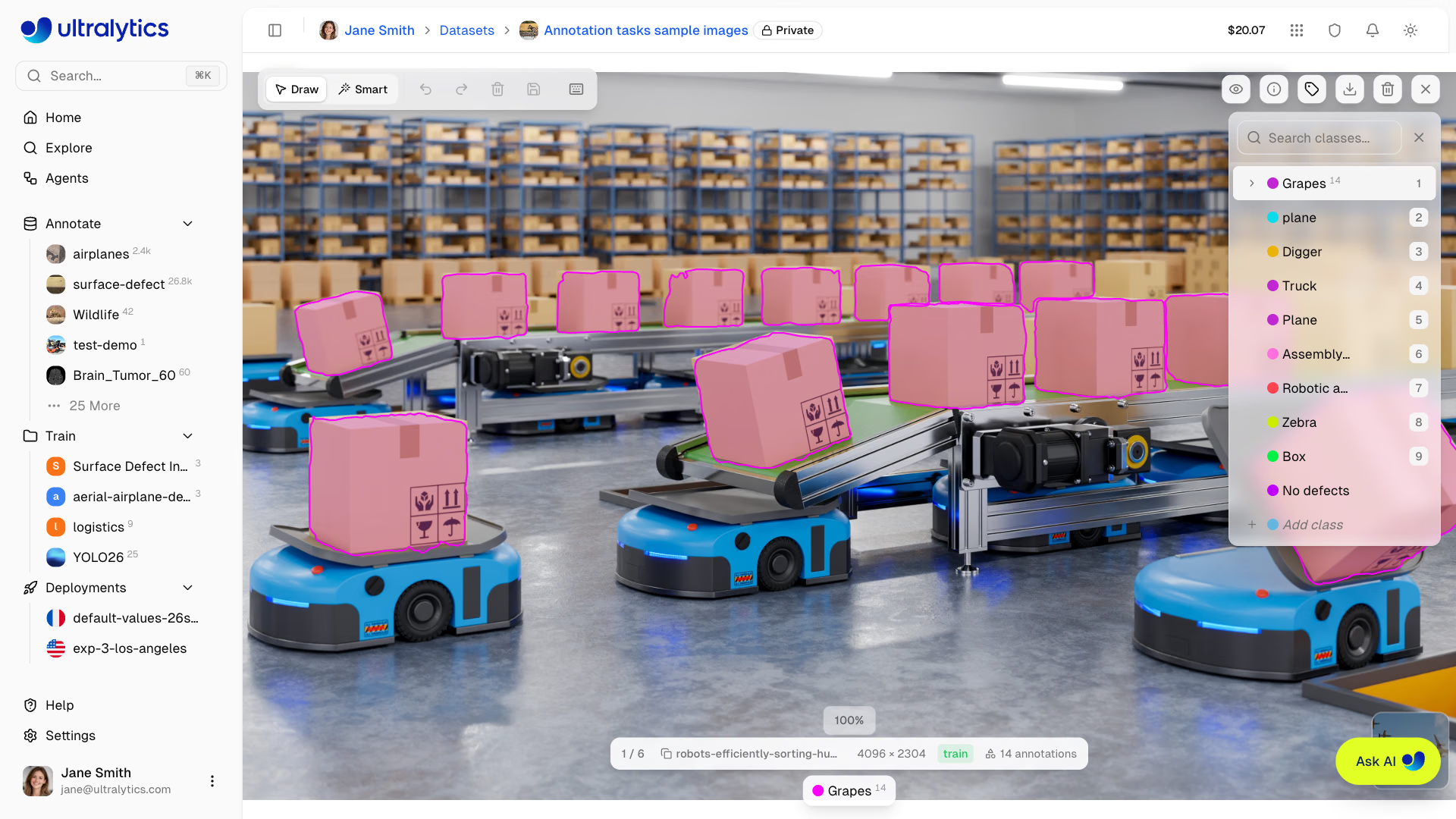
Annotation Modes#
Draw is the default mode for spatial annotation tasks. For detect, segment, semantic, pose, and OBB datasets, the toolbar also provides Smart mode when Smart annotation is available:
| Mode | Description | Shortcut |
|---|---|---|
| Draw | Default manual mode with task-specific drawing tools | V |
| Smart | Model-assisted annotation with SAM on detect, segment, semantic, and OBB datasets, with YOLO models on those and pose datasets, or with class-prompted models (hosted open-source or paid provider models) on detection datasets with 1–200 classes | S |
Pose annotation uses Draw with a skeleton template; its Smart mode offers YOLO pose models only, with no SAM picker or auto-apply toggle. Classification uses the class sidebar directly and shows no drawing toolbar or Smart button at all.
Smart annotation is not currently available for connected datasets backed by cloud or On Premise storage, or for datasets with more than three image channels.
The editor remembers your mode, model, and auto-apply choice for each dataset in your browser.
Draw Mode Tools#
Bounding Box (Detect)#
Draw rectangular boxes around objects:
- Select a class in the class sidebar
- In the default
Drawmode, click and drag to draw a rectangle - Release to complete the box
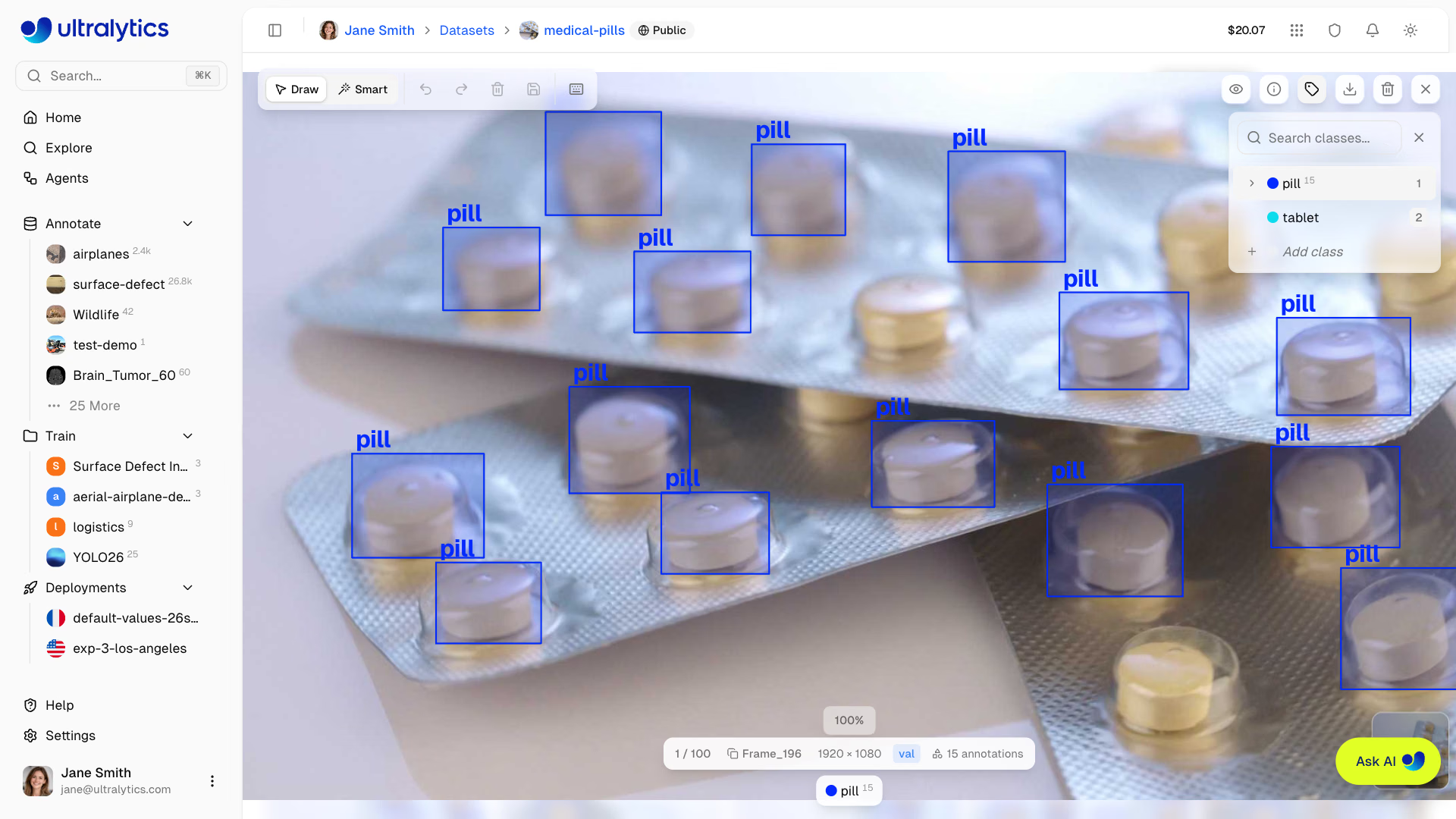
- Drag 8 corner/edge handles to resize
- Drag the center to move
- Press
DeleteorBackspaceto remove selected annotation
Polygon (Segment)#
Draw precise polygon masks:
- Select a class in the class sidebar
- In the default
Drawmode, click to add vertices, or holdShiftand move the mouse to freehand-draw dense points - Double-click, click the first vertex, or press
EnterorEscapeto close the polygon
While drawing, press Z to remove the last vertex, or Delete to discard the polygon.
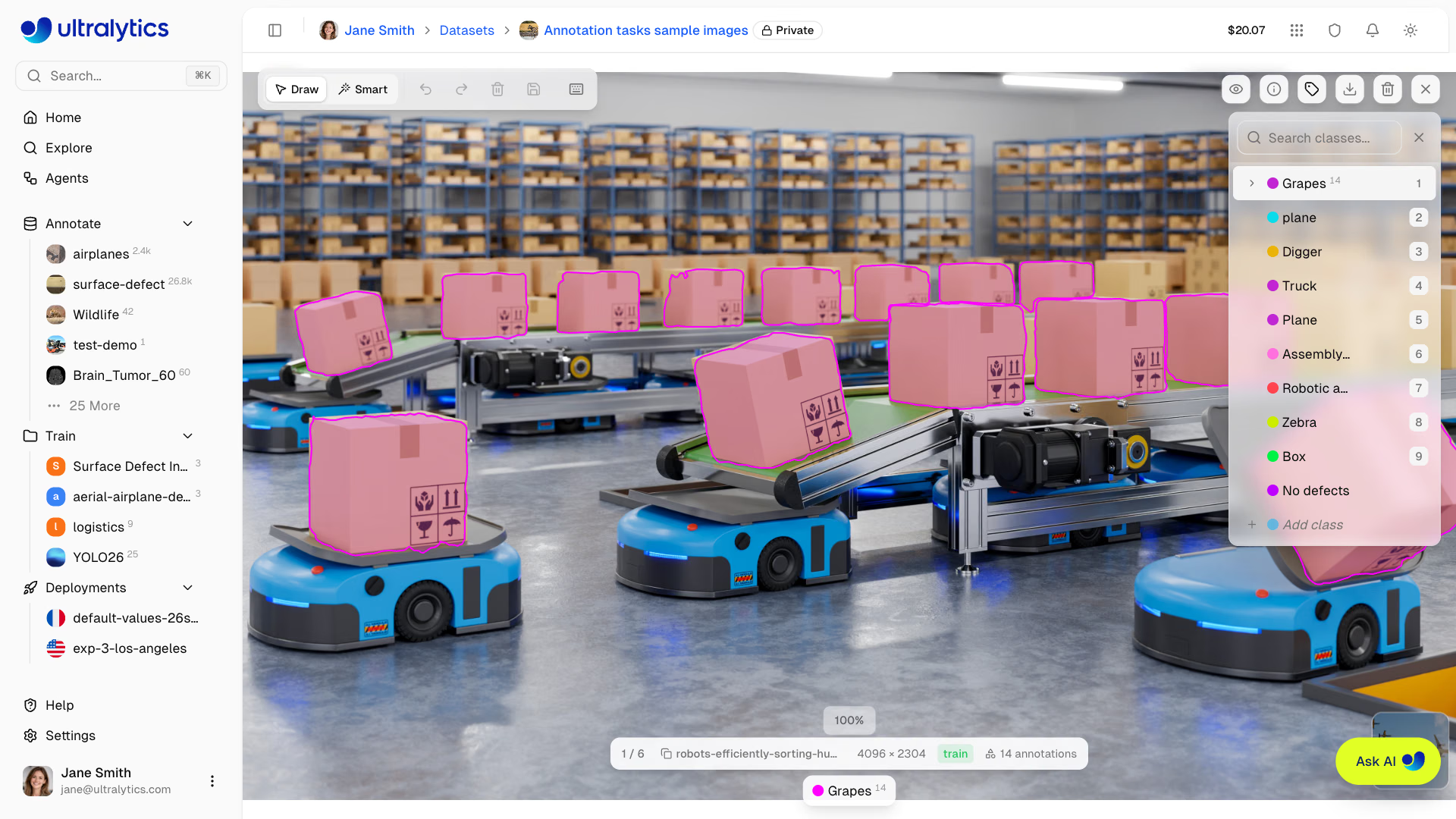
- Drag individual vertices to adjust
- Drag the entire polygon to move
- Click or drag an edge of the selected polygon to insert a vertex
- Right-click a vertex and choose Remove Point (polygons keep at least 3 vertices), or right-click an edge and choose Add Point
Keypoint (Pose)#
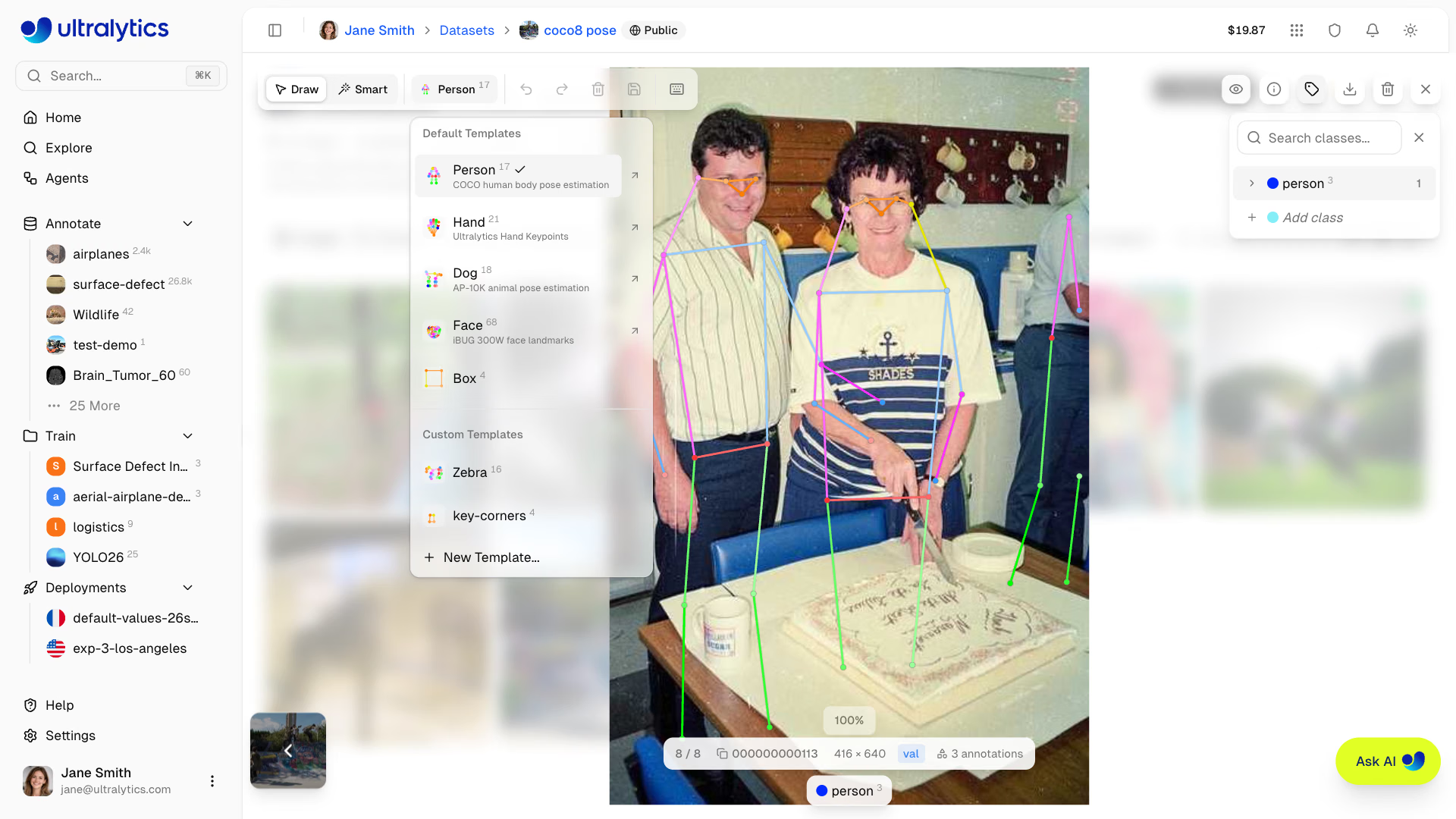
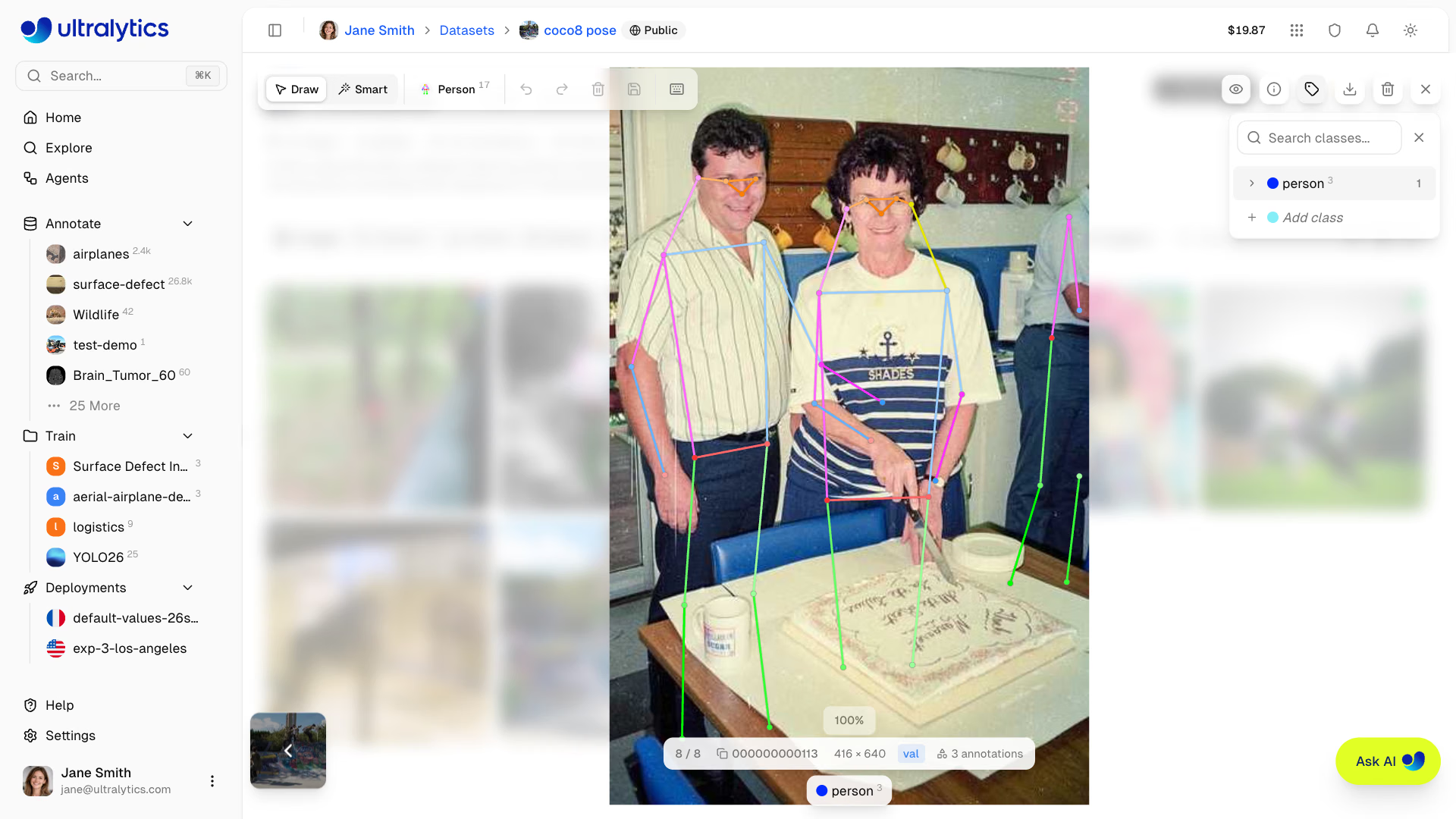
Annotate poses using skeleton templates. Select a template from the toolbar, click once to place all keypoints, then drag individual keypoints to adjust positions.
- Select a class in the class sidebar
- In the default
Drawmode, choose a skeleton template from the template picker in the toolbar - Click on the image to place all keypoints at once
- Drag individual keypoints to adjust their positions
Built-in Skeleton Templates#
The editor includes 5 built-in templates:
| Template | Keypoints | Description |
|---|---|---|
| Person | 17 | COCO human body pose — nose, eyes, ears, shoulders, elbows, wrists, hips, knees, ankles |
| Hand | 21 | Ultralytics Hand Keypoints — wrist, thumb, index, middle, ring, pinky joints |
| Dog | 18 | AP-10K animal pose — nose, head, neck, shoulders, tailbase, tail, and 4 legs (elbows, knees, paws) |
| Face | 68 | iBUG 300W facial landmarks — jaw, eyebrows, nose, eyes, mouth |
| Box | 4 | Corner keypoints — top-left, top-right, bottom-right, bottom-left |
Custom Skeleton Templates#
Create custom templates for any pose structure:
- Open the template picker in the toolbar and choose New Template...
- Optionally, click Start from... to load keypoints and connections from an existing template as a starting point
- Place keypoints on the canvas by clicking
- Name each keypoint and customize colors
- Connect keypoints by selecting two points (connections are drawn automatically as you place sequential keypoints)
- Save the template for reuse across your dataset
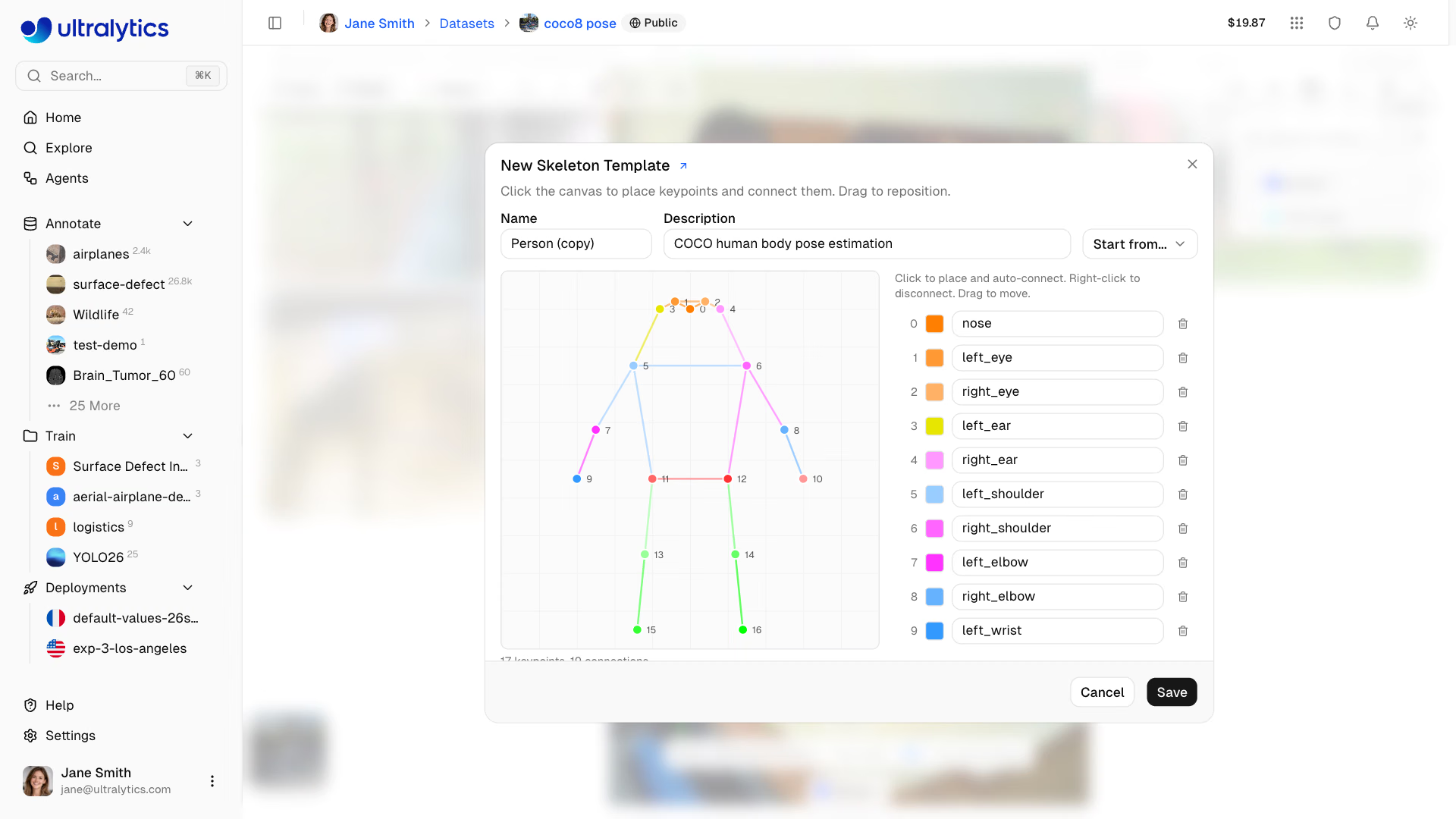
Custom templates are saved to the dataset's workspace and available in all of its pose datasets. Edit or delete them from the template picker.
The template system replaces manual sequential keypoint placement. Instead of clicking 17 times for a COCO skeleton, select the Person template and click once — all keypoints are placed in the correct skeleton layout. Then drag to adjust positions for the specific pose.
Each keypoint has a visibility flag: 0 = not labeled, 1 = labeled but occluded, 2 = labeled and visible. Keypoints you place are labeled visible (2). Right-click a keypoint and choose Hide Point to mark it not labeled (0), or right-click the pose and choose Reset Visibility to show its hidden keypoints again. Imported labels keep their visibility flags.
Oriented Bounding Box (OBB)#
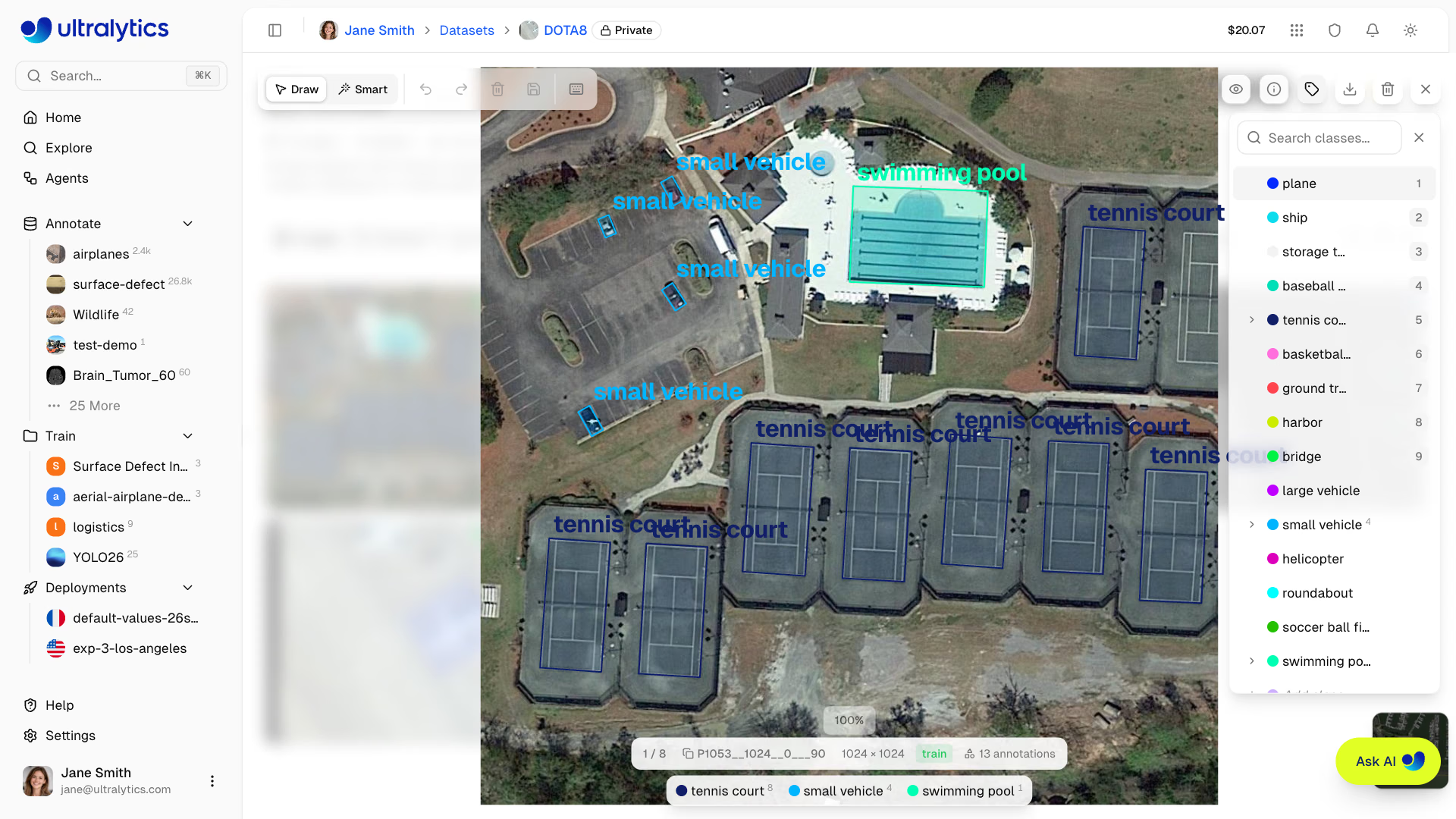
Draw rotated boxes for angled objects:
- Select a class in the class sidebar
- In the default
Drawmode, click and drag to draw an initial box - Use the rotation handle to adjust angle
- Drag corner handles to resize
Classification (Classify)#
Assign image-level class labels:
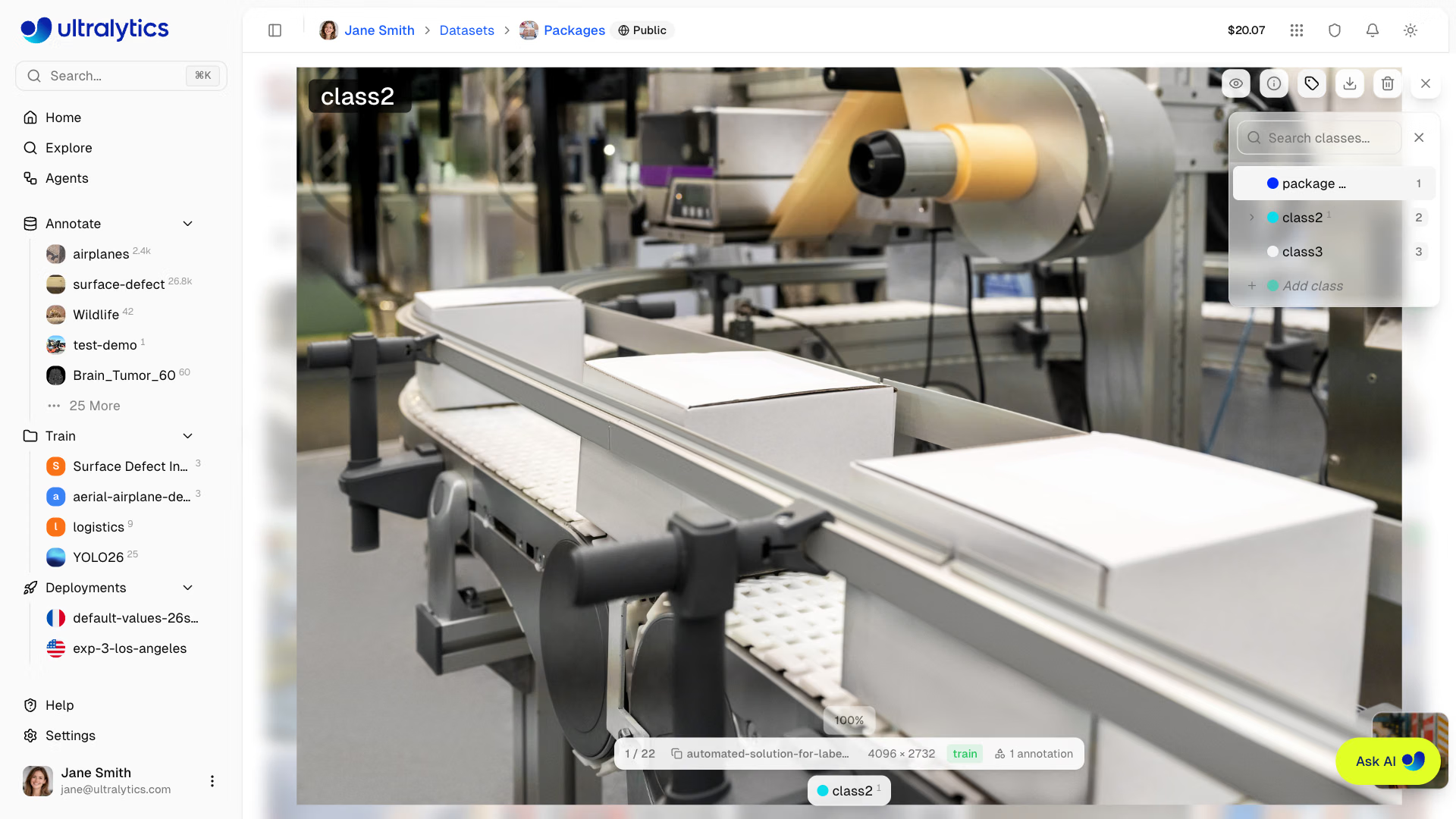
- Click an image to open the fullscreen editor
- Select a class in the class sidebar, or press a number key from
1-9
Smart Annotation#
Smart annotation adds model-assisted annotation to the editor. In Smart mode, you can use Segment Anything Model (SAM) for click-based annotation or use pretrained Ultralytics YOLO models and your own fine-tuned YOLO models to add predictions as annotations. On detection datasets with 1–200 classes, the picker also offers class-prompted models that detect the dataset's classes: six hosted open-source models, hosted text-prompted SAM 3 and SAM 3.1, and paid vision models from nine providers. SAM smart annotation is available for detect, segment, semantic, and OBB tasks; YOLO smart annotation also covers pose.
SAM Smart Annotation#
With a SAM model selected:
- Select
Smartor pressS - Click on the object you want to annotate — SAM generates an initial mask in real-time
- Refine the mask with additional clicks: click outside the current mask to add coverage, or click inside the current mask to subtract regions
- Press
EnterorEscapeto save the annotation, or enable auto-apply for one-click workflows
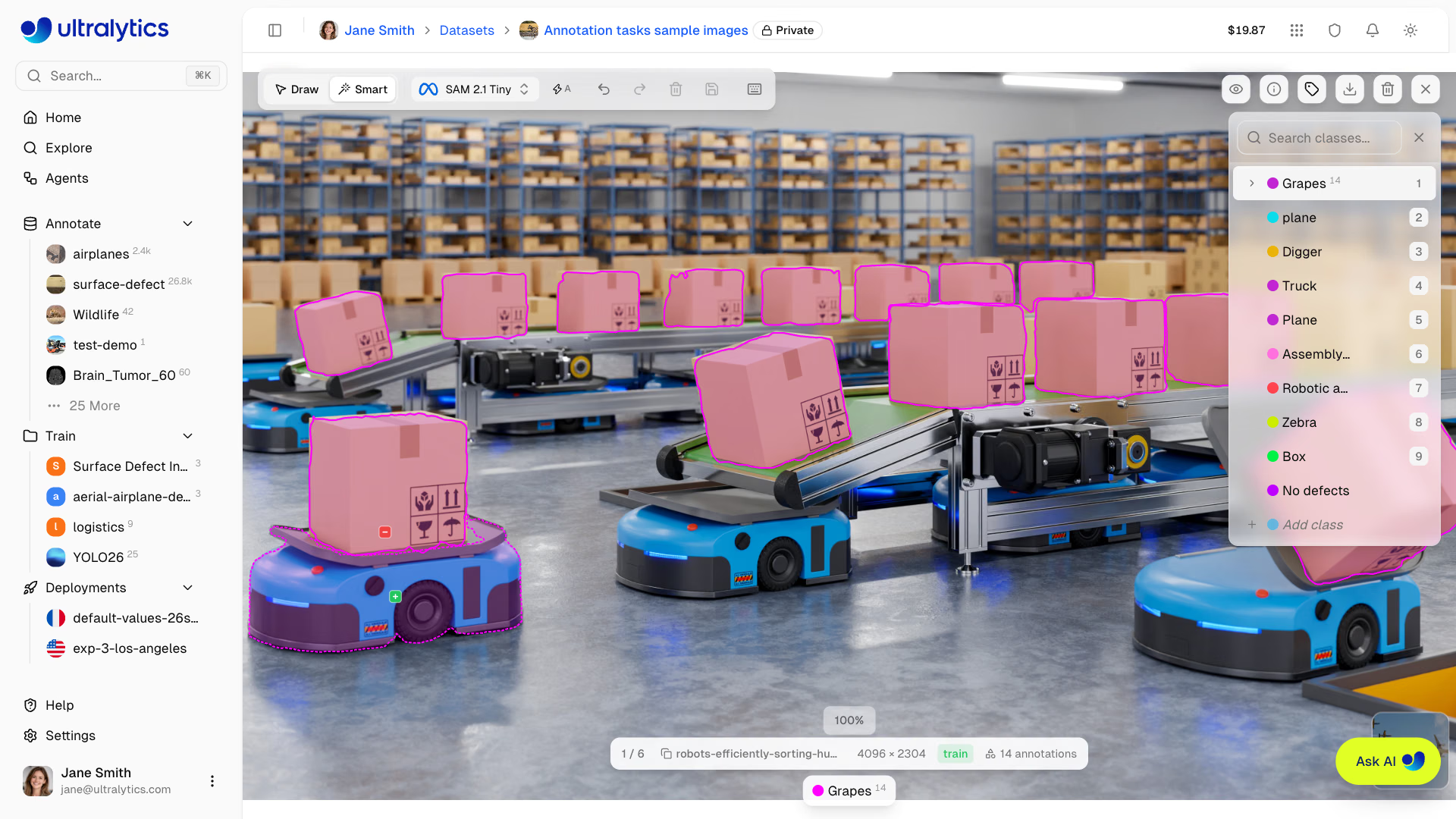
- Start with a click on the object center
- Click again outside the mask to expand coverage
- Click inside the mask to subtract unwanted regions
- Enable auto-apply (
A) for one-click annotation - Hold
Shiftwhile auto-apply is on to place multiple points before the mask is applied - Works best for distinct objects with clear edges
- Use a few refinement clicks for elongated or overlapping objects
SAM smart annotation can generate:
- Polygons for segmentation tasks
- Bounding boxes for detection tasks
- Oriented boxes for OBB tasks
SAM smart annotation is only available for detect, segment, semantic, and OBB tasks. Pose datasets use YOLO smart annotation instead, and classification requires manual annotation.
Auto-Apply Mode#
Auto-apply mode speeds up Smart annotation by automatically saving the SAM mask after each click — no need to press Enter. Toggle it with the auto-apply button in the toolbar or press A.
| Mode | Behavior |
|---|---|
| Auto-apply ON | Mask applies automatically after each click |
Auto-apply ON + Shift | Place multiple points first, mask applies on release |
| Auto-apply OFF (default) | Place points freely, press Enter to apply |
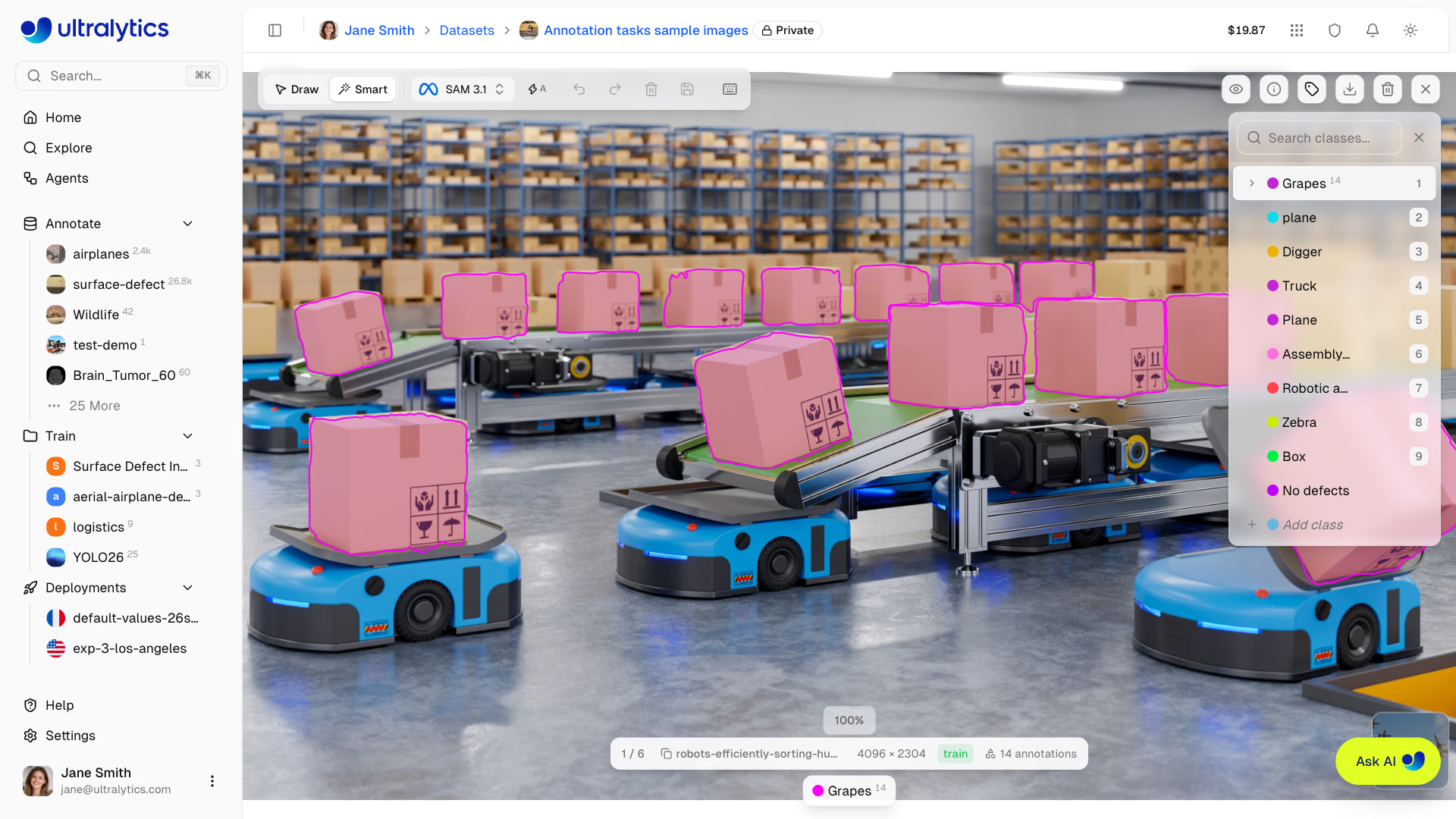
Auto-apply is ideal for datasets with well-separated objects where a single click produces an accurate mask. For complex or overlapping objects, turn auto-apply off and use multiple positive/negative points to refine the mask before saving.
SAM Model Selection#
When Smart mode is active, a model picker appears in the toolbar. Six SAM models are available — choose based on the speed vs. accuracy trade-off that suits your dataset:
| Model | Parameters | Speed | Notes |
|---|---|---|---|
| SAM 2.1 Tiny | 0.04B | Fastest | |
| SAM 2.1 Small | 0.05B | Fast | |
| SAM 2.1 Base | 0.08B | Moderate | |
| SAM 2.1 Large | 0.22B | Slower | Most accurate of SAM 2.1 |
| SAM 3 | 0.86B | Slowest | |
| SAM 3.1 | 0.87B | Slowest | Default, latest generation |
Switching models while Smart mode is active re-initializes the predictor for the current image automatically.
YOLO Smart Annotation#
With a YOLO model selected, Smart annotation can add predictions from pretrained Ultralytics models or your own fine-tuned models.
- Select
Smartor pressS - Select a YOLO model from the model picker in the toolbar (
ModelsorMy Models) - Click
Predict - Review the added annotations and make any needed corrections
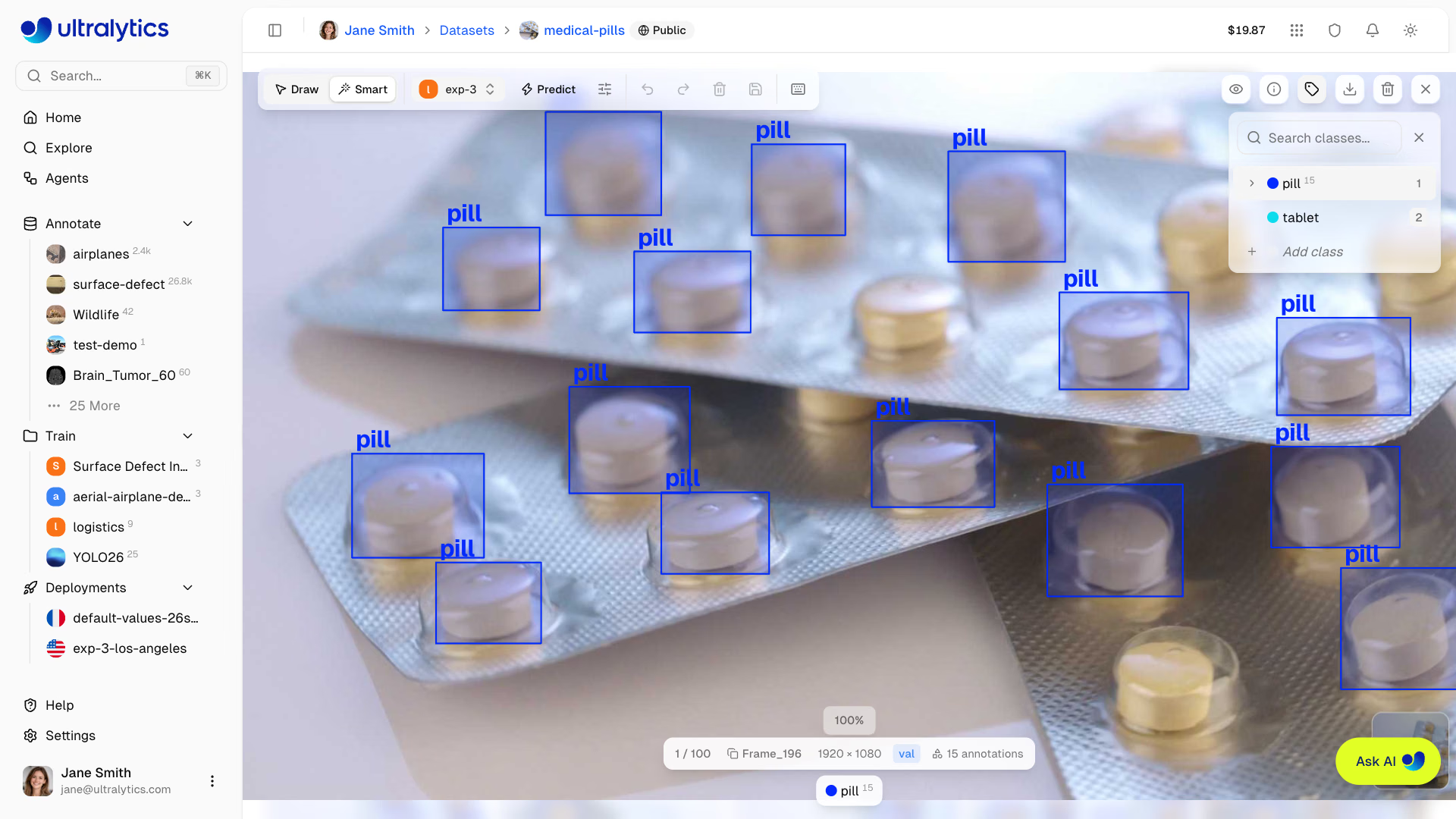
- The model picker lists models that match the current dataset task, so a pose dataset offers pose models. Detect and segment datasets also show each other's models, disabled.
- If the model's classes differ from the dataset's, a Map classes dialog maps each model class to a dataset class or skips it, and on a dataset without classes it creates them.
- Duplicate predictions are skipped when they overlap an existing annotation of the same class at IoU
0.7or higher.
Class-Prompted Smart Annotation#
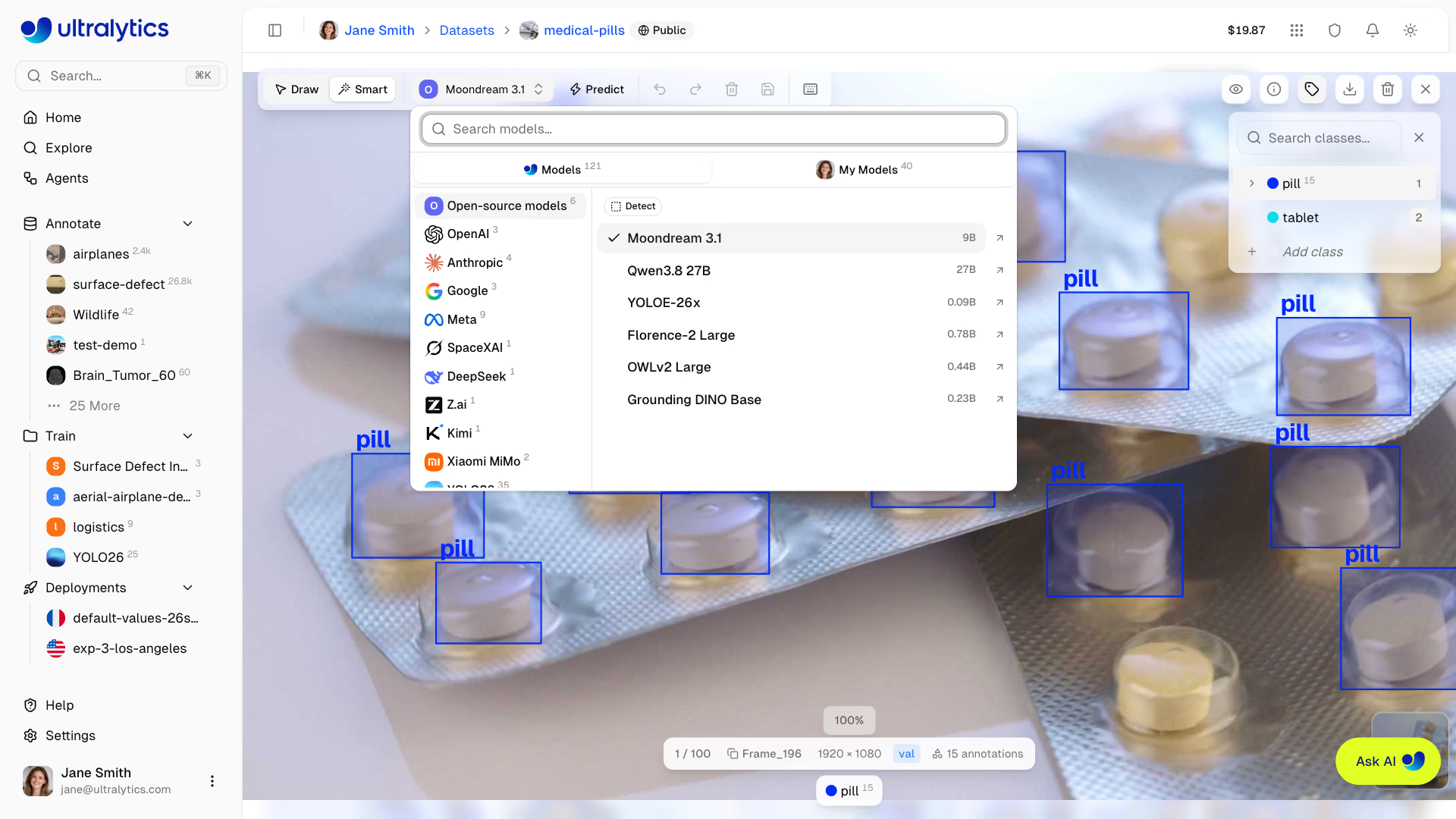
On a detection dataset with 1–200 classes, the model picker's Open-source models project lists six hosted models — Moondream 3.1 (the default when you open Smart mode on a detection dataset), Qwen3.8 27B, YOLOE-26x, Florence-2 Large, OWLv2 Large, and Grounding DINO Base. The Meta project adds the hosted text-prompted SAM 3 Text and SAM 3.1 Text, which detect the dataset's classes across the whole image, and Meta's paid muse-spark-1.3. The OpenAI, Anthropic, Google, SpaceXAI, DeepSeek, Z.ai, Kimi, and Xiaomi MiMo projects list each provider's paid vision models. Select one and click Predict (or press P): the model detects the dataset's classes with model-specific thresholds and adds editable boxes that you review and save like YOLO predictions. These models return no confidence scores, so the prediction settings (confidence and IoU) are hidden while one is selected.
A paid provider model runs with the provider key saved in the dataset workspace's Settings > API Keys; without one, the prediction fails with an Add API key action. The provider bills your key for each prediction. After each prediction, the toast shows the number of objects detected, the elapsed time, and the cost: Free for a hosted model; for a paid model, the estimated provider cost when one is returned, otherwise Billed by and the provider name.
Batch Annotation#
Batch Annotation runs one model — a YOLO model, or on detection datasets with 1–200 classes a class-prompted model — over a whole dataset instead of the open image. Open it from the dataset page with More actions > Batch Annotation, or from the Annotate all action on the toast after an editor prediction that finds objects. It is available to dataset editors on Platform-hosted datasets with up to three image channels, for every task except depth.
- Select a model from the picker (
Models, including the Open-source models and provider projects on detection datasets with 1–200 classes, orMy Models); on a detection dataset the dialog opens with Moondream 3.1 selected - For a YOLO model, adjust the confidence (default
0.25) and IoU (default0.7) sliders — the sample images beside the settings show what the model finds as you move them. A class-prompted model detects the dataset classes (1–200) with model-specific thresholds instead of these settings and returns no scores - Turn on Include annotated images to also run over images that already have labels; the run adds what the model finds and keeps the labels they have
- Review the Estimated Cost and click Start
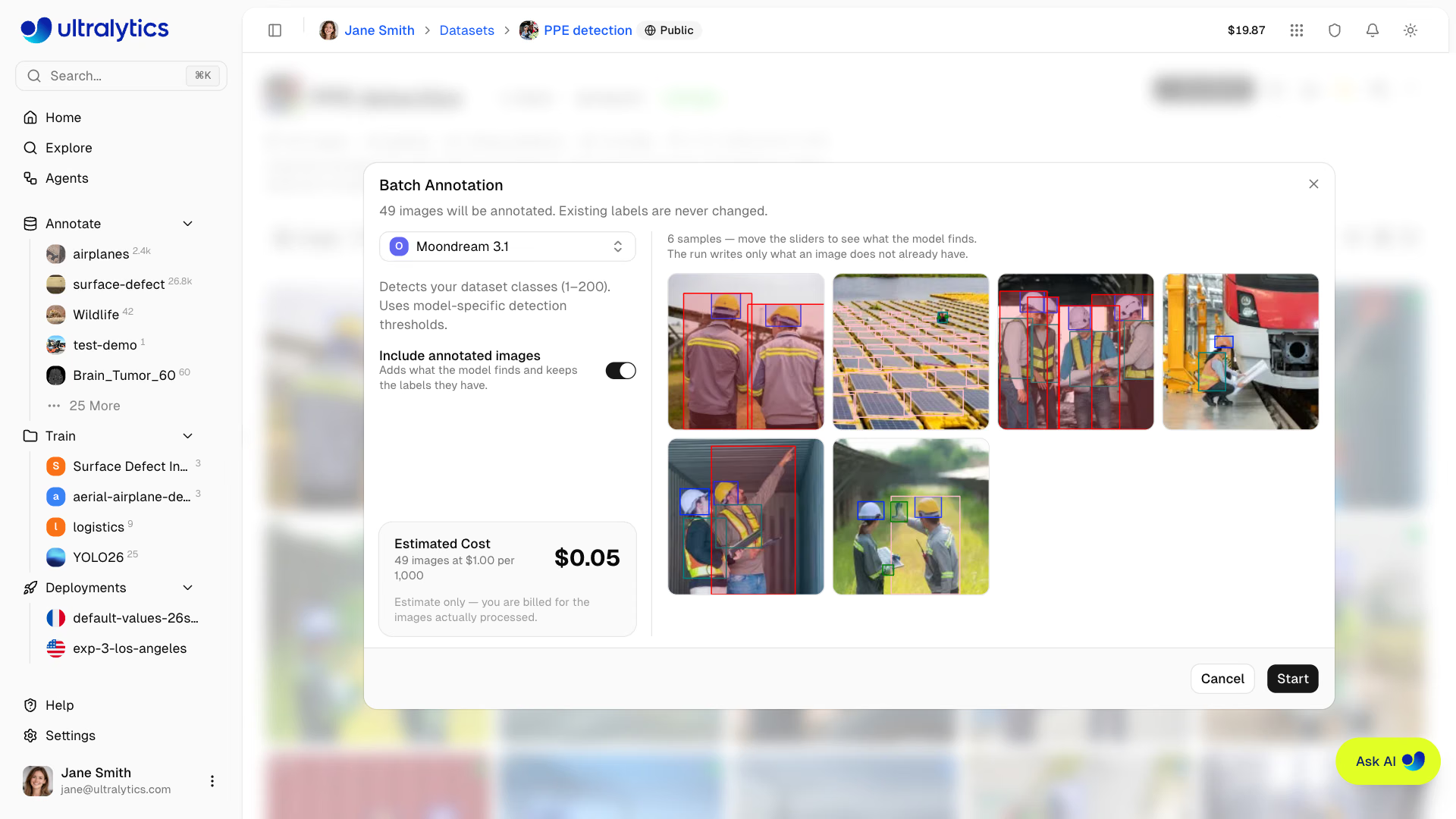
By default only unlabeled images are annotated, and existing labels are never changed. A run needs dataset classes. For a YOLO model, if the model's classes differ from the dataset's, a Map classes step maps each model class to a dataset class or skips it, and on a dataset without classes it creates them — the run starts only after the classes exist. Starting a run saves a dataset version first, so you can restore the dataset if you don't like the result.
The dataset page shows the run's progress, and Stop keeps and bills the images processed so far. When the run finishes, a summary shows the images processed and the annotations and classes added.
Batch Annotation costs $1.00 per 1,000 processed images, with a minimum of $0.01 per run. The estimate is held from your balance when the run starts and settled for the images actually processed; the charge appears on the Billing tab as Auto-Annotation once you dismiss the run summary. With a paid provider model, this is the Platform processing fee only: the provider also bills your API key for the test-run previews and the annotations.
Class Sidebar#
The annotation editor includes a collapsible class sidebar on the right side of the canvas. The sidebar provides:
- Search classes: Filter the class list by typing in the search field. Press
Enteron an exact match to select it, or create a new class if no match exists. - Create new class inline: Click
Add classat the bottom of the list, type a name, and optionally pick a custom color. PressEnterto create. - Edit class name inline: Hover over a class name and click the pencil icon to rename it.
- Color picker: Click the color swatch next to any class to change its color.
- Per-class annotation count: Each class row shows a superscript count of annotations.
- Expand/collapse: Click the chevron to expand a class and see individual annotations listed below it.
- Bidirectional hover highlighting: Hovering an annotation on the canvas highlights it in the sidebar, and vice versa. The sidebar auto-scrolls to the relevant class. Hovering a class row, or its chip in the class breakdown below the image, highlights every annotation of that class.
- Hide/show a whole class: Click the eye icon on a class row to hide or show every annotation of that class at once.
- Hide/show individual annotations: Click the eye icon on any annotation row to toggle its visibility on the canvas.
- Delete annotations: Click the trash icon on any annotation row to delete it.
- Keyboard shortcuts: Press
1-9to quickly select the first 9 classes,Hto toggle the visibility of every annotation on the image, or]to show or hide the sidebar.
Context Menu#
Right-click an annotation to open a context menu with:
| Action | Shortcut |
|---|---|
| Bring to Front | Cmd/Ctrl+Shift+] |
| Send to Back | Cmd/Ctrl+Shift+[ |
| Bring Forward | Cmd/Ctrl+] |
| Send Backward | Cmd/Ctrl+[ |
| Hide Annotation(s) | |
| Delete Annotation(s) | Delete / Backspace |
Right-clicking a polygon vertex or edge adds Remove Point or Add Point, and right-clicking a pose keypoint adds Hide Point and Reset Visibility. The menu also offers Blur faces when available.
Visibility Controls#
The visibility dropdown (eye icon) lets you toggle display of individual elements:
| Toggle | Description |
|---|---|
| Annotations | Show or hide all annotation overlays |
| Class labels | Show or hide class name labels on annotations |
| Show pixels | Toggle pixelated rendering for zoom inspection (fullscreen) |
| Crosshairs | Show crosshair cursor with pixel coordinates while annotating |
| Nav thumbnails | Show navigation thumbnail strip (fullscreen) |
| Bottom info bar | Show or hide the image info bar at the bottom (fullscreen) |
| Show all | Toggle annotations, labels, crosshairs, thumbnails, and the bottom info bar at once (does not affect pixelated) |
Crosshair Cursor#
While annotating, a crosshair overlay tracks the cursor position and displays pixel coordinates on the canvas. This helps place annotations with precision. Toggle it via the visibility dropdown.
SAM Hover Preview#
In Smart mode, SAM provides a real-time hover preview before you click any points. This preview is available for detect, segment, semantic, and OBB tasks. Once you add refinement clicks, the preview updates to reflect the current mask and the annotation type for the active task.
Polygon Vertex Editing#
For segment and semantic annotations, you can edit polygon vertices after drawing:
- Move vertices: Drag any vertex handle to reposition it
- Add vertices: Click or drag an edge of the selected polygon, or right-click an edge and choose Add Point
- Remove vertices: Right-click a vertex and choose Remove Point; polygons keep at least 3 vertices
Class Management#
Creating Classes#
Define annotation classes for your dataset in the Classes tab:
- Navigate to the
Classestab - Use the input field at the bottom to type a class name
- Click
Addor pressEnter - A color is assigned automatically from the Ultralytics palette
Add New Class During Annotation#
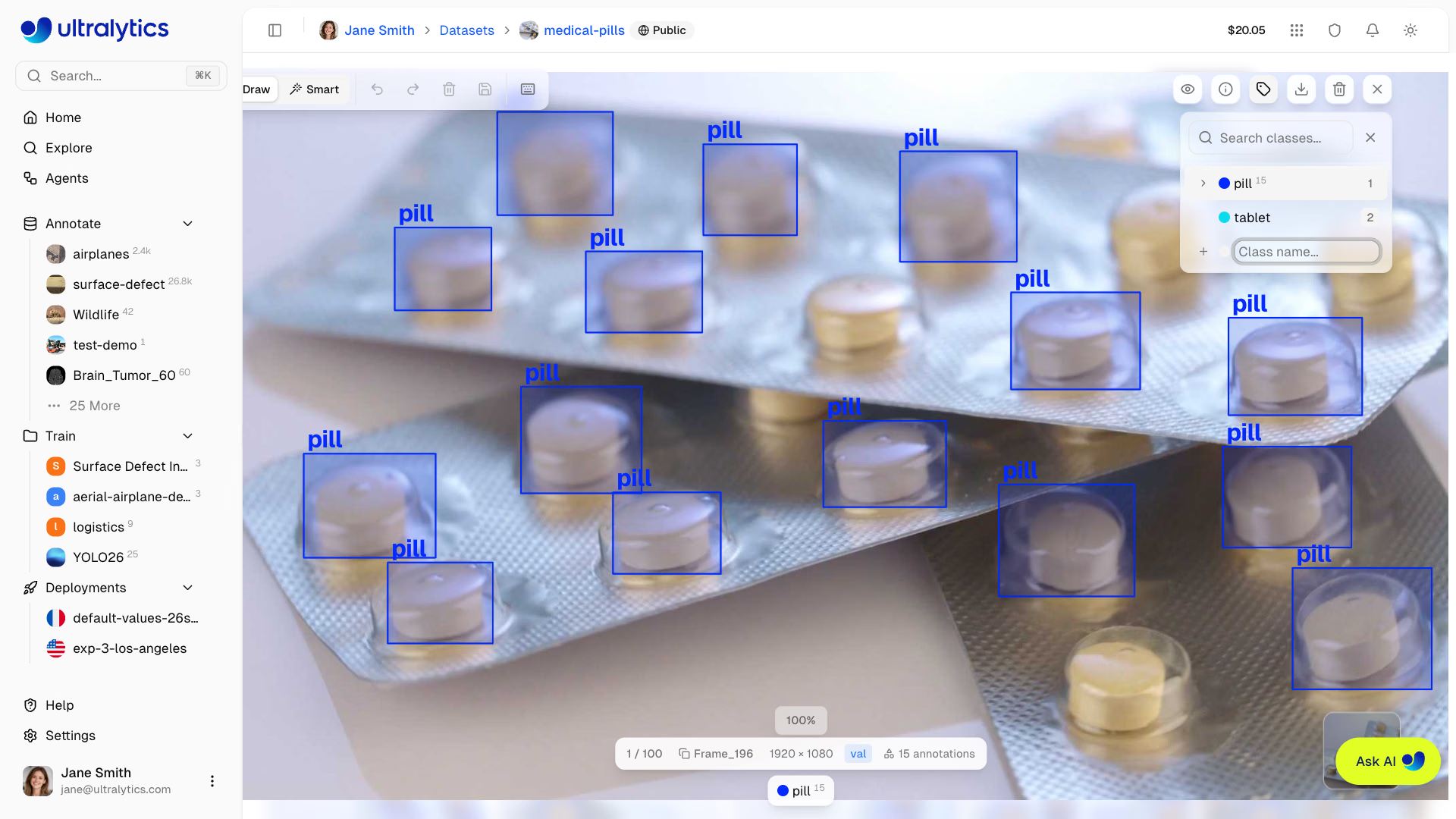
You can create new classes directly while annotating without leaving the editor:
- Draw an annotation on the image
- In the class sidebar, click
Add class(or type a new name in the sidebar search box) - Enter the class name
- Press Enter to create and assign
This allows for a seamless workflow where you can define classes as you encounter new object types in your data.
All classes across your dataset are managed in a unified table. Changes to class names or colors apply throughout the entire dataset automatically.
Editing Classes#
- Rename: Click a class name in the table to edit it inline
- Change color: Click the color swatch to open the color picker
- Search: Use the search field to filter classes by name
- Sort: Click column headers to sort by index, name, annotation count, or image count
Class Colors#
Each class is assigned a color from the Ultralytics palette. You can customize colors using the color picker on the Classes tab; the selected colors are used throughout that dataset.
Keyboard Shortcuts#
Efficient annotation with keyboard shortcuts:
| Shortcut | Action |
|---|---|
Cmd/Ctrl+S | Save annotations |
Cmd/Ctrl+Z | Undo |
Cmd/Ctrl+Y | Redo |
Escape | Save / Deselect / Exit |
Delete / Backspace | Delete selected annotation |
Cmd/Ctrl+Delete | Delete image |
H | Toggle all annotations |
] | Show or hide class sidebar |
← / → | Previous / next image |
1-9 | Select class 1-9 |
Cmd/Ctrl+Scroll | Zoom in/out |
Cmd/Ctrl++ or Cmd/Ctrl+= | Zoom in |
Cmd/Ctrl+- | Zoom out |
Cmd/Ctrl+0 | Reset to fit |
Space+Drag or middle-click drag | Pan canvas |
Shift+Click | Multi-select annotations |
Cmd/Ctrl+A | Select all annotations |
Cmd/Ctrl+C | Copy selected annotations |
Cmd/Ctrl+X | Cut selected annotations |
Cmd/Ctrl+V | Paste annotations |
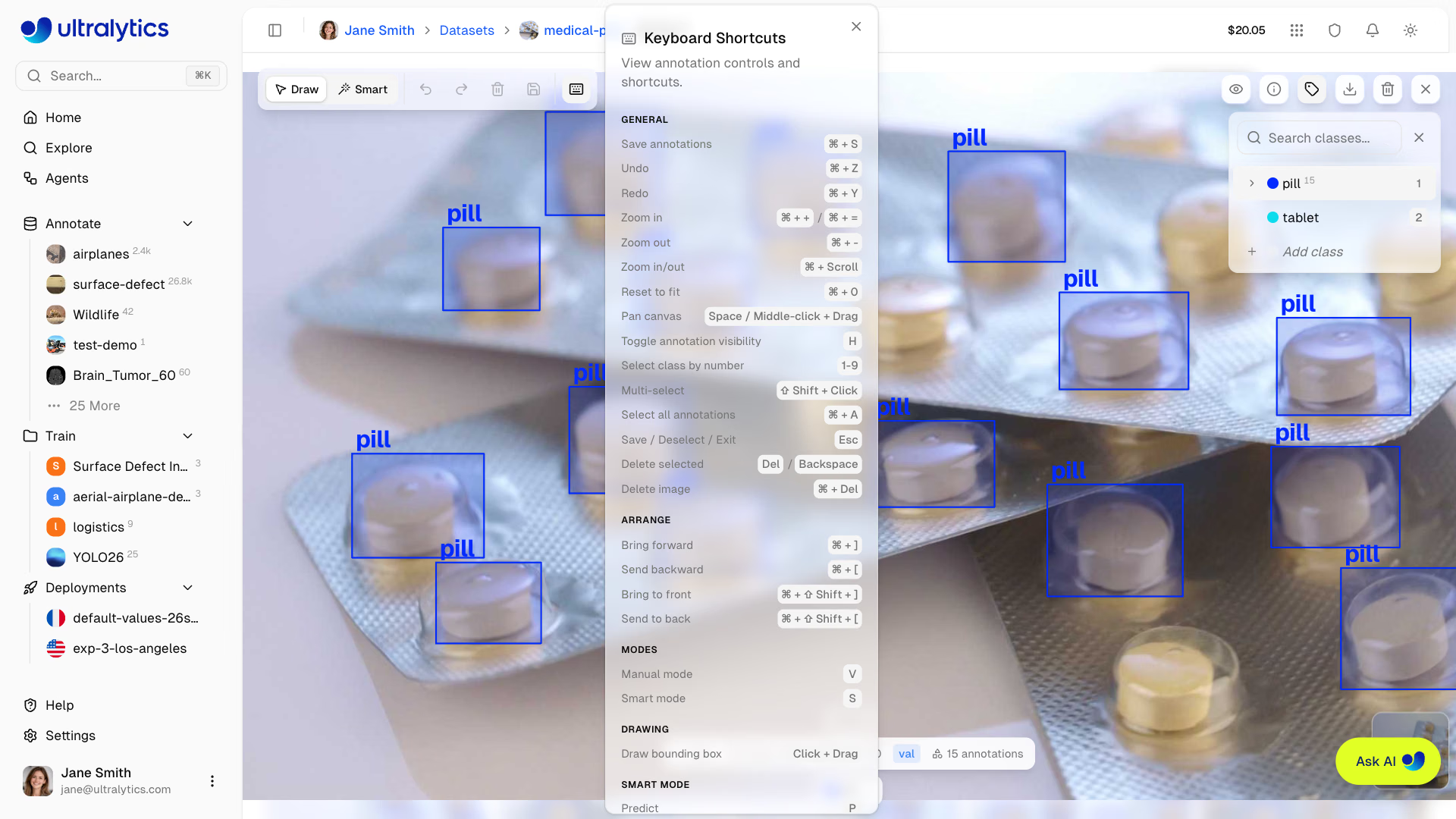
View All Shortcuts
Click the keyboard icon in the annotation toolbar to open the shortcuts reference.
Undo/Redo#
The annotation editor maintains a full undo/redo history:
- Undo:
Cmd/Ctrl+Z - Redo:
Cmd/Ctrl+Y
History tracks:
- Adding annotations (single and batch)
- Editing annotations (move, resize, rotate)
- Deleting annotations (single and batch)
- Changing classes (single and batch)
- Reordering annotations (z-order)
- Editing polygon vertices (add, remove, move)
- Moving keypoints
The undo stack has no fixed limit — you can undo changes made since you opened the image.
Saving Annotations#
Changes save automatically one second after the last annotation edit. They also save when you move to another image or close the fullscreen editor.
- Save now: Click the save button or press
Cmd/Ctrl+S - Close: Click the close button, click outside the image, or press
Escape; closing triggers a background save for pending changes
Wait for the Saving... or Unsaved status in the image information bar to clear before closing the browser tab. You can save manually at any time with the save button or Cmd/Ctrl+S.
FAQ#
SAM provides high-quality masks for most objects. Accuracy depends on:
- Object distinctiveness from background
- Image quality and resolution
- Number of positive/negative points provided
For best results, start with a click on the object center, then use outside-mask clicks to add coverage and inside-mask clicks to subtract nearby objects or background.
Yes. Upload your dataset with YOLO-format label files, COCO JSON annotation files, LabelMe JSON files, or an Ultralytics NDJSON or Labelbox NDJSON export. Platform parses them during processing and displays them in the editor. Pascal VOC XML labels are not imported — convert them to YOLO or COCO first. See Preparing Your Dataset.
After drawing an annotation:
- Keep the same class selected
- Draw the next annotation
- Repeat until all objects are labeled
The keyboard shortcut
1-9quickly selects classes.Yes, but for best results:
- Label all objects of your target classes in each image
- Use the
Annotationsfilter set toUnannotatedto identify images that still need annotation
SAM 3.1 is the default and the latest generation model — start there for the highest quality masks, with SAM 3 still available. Switch to SAM 2.1 Small for a faster interactive workflow on common objects, or SAM 2.1 Large when you need higher mask precision on complex shapes. Use SAM 2.1 Tiny for maximum speed on simple, high-contrast objects.
SAM smart annotation is available for detect, segment, semantic, and OBB tasks. On pose datasets,
Smartmode runs YOLO smart annotation only, and classification uses manual annotation only. Smart annotation is also unavailable on connected cloud and On Premise datasets and on datasets with more than three image channels.Yes. Use Batch Annotation from More actions > Batch Annotation on the dataset page. It runs one model over the dataset: an official YOLO model, one of your own trained or uploaded models from
My Models, or, on detection datasets with 1–200 classes, a class-prompted model such as SAM 3.1 Text that detects your class names. By default it annotates only unlabeled images, existing labels are kept, and a dataset version is saved first so you can restore it. It costs $1.00 per 1,000 images processed (minimum $0.01), and paid provider models are also billed by the provider. Batch Annotation works on Platform-hosted datasets with up to three image channels and is not available for depth.Yes. Open the skeleton template picker and choose New Template... to open the template editor. Place keypoints, name them, draw connections, and save. Custom templates are stored in the dataset's workspace and available across all of its pose datasets.
Click the template picker dropdown in the annotation toolbar. Select any built-in template (Person, Hand, Dog, Face, Box) or your saved custom templates. The selected template determines which keypoints are placed when you click on the image.
Yes. Select one or more annotations, press
Cmd/Ctrl+Cto copy (orCmd/Ctrl+Xto cut), navigate to another image with the arrow keys or thumbnail strip, and pressCmd/Ctrl+Vto paste. The clipboard persists while the fullscreen editor stays open.