Simple Utilities
The ultralytics package provides many utilities for data preparation, box handling, plotting, and profiling. This guide highlights some of the most useful ones and serves as a practical reference for programming with Ultralytics tools.
Watch: Ultralytics Utilities | Auto Annotation, Explorer API and Dataset Conversion
Data#
Auto Labeling / Annotations#
Dataset annotation is a resource-intensive and time-consuming process. If you have an Ultralytics YOLO object detection model trained on a reasonable amount of data, you can use it with SAM to auto-annotate additional data in segmentation format.
from ultralytics.data.annotator import auto_annotate

auto_annotate(
    data="path/to/new/data",
    det_model="yolo26n.pt",
    sam_model="mobile_sam.pt",
    device="cuda",
    output_dir="path/to/save_labels",
)
This function does not return any value. For further details:
- See the reference section for
annotator.auto_annotatefor more insight on how the function operates. - Use in combination with the function
segments2boxesto generate object detection bounding boxes as well.
Visualize Dataset Annotations#
This function visualizes YOLO annotations on an image before training, helping to identify and correct any wrong annotations that could lead to incorrect detection results. It draws bounding boxes, labels objects with class names, and adjusts text color based on the background's luminance for better readability.
from ultralytics.data.utils import visualize_image_annotations

label_map = {  # Define the label map with all annotated class labels.
    0: "person",
    1: "car",
}

# Visualize
visualize_image_annotations(
    "path/to/image.jpg",  # Input image path.
    "path/to/annotations.txt",  # Annotation file path for the image.
    label_map,
)
Convert Segmentation Masks into YOLO Format#
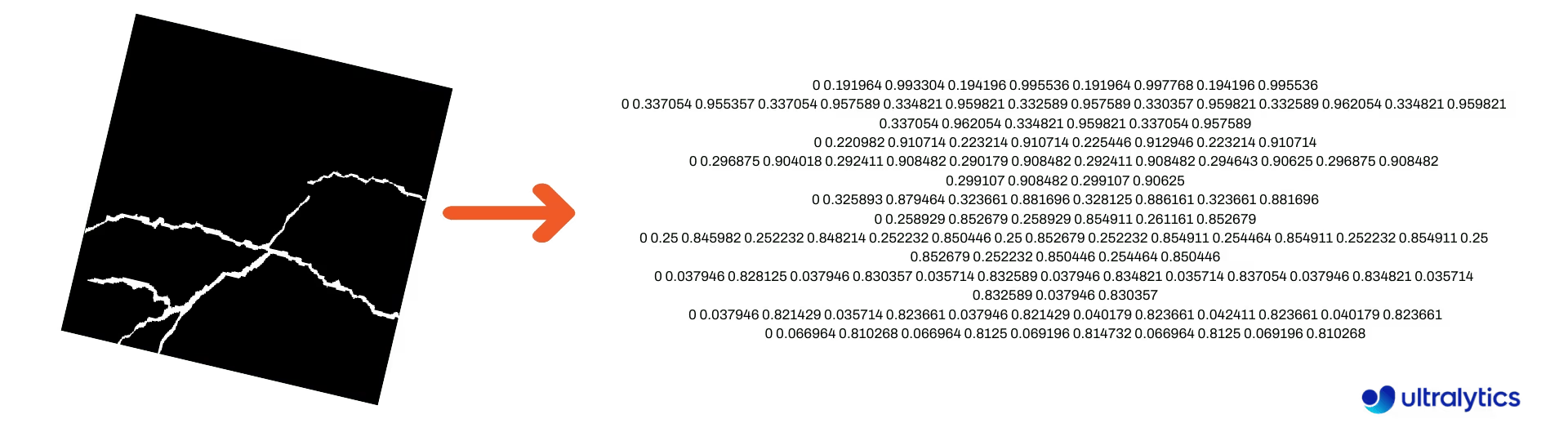
Use this to convert a dataset of segmentation mask images to the Ultralytics YOLO segmentation format. This function takes a directory of grayscale mask images, where each pixel value is the class index + 1 and 0 is background, and converts them into YOLO segmentation format.
The converted masks will be saved in the specified output directory.
from ultralytics.data.converter import convert_segment_masks_to_yolo_seg

# `classes` is the total number of classes in the dataset.
# For the COCO dataset, there are 80 classes.
convert_segment_masks_to_yolo_seg(masks_dir="path/to/masks_dir", output_dir="path/to/output_dir", classes=80)
Convert COCO into YOLO Format#
Use this to convert COCO JSON annotations into the YOLO format. For object detection (bounding box) datasets, set both use_segments and use_keypoints to False.
from ultralytics.data.converter import convert_coco

convert_coco(
    "coco/annotations/",
    use_segments=False,
    use_keypoints=False,
    cls91to80=True,
)
For additional information about the convert_coco function, visit the reference page.
Get Bounding Box Dimensions#
import cv2

from ultralytics import YOLO
from ultralytics.utils.plotting import Annotator

model = YOLO("yolo26n.pt")  # Load pretrain or fine-tune model

# Process the image
source = cv2.imread("path/to/image.jpg")
results = model(source)

# Extract results
annotator = Annotator(source, example=model.names)

for box in results[0].boxes.xyxy.cpu():
    width, height, area = annotator.get_bbox_dimension(box)
    print(f"Bounding Box Width {width.item()}, Height {height.item()}, Area {area.item()}")
Convert Bounding Boxes to Segments#
With existing x y w h bounding box data, convert to segments using the yolo_bbox2segment function. Organize the files for images and annotations as follows:
data
|__ images
    ├─ 001.jpg
    ├─ 002.jpg
    ├─ ..
    └─ NNN.jpg
|__ labels
    ├─ 001.txt
    ├─ 002.txt
    ├─ ..
    └─ NNN.txt
from ultralytics.data.converter import yolo_bbox2segment
yolo_bbox2segment(
im_dir="path/to/images",
save_dir=None, # saved to "labels-segment" next to the images directory
sam_model="sam_b.pt",
)Visit the yolo_bbox2segment reference page for more information regarding the function.
Convert Segments to Bounding Boxes#
If you have a dataset that uses the segmentation dataset format, you can convert them into upright (or horizontal) bounding boxes (x y w h format) with this function.
import numpy as np

from ultralytics.utils.ops import segments2boxes

segments = np.array(
    [
        [805, 392, 797, 400, 812, 402, 808, 714, 808, 392],
        [115, 398, 113, 400, 150, 410, 150, 400, 149, 298],
        [267, 412, 265, 413, 300, 420, 300, 413, 299, 412],
    ],
    dtype=np.float32,
)

segments2boxes([s.reshape(-1, 2) for s in segments])
# >>> array([[804.5, 553. ,  15. , 322. ],
#           [131.5, 354. ,  37. , 112. ],
#           [282.5, 416. ,  35. ,   8. ]],
#           dtype=float32) # xywh bounding boxes
To understand how this function works, visit the reference page.
Utilities#
Image Compression#
Compress a single image file to a reduced-size JPEG while preserving its aspect ratio. By default the input file is overwritten, and images smaller than max_dim (default 1920 pixels) are not resized.
from pathlib import Path

from ultralytics.data.utils import compress_one_image

for f in Path("path/to/dataset").rglob("*.jpg"):
    compress_one_image(f)
Auto-split Dataset#
Automatically split a dataset into train/val/test splits and save the resulting splits into autosplit_*.txt files. This utility creates persistent split files; the fraction training argument instead selects a reproducible subset for a run.
from ultralytics.data.split import autosplit

autosplit(
    path="path/to/images",
    weights=(0.9, 0.1, 0.0),  # (train, validation, test) fractional splits
    annotated_only=False,  # split only images with annotation file when True
)
See the Reference page for additional details on this function.
Segment-polygon to Binary Mask#
Convert a single polygon (as a list) to a binary mask of the specified image size. The polygon should be a flat 1D array of N coordinates listing alternating x, y values defining the polygon contour.
N must always be even.
import numpy as np

from ultralytics.data.utils import polygon2mask

imgsz = (1080, 810)
polygon = np.array([805, 392, 797, 400, ..., 808, 714, 808, 392])  # (N,) flat x, y coordinates

mask = polygon2mask(
    imgsz,  # tuple
    [polygon],  # input as list
    color=255,  # 8-bit binary
    downsample_ratio=1,
)
Bounding Boxes#
Bounding Box (Horizontal) Instances#
To manage bounding box data, the Bboxes class helps convert between box coordinate formats, scale box dimensions, calculate areas, include offsets, and more.
import numpy as np

from ultralytics.utils.instance import Bboxes

boxes = Bboxes(
    bboxes=np.array(
        [
            [22.878, 231.27, 804.98, 756.83],
            [48.552, 398.56, 245.35, 902.71],
            [669.47, 392.19, 809.72, 877.04],
            [221.52, 405.8, 344.98, 857.54],
            [0, 550.53, 63.01, 873.44],
            [0.0584, 254.46, 32.561, 324.87],
        ]
    ),
    format="xyxy",
)

boxes.areas()
# >>> array([ 4.1104e+05,       99216,       68000,       55772,       20347,      2288.5])

boxes.convert("xywh")
print(boxes.bboxes)
# >>> array(
#     [[ 413.93, 494.05,  782.1, 525.56],
#      [ 146.95, 650.63,  196.8, 504.15],
#      [  739.6, 634.62, 140.25, 484.85],
#      [ 283.25, 631.67, 123.46, 451.74],
#      [ 31.505, 711.99,  63.01, 322.91],
#      [  16.31, 289.67, 32.503,  70.41]]
# )
See the Bboxes reference section for more attributes and methods.
Many of the following functions (and more) can be accessed using the Bboxes class, but if you prefer to work with the functions directly, see the next subsections for how to import them independently.
Scaling Boxes#
When scaling an image up or down, you can appropriately scale corresponding bounding box coordinates to match using ultralytics.utils.ops.scale_boxes.
import cv2 as cv
import numpy as np

from ultralytics.utils.ops import scale_boxes

image = cv.imread("ultralytics/assets/bus.jpg")
h, w, c = image.shape
resized = cv.resize(image, None, fx=1.2, fy=1.2)
new_h, new_w, _ = resized.shape

xyxy_boxes = np.array(
    [
        [22.878, 231.27, 804.98, 756.83],
        [48.552, 398.56, 245.35, 902.71],
        [669.47, 392.19, 809.72, 877.04],
        [221.52, 405.8, 344.98, 857.54],
        [0, 550.53, 63.01, 873.44],
        [0.0584, 254.46, 32.561, 324.87],
    ]
)

new_boxes = scale_boxes(
    img1_shape=(h, w),  # original image dimensions
    boxes=xyxy_boxes,  # boxes from original image
    img0_shape=(new_h, new_w),  # resized image dimensions (scale to)
    ratio_pad=None,
    padding=False,
    xywh=False,
)

print(new_boxes)
# >>> array(
#     [[  27.454,  277.52,  965.98,   908.2],
#     [   58.262,  478.27,  294.42,  1083.3],
#     [   803.36,  470.63,  971.66,  1052.4],
#     [   265.82,  486.96,  413.98,    1029],
#     [        0,  660.64,  75.612,  1048.1],
#     [   0.0701,  305.35,  39.073,  389.84]]
# )
Bounding Box Format Conversions#
XYXY → XYWH#
Convert bounding box coordinates from (x1, y1, x2, y2) format to (x, y, width, height) format, where (x1, y1) is the top-left corner and (x2, y2) is the bottom-right corner.
import numpy as np

from ultralytics.utils.ops import xyxy2xywh

xyxy_boxes = np.array(
    [
        [22.878, 231.27, 804.98, 756.83],
        [48.552, 398.56, 245.35, 902.71],
        [669.47, 392.19, 809.72, 877.04],
        [221.52, 405.8, 344.98, 857.54],
        [0, 550.53, 63.01, 873.44],
        [0.0584, 254.46, 32.561, 324.87],
    ]
)
xywh = xyxy2xywh(xyxy_boxes)

print(xywh)
# >>> array(
#     [[ 413.93,  494.05,   782.1, 525.56],
#     [  146.95,  650.63,   196.8, 504.15],
#     [   739.6,  634.62,  140.25, 484.85],
#     [  283.25,  631.67,  123.46, 451.74],
#     [  31.505,  711.99,   63.01, 322.91],
#     [   16.31,  289.67,  32.503,  70.41]]
# )
All Bounding Box Conversions#
from ultralytics.utils.ops import (
    ltwh2xywh,
    ltwh2xyxy,
    xywh2ltwh,  # xywh → top-left corner, w, h
    xywh2xyxy,
    xywhn2xyxy,  # normalized → pixel
    xyxy2ltwh,  # xyxy → top-left corner, w, h
    xyxy2xywhn,  # pixel → normalized
)

for func in (ltwh2xywh, ltwh2xyxy, xywh2ltwh, xywh2xyxy, xywhn2xyxy, xyxy2ltwh, xyxy2xywhn):
    print(help(func))  # print function docstrings
See the docstring for each function or visit the ultralytics.utils.ops reference page to read more.
Plotting#
Annotation utilities#
Ultralytics includes an Annotator class for annotating various data types. It's best used with object detection bounding boxes, pose keypoints, and oriented bounding boxes.
Box Annotation#
import cv2 as cv
import numpy as np

from ultralytics.utils.plotting import Annotator, colors

names = {
    0: "person",
    5: "bus",
    11: "stop sign",
}

image = cv.imread("ultralytics/assets/bus.jpg")
ann = Annotator(
    image,
    line_width=None,  # default auto-size
    font_size=None,  # default auto-size
    font="Arial.ttf",  # must be ImageFont compatible
    pil=False,  # use PIL, otherwise uses OpenCV
)

xyxy_boxes = np.array(
    [
        [5, 22.878, 231.27, 804.98, 756.83],  # class-idx x1 y1 x2 y2
        [0, 48.552, 398.56, 245.35, 902.71],
        [0, 669.47, 392.19, 809.72, 877.04],
        [0, 221.52, 405.8, 344.98, 857.54],
        [0, 0, 550.53, 63.01, 873.44],
        [11, 0.0584, 254.46, 32.561, 324.87],
    ]
)

for nb, box in enumerate(xyxy_boxes):
    c_idx, *box = box
    label = f"{str(nb).zfill(2)}:{names.get(int(c_idx))}"
    ann.box_label(box, label, color=colors(c_idx, bgr=True))

image_with_bboxes = ann.result()
Names can be used from model.names when working with detection results.
Also see the Annotator Reference Page for additional insight.
Ultralytics Sweep Annotation#
import sys

import cv2
import numpy as np

from ultralytics import YOLO
from ultralytics.solutions.solutions import SolutionAnnotator
from ultralytics.utils.plotting import colors

# User defined video path and model file
cap = cv2.VideoCapture("path/to/video.mp4")
model = YOLO(model="yolo26s-seg.pt")  # Model file, e.g., yolo26s.pt or yolo26m-seg.pt

if not cap.isOpened():
    print("Error: Could not open video.")
    sys.exit()

# Initialize the video writer object.
w, h, fps = (int(cap.get(x)) for x in (cv2.CAP_PROP_FRAME_WIDTH, cv2.CAP_PROP_FRAME_HEIGHT, cv2.CAP_PROP_FPS))
video_writer = cv2.VideoWriter("ultralytics.avi", cv2.VideoWriter_fourcc(*"mp4v"), fps, (w, h))

masks = None  # Initialize variable to store masks data
f = 0  # Initialize frame count variable for enabling mouse event.
line_x = w  # Store width of line.
dragging = False  # Initialize bool variable for line dragging.
classes = model.names  # Store model classes names for plotting.
window_name = "Ultralytics Sweep Annotator"

def drag_line(event, x, _, flags, param):
    """Mouse callback function to enable dragging a vertical sweep line across the video frame."""
    global line_x, dragging
    if event == cv2.EVENT_LBUTTONDOWN or (flags & cv2.EVENT_FLAG_LBUTTON):
        line_x = max(0, min(x, w))
        dragging = True

while cap.isOpened():  # Loop over the video capture object.
    ret, im0 = cap.read()
    if not ret:
        break
    f = f + 1  # Increment frame count.
    count = 0  # Re-initialize count variable on every frame for precise counts.
    results = model.track(im0, persist=True)[0]

    if f == 1:
        cv2.namedWindow(window_name)
        cv2.setMouseCallback(window_name, drag_line)

    annotator = SolutionAnnotator(im0)

    if results.boxes.is_track:
        if results.masks is not None:
            masks = [np.array(m, dtype=np.int32) for m in results.masks.xy]

        boxes = results.boxes.xyxy.tolist()
        track_ids = results.boxes.id.int().cpu().tolist()
        clss = results.boxes.cls.cpu().tolist()

        for mask, box, cls, t_id in zip(masks or [None] * len(boxes), boxes, clss, track_ids):
            color = colors(t_id, True)  # Assign different color to each tracked object.
            label = f"{classes[cls]}:{t_id}"
            if mask is not None and mask.size > 0:
                if box[0] > line_x:
                    count += 1
                    cv2.polylines(im0, [mask], True, color, 2)
                    x, y = mask.min(axis=0)
                    (w_m, _), _ = cv2.getTextSize(label, cv2.FONT_HERSHEY_SIMPLEX, 0.5, 1)
                    cv2.rectangle(im0, (x, y - 20), (x + w_m, y), color, -1)
                    cv2.putText(im0, label, (x, y - 5), cv2.FONT_HERSHEY_SIMPLEX, 0.5, (255, 255, 255), 1)
            else:
                if box[0] > line_x:
                    count += 1
                    annotator.box_label(box=box, color=color, label=label)

    # Generate draggable sweep line
    annotator.sweep_annotator(line_x=line_x, line_y=h, label=f"COUNT:{count}")

    cv2.imshow(window_name, im0)
    video_writer.write(im0)
    if cv2.waitKey(1) & 0xFF == ord("q"):
        break

# Release the resources
cap.release()
video_writer.release()
cv2.destroyAllWindows()
Adaptive Label Annotation#
SolutionAnnotator.adaptive_label draws a label whose shape is chosen with the shape argument (it replaces the older circle_label and text_label methods):
- Rectangle:
annotator.adaptive_label(box, label=names[int(cls)], color=colors(cls, True), shape="rect") - Circle:
annotator.adaptive_label(box, label=names[int(cls)], color=colors(cls, True), shape="circle")
Watch: In-Depth Guide to Text & Circle Annotations with Python Live Demos | Ultralytics Annotations 🚀
import cv2

from ultralytics import YOLO
from ultralytics.solutions.solutions import SolutionAnnotator
from ultralytics.utils.plotting import colors

model = YOLO("yolo26s.pt")
names = model.names
cap = cv2.VideoCapture("path/to/video.mp4")

w, h, fps = (int(cap.get(x)) for x in (cv2.CAP_PROP_FRAME_WIDTH, cv2.CAP_PROP_FRAME_HEIGHT, cv2.CAP_PROP_FPS))
writer = cv2.VideoWriter("Ultralytics circle annotation.avi", cv2.VideoWriter_fourcc(*"MJPG"), fps, (w, h))

while True:
    ret, im0 = cap.read()
    if not ret:
        break

    annotator = SolutionAnnotator(im0)
    results = model.predict(im0)[0]
    boxes = results.boxes.xyxy.cpu()
    clss = results.boxes.cls.cpu().tolist()

    for box, cls in zip(boxes, clss):
        annotator.adaptive_label(box, label=names[int(cls)], color=colors(cls, True), shape="circle")
    writer.write(im0)
    cv2.imshow("Ultralytics circle annotation", im0)

    if cv2.waitKey(1) & 0xFF == ord("q"):
        break

writer.release()
cap.release()
cv2.destroyAllWindows()
See the SolutionAnnotator Reference Page for additional insight.
Miscellaneous#
Code Profiling#
Measure how long code takes to run, using Profile as a context manager (with) or as a decorator.
from ultralytics.utils.ops import Profile

with Profile(device="cuda:0") as dt:
    pass  # operation to measure

print(dt)
# >>> "Elapsed time is 9.5367431640625e-07 s"
Ultralytics Supported Formats#
Need to programmatically use the supported image or video formats in Ultralytics? Use these constants if needed:
from ultralytics.data.utils import IMG_FORMATS, VID_FORMATS

print(IMG_FORMATS)
# {'avif', 'bmp', 'dng', 'heic', 'heif', 'jp2', 'jpeg', 'jpg', 'mpo', 'png', 'tif', 'tiff', 'webp'}

print(VID_FORMATS)
# {'asf', 'avi', 'gif', 'm4v', 'mkv', 'mov', 'mp4', 'mpeg', 'mpg', 'ts', 'wmv', 'webm'}
Make Divisible#
Calculate the smallest whole number greater than or equal to x that is evenly divisible by y.
from ultralytics.utils.ops import make_divisible

make_divisible(7, 3)
# >>> 9
make_divisible(7, 2)
# >>> 8FAQ#
The Ultralytics package includes utilities for common machine learning data and plotting tasks. Key utilities include auto-annotation for labeling datasets, converting COCO to YOLO format with convert_coco, compressing images, auto-splitting datasets, converting box formats, and annotating images with the
Annotatorclass.If you have a pretrained Ultralytics YOLO object detection model, you can use it with the SAM model to auto-annotate your dataset in segmentation format. Here's an example:
from ultralytics.data.annotator import auto_annotate

auto_annotate(
    data="path/to/new/data",
    det_model="yolo26n.pt",
    sam_model="mobile_sam.pt",
    device="cuda",
    output_dir="path/to/save_labels",
)
Ultralytics Platform Smart Annotation is a hosted, no-code alternative to
auto_annotate, with click-based masking via SAM 2.1, SAM 3, or SAM 3.1, predictions from pretrained and fine-tuned YOLO models for detect, segment, and OBB tasks, or class-prompted boxes from vision language models ranked on the VLM leaderboard.To convert COCO JSON annotations into YOLO format for object detection, you can use the
convert_cocoutility. Here's a sample code snippet:from ultralytics.data.converter import convert_coco convert_coco( "coco/annotations/", use_segments=False, use_keypoints=False, cls91to80=True, )For additional information, visit the convert_coco reference page.
Ultralytics Platform provides automatic dataset analytics: the
Chartstab shows split distribution, top class counts, image-dimension histograms, and 2D heatmaps of annotation positions, helping you spot imbalances and outliers before training.To convert existing bounding box data (in
x y w hformat) to segments, you can use theyolo_bbox2segmentfunction. Ensure your files are organized with separate directories for images and labels.from ultralytics.data.converter import yolo_bbox2segment yolo_bbox2segment( im_dir="path/to/images", save_dir=None, # saved to "labels-segment" next to the images directory sam_model="sam_b.pt", )For more information, visit the yolo_bbox2segment reference page.


Comments2
Ask a question, share your results, or help someone else.
JustAnalyze
How can I save only specific annotations, like autoannotating just dogs and only getting bounding boxes instead of segmentations?
 Glenn JocherUltralytics(edited)
@JustAnalyze to annotate only specific classes, pass
classestoauto_annotate(dog is class 16 in COCO):from ultralytics.data.annotator import auto_annotate auto_annotate(data="path/to/images", det_model="yolo26x.pt", sam_model="sam_b.pt", classes=[16])Note that
auto_annotateuses SAM and writes segmentation polygons. If you only need bounding boxes, run detection directly and save YOLO-format labels instead:yolo predict model=yolo26x.pt source=path/to/images classes=16 save_txt=TrueFor more details, please visit our Simple Utilities documentation.