Einfache Hilfsfunktionen#
Das Paket ultralytics bietet verschiedene Hilfsfunktionen, die deine Arbeitsabläufe unterstützen, verbessern und beschleunigen. Es gibt noch viele weitere Funktionen; dieser Leitfaden stellt einige der nützlichsten für Entwickler vor und dient als praktische Referenz für die Programmierung mit Ultralytics-Werkzeugen.
Ansehen: Ultralytics-Hilfsprogramme | Automatische Annotation, Explorer-API und Datensatzkonvertierung
Daten#
Automatische Beschriftung / Annotationen#
Die Annotation von Datensätzen ist ein ressourcenintensiver und zeitaufwendiger Prozess. Wenn du ein Ultralytics-YOLO-Modell zur Objekterkennung hast, das mit einer angemessenen Datenmenge trainiert wurde, kannst du es mit SAM verwenden, um zusätzliche Daten automatisch im Segmentierungsformat zu annotieren.
from ultralytics.data.annotator import auto_annotate

auto_annotate(
    data="path/to/new/data",
    det_model="yolo26n.pt",
    sam_model="mobile_sam.pt",
    device="cuda",
    output_dir="path/to/save_labels",
)
Diese Funktion gibt keinen Wert zurück. Weitere Informationen:
- Weitere Informationen zur Funktionsweise findest du im Referenzabschnitt zu
annotator.auto_annotate. - Verwende die Funktion
segments2boxesin Kombination damit, um auch Begrenzungsrahmen für die Objekterkennung zu erzeugen.
Datensatzannotationen visualisieren#
Diese Funktion visualisiert YOLO-Annotationen auf einem Bild vor dem Training und hilft dabei, fehlerhafte Annotationen zu erkennen und zu korrigieren, die zu falschen Erkennungsergebnissen führen könnten. Sie zeichnet Begrenzungsrahmen, versieht Objekte mit Klassenbezeichnungen und passt die Textfarbe anhand der Helligkeit des Hintergrunds an, damit der Text besser lesbar ist.
from ultralytics.data.utils import visualize_image_annotations

label_map = {  # Definiere die Zuordnungstabelle mit allen annotierten Klassenbezeichnungen.
    0: "person",
    1: "car",
}

# Visualize
visualize_image_annotations(
    "path/to/image.jpg",  # Pfad zum Eingabebild.
    "path/to/annotations.txt",  # Pfad zur Annotationsdatei des Bildes.
    label_map,
)
Segmentierungsmasken in das YOLO-Format umwandeln#
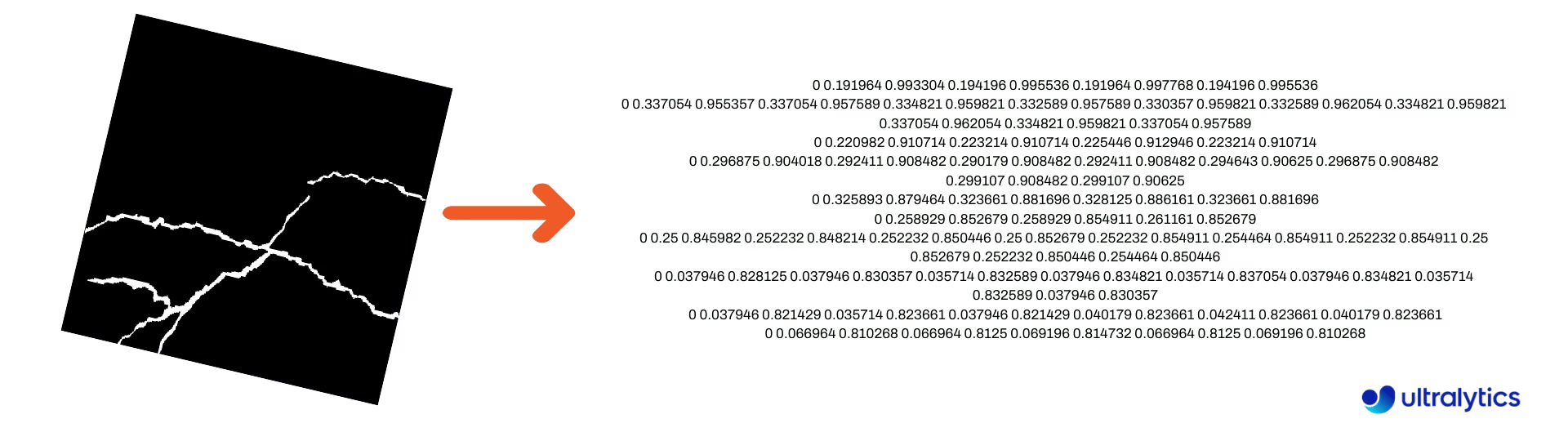
Verwende diese Funktion, um einen Datensatz mit Segmentierungsmaskenbildern in das Segmentierungsformat von Ultralytics YOLO umzuwandeln. Die Funktion liest das Verzeichnis mit den Maskenbildern im Binärformat ein und wandelt sie in das YOLO-Segmentierungsformat um.
Die umgewandelten Masken werden im angegebenen Ausgabeverzeichnis gespeichert.
from ultralytics.data.converter import convert_segment_masks_to_yolo_seg

# `classes` ist die Gesamtzahl der Klassen im Datensatz.
# Der COCO-Datensatz umfasst 80 Klassen.
convert_segment_masks_to_yolo_seg(masks_dir="path/to/masks_dir", output_dir="path/to/output_dir", classes=80)
COCO in das YOLO-Format umwandeln#
Verwende diese Funktion, um JSON-Annotationen von COCO in das YOLO-Format umzuwandeln. Setze bei Datensätzen zur Objekterkennung (Begrenzungsrahmen) sowohl use_segments als auch use_keypoints auf False.
from ultralytics.data.converter import convert_coco

convert_coco(
    "coco/annotations/",
    use_segments=False,
    use_keypoints=False,
    cls91to80=True,
)
Weitere Informationen zur Funktion convert_coco findest du auf der Referenzseite.
Abmessungen von Begrenzungsrahmen ermitteln#
import cv2

from ultralytics import YOLO
from ultralytics.utils.plotting import Annotator

model = YOLO("yolo26n.pt")  # Load pretrain or fine-tune model

# Process the image
source = cv2.imread("path/to/image.jpg")
results = model(source)

# Extract results
annotator = Annotator(source, example=model.names)

for box in results[0].boxes.xyxy.cpu():
    width, height, area = annotator.get_bbox_dimension(box)
    print(f"Bounding Box Width {width.item()}, Height {height.item()}, Area {area.item()}")
Begrenzungsrahmen in Segmente umwandeln#
Mit vorhandenen x y w h-Daten zu Begrenzungsrahmen kannst du diese mithilfe der Funktion yolo_bbox2segment in Segmente umwandeln. Ordne die Bild- und Annotationsdateien wie folgt an:
data
|__ images
    ├─ 001.jpg
    ├─ 002.jpg
    ├─ ..
    └─ NNN.jpg
|__ labels
    ├─ 001.txt
    ├─ 002.txt
    ├─ ..
    └─ NNN.txt
from ultralytics.data.converter import yolo_bbox2segment
yolo_bbox2segment(
im_dir="path/to/images",
save_dir=None, # wird neben dem Bildverzeichnis unter „labels-segment“ gespeichert
sam_model="sam_b.pt",
)Weitere Informationen zur Funktion findest du auf der Referenzseite zu yolo_bbox2segment.
Segmente in Begrenzungsrahmen umwandeln#
Wenn du einen Datensatz im Segmentierungsdatensatzformat hast, kannst du die Daten mit dieser Funktion ganz einfach in aufrechte (oder horizontale) Begrenzungsrahmen im Format x y w h umwandeln.
import numpy as np

from ultralytics.utils.ops import segments2boxes

segments = np.array(
    [
        [805, 392, 797, 400, 812, 402, 808, 714, 808, 392],
        [115, 398, 113, 400, 150, 410, 150, 400, 149, 298],
        [267, 412, 265, 413, 300, 420, 300, 413, 299, 412],
    ],
    dtype=np.float32,
)

segments2boxes([s.reshape(-1, 2) for s in segments])
# >>> array([[804.5, 553. ,  15. , 322. ],
#           [131.5, 354. ,  37. , 112. ],
#           [282.5, 416. ,  35. ,   8. ]],
# dtype=float32) # xywh-Begrenzungsrahmen
Auf der Referenzseite erfährst du, wie diese Funktion funktioniert.
Hilfsfunktionen#
Bildkomprimierung#
Komprimiere eine einzelne Bilddatei, um ihre Dateigröße zu verringern und dabei Seitenverhältnis und Qualität beizubehalten. Ist das Eingabebild kleiner als die maximale Abmessung, wird es nicht skaliert.
from pathlib import Path

from ultralytics.data.utils import compress_one_image

for f in Path("path/to/dataset").rglob("*.jpg"):
    compress_one_image(f)
Datensatz automatisch aufteilen#
Teile einen Datensatz automatisch in train/val/test-Teilmengen auf und speichere die resultierenden Teilmengen in autosplit_*.txt-Dateien. Diese Hilfsfunktion erstellt dauerhafte Aufteilungsdateien; das Trainingsargument fraction wählt stattdessen eine reproduzierbare Teilmenge für einen Trainingslauf aus.
from ultralytics.data.split import autosplit

autosplit(
    path="path/to/images",
    weights=(0.9, 0.1, 0.0),  # (Training, Validierung, Test) Aufteilungen als Bruchteile
    annotated_only=False,  # nur Bilder mit Annotationsdatei aufteilen, wenn True
)
Weitere Informationen zu dieser Funktion findest du auf der Referenzseite.
Segmentierungspolygon in Binärmaske umwandeln#
Wandle ein einzelnes Polygon (als Liste) in eine Binärmaske der angegebenen Bildgröße um. Das Polygon sollte ein flaches 1D-Array mit N-Koordinaten sein, in dem sich x, y-Werte abwechseln, die die Kontur des Polygons definieren.
N muss immer gerade sein.
import numpy as np

from ultralytics.data.utils import polygon2mask

imgsz = (1080, 810)
polygon = np.array([805, 392, 797, 400, ..., 808, 714, 808, 392])  # (N,) flache x-, y-Koordinaten

mask = polygon2mask(
    imgsz,  # tuple
    [polygon],  # als Liste eingeben
    color=255,  # 8-Bit-Binärformat
    downsample_ratio=1,
)Begrenzungsrahmen#
Instanzen mit horizontalen Begrenzungsrahmen#
Zur Verwaltung von Begrenzungsrahmendaten hilft dir die Klasse Bboxes dabei, zwischen Koordinatenformaten umzuwandeln, Abmessungen zu skalieren, Flächen zu berechnen, Versätze hinzuzufügen und vieles mehr.
import numpy as np

from ultralytics.utils.instance import Bboxes

boxes = Bboxes(
    bboxes=np.array(
        [
            [22.878, 231.27, 804.98, 756.83],
            [48.552, 398.56, 245.35, 902.71],
            [669.47, 392.19, 809.72, 877.04],
            [221.52, 405.8, 344.98, 857.54],
            [0, 550.53, 63.01, 873.44],
            [0.0584, 254.46, 32.561, 324.87],
        ]
    ),
    format="xyxy",
)

boxes.areas()
# >>> array([ 4.1104e+05,       99216,       68000,       55772,       20347,      2288.5])

boxes.convert("xywh")
print(boxes.bboxes)
# >>> array(
#     [[ 413.93, 494.05,  782.1, 525.56],
#      [ 146.95, 650.63,  196.8, 504.15],
#      [  739.6, 634.62, 140.25, 484.85],
#      [ 283.25, 631.67, 123.46, 451.74],
#      [ 31.505, 711.99,  63.01, 322.91],
#      [  16.31, 289.67, 32.503,  70.41]]
# )
Weitere Attribute und Methoden findest du im Referenzabschnitt zu Bboxes.
Viele der folgenden Funktionen und weitere lassen sich über die Klasse Bboxes verwenden. Wenn du lieber direkt mit den Funktionen arbeitest, erfährst du in den nächsten Unterabschnitten, wie du sie einzeln importierst.
Begrenzungsrahmen skalieren#
Wenn du ein Bild vergrößerst oder verkleinerst, kannst du die zugehörigen Koordinaten der Begrenzungsrahmen mit ultralytics.utils.ops.scale_boxes entsprechend skalieren.
import cv2 as cv
import numpy as np

from ultralytics.utils.ops import scale_boxes

image = cv.imread("ultralytics/assets/bus.jpg")
h, w, c = image.shape
resized = cv.resize(image, None, fx=1.2, fy=1.2)
new_h, new_w, _ = resized.shape

xyxy_boxes = np.array(
    [
        [22.878, 231.27, 804.98, 756.83],
        [48.552, 398.56, 245.35, 902.71],
        [669.47, 392.19, 809.72, 877.04],
        [221.52, 405.8, 344.98, 857.54],
        [0, 550.53, 63.01, 873.44],
        [0.0584, 254.46, 32.561, 324.87],
    ]
)

new_boxes = scale_boxes(
    img1_shape=(h, w),  # Abmessungen des Originalbilds
    boxes=xyxy_boxes,  # Begrenzungsrahmen aus dem Originalbild
    img0_shape=(new_h, new_w),  # Abmessungen des skalierten Bilds (Zielgröße)
    ratio_pad=None,
    padding=False,
    xywh=False,
)

print(new_boxes)
# >>> array(
#     [[  27.454,  277.52,  965.98,   908.2],
#     [   58.262,  478.27,  294.42,  1083.3],
#     [   803.36,  470.63,  971.66,  1052.4],
#     [   265.82,  486.96,  413.98,    1029],
#     [        0,  660.64,  75.612,  1048.1],
#     [   0.0701,  305.35,  39.073,  389.84]]
# )
Formate von Begrenzungsrahmen umwandeln#
XYXY → XYWH#
Wandle die Koordinaten eines Begrenzungsrahmens vom Format (x1, y1, x2, y2) in das Format (x, y, Breite, Höhe) um. Dabei ist (x1, y1) die obere linke und (x2, y2) die untere rechte Ecke.
import numpy as np

from ultralytics.utils.ops import xyxy2xywh

xyxy_boxes = np.array(
    [
        [22.878, 231.27, 804.98, 756.83],
        [48.552, 398.56, 245.35, 902.71],
        [669.47, 392.19, 809.72, 877.04],
        [221.52, 405.8, 344.98, 857.54],
        [0, 550.53, 63.01, 873.44],
        [0.0584, 254.46, 32.561, 324.87],
    ]
)
xywh = xyxy2xywh(xyxy_boxes)

print(xywh)
# >>> array(
#     [[ 413.93,  494.05,   782.1, 525.56],
#     [  146.95,  650.63,   196.8, 504.15],
#     [   739.6,  634.62,  140.25, 484.85],
#     [  283.25,  631.67,  123.46, 451.74],
#     [  31.505,  711.99,   63.01, 322.91],
#     [   16.31,  289.67,  32.503,  70.41]]
# )
Alle Umwandlungen von Begrenzungsrahmen#
from ultralytics.utils.ops import (
    ltwh2xywh,
    ltwh2xyxy,
    xywh2ltwh,  # xywh → obere linke Ecke, w, h
    xywh2xyxy,
    xywhn2xyxy,  # normalisiert → Pixel
    xyxy2ltwh,  # xyxy → obere linke Ecke, w, h
    xyxy2xywhn,  # Pixel → normalisiert
)

for func in (ltwh2xywh, ltwh2xyxy, xywh2ltwh, xywh2xyxy, xywhn2xyxy, xyxy2ltwh, xyxy2xywhn):
    print(help(func))  # Dokumentationszeichenfolgen der Funktionen ausgeben
Lies die Dokumentationszeichenfolge jeder Funktion oder besuche die ultralytics.utils.ops-Referenzseite, um mehr zu erfahren.
Visualisierung#
Annotationshilfen#
Ultralytics enthält die Klasse Annotator zum Annotieren verschiedener Datentypen. Sie eignet sich besonders für Begrenzungsrahmen zur Objekterkennung, Posenschlüsselpunkte und orientierte Begrenzungsrahmen.
Begrenzungsrahmen annotieren#
import cv2 as cv
import numpy as np

from ultralytics.utils.plotting import Annotator, colors

names = {
    0: "person",
    5: "bus",
    11: "stop sign",
}

image = cv.imread("ultralytics/assets/bus.jpg")
ann = Annotator(
    image,
    line_width=None,  # default auto-size
    font_size=None,  # default auto-size
    font="Arial.ttf",  # must be ImageFont compatible
    pil=False,  # use PIL, otherwise uses OpenCV
)

xyxy_boxes = np.array(
    [
        [5, 22.878, 231.27, 804.98, 756.83],  # class-idx x1 y1 x2 y2
        [0, 48.552, 398.56, 245.35, 902.71],
        [0, 669.47, 392.19, 809.72, 877.04],
        [0, 221.52, 405.8, 344.98, 857.54],
        [0, 0, 550.53, 63.01, 873.44],
        [11, 0.0584, 254.46, 32.561, 324.87],
    ]
)

for nb, box in enumerate(xyxy_boxes):
    c_idx, *box = box
    label = f"{str(nb).zfill(2)}:{names.get(int(c_idx))}"
    ann.box_label(box, label, color=colors(c_idx, bgr=True))

image_with_bboxes = ann.result()
Namen aus model.names lassen sich bei der Arbeit mit Erkennungsergebnissen verwenden. Weitere Informationen findest du auch auf der Referenzseite zu Annotator.
Ultralytics-Sweep-Annotation#
import sys

import cv2
import numpy as np

from ultralytics import YOLO
from ultralytics.solutions.solutions import SolutionAnnotator
from ultralytics.utils.plotting import colors

# User defined video path and model file
cap = cv2.VideoCapture("path/to/video.mp4")
model = YOLO(model="yolo26s-seg.pt")  # Model file, e.g., yolo26s.pt or yolo26m-seg.pt

if not cap.isOpened():
    print("Error: Could not open video.")
    sys.exit()

# Initialize the video writer object.
w, h, fps = (int(cap.get(x)) for x in (cv2.CAP_PROP_FRAME_WIDTH, cv2.CAP_PROP_FRAME_HEIGHT, cv2.CAP_PROP_FPS))
video_writer = cv2.VideoWriter("ultralytics.avi", cv2.VideoWriter_fourcc(*"mp4v"), fps, (w, h))

masks = None  # Initialize variable to store masks data
f = 0  # Initialize frame count variable for enabling mouse event.
line_x = w  # Store width of line.
dragging = False  # Initialize bool variable for line dragging.
classes = model.names  # Store model classes names for plotting.
window_name = "Ultralytics Sweep Annotator"

def drag_line(event, x, _, flags, param):
    """Mouse callback function to enable dragging a vertical sweep line across the video frame."""
    global line_x, dragging
    if event == cv2.EVENT_LBUTTONDOWN or (flags & cv2.EVENT_FLAG_LBUTTON):
        line_x = max(0, min(x, w))
        dragging = True

while cap.isOpened():  # Loop over the video capture object.
    ret, im0 = cap.read()
    if not ret:
        break
    f = f + 1  # Increment frame count.
    count = 0  # Re-initialize count variable on every frame for precise counts.
    results = model.track(im0, persist=True)[0]

    if f == 1:
        cv2.namedWindow(window_name)
        cv2.setMouseCallback(window_name, drag_line)

    annotator = SolutionAnnotator(im0)

    if results.boxes.is_track:
        if results.masks is not None:
            masks = [np.array(m, dtype=np.int32) for m in results.masks.xy]

        boxes = results.boxes.xyxy.tolist()
        track_ids = results.boxes.id.int().cpu().tolist()
        clss = results.boxes.cls.cpu().tolist()

        for mask, box, cls, t_id in zip(masks or [None] * len(boxes), boxes, clss, track_ids):
            color = colors(t_id, True)  # Assign different color to each tracked object.
            label = f"{classes[cls]}:{t_id}"
            if mask is not None and mask.size > 0:
                if box[0] > line_x:
                    count += 1
                    cv2.polylines(im0, [mask], True, color, 2)
                    x, y = mask.min(axis=0)
                    (w_m, _), _ = cv2.getTextSize(label, cv2.FONT_HERSHEY_SIMPLEX, 0.5, 1)
                    cv2.rectangle(im0, (x, y - 20), (x + w_m, y), color, -1)
                    cv2.putText(im0, label, (x, y - 5), cv2.FONT_HERSHEY_SIMPLEX, 0.5, (255, 255, 255), 1)
            else:
                if box[0] > line_x:
                    count += 1
                    annotator.box_label(box=box, color=color, label=label)

    # Generate draggable sweep line
    annotator.sweep_annotator(line_x=line_x, line_y=h, label=f"COUNT:{count}")

    cv2.imshow(window_name, im0)
    video_writer.write(im0)
    if cv2.waitKey(1) & 0xFF == ord("q"):
        break

# Release the resources
cap.release()
video_writer.release()
cv2.destroyAllWindows()
Weitere Informationen zur Methode sweep_annotator findest du in unserem Referenzabschnitt hier.
Adaptive Beschriftungsannotation#
SolutionAnnotator.adaptive_label zeichnet eine Beschriftung, deren Form über das Argument shape festgelegt wird (es ersetzt die älteren Methoden circle_label und text_label):
- Rechteck:
annotator.adaptive_label(box, label=names[int(cls)], color=colors(cls, True), shape="rect") - Kreis:
annotator.adaptive_label(box, label=names[int(cls)], color=colors(cls, True), shape="circle")
Ansehen: Ausführliche Anleitung zu Text- und Kreisannotationen mit Python-Livedemos | Ultralytics-Annotationen 🚀
import cv2

from ultralytics import YOLO
from ultralytics.solutions.solutions import SolutionAnnotator
from ultralytics.utils.plotting import colors

model = YOLO("yolo26s.pt")
names = model.names
cap = cv2.VideoCapture("path/to/video.mp4")

w, h, fps = (int(cap.get(x)) for x in (cv2.CAP_PROP_FRAME_WIDTH, cv2.CAP_PROP_FRAME_HEIGHT, cv2.CAP_PROP_FPS))
writer = cv2.VideoWriter("Ultralytics circle annotation.avi", cv2.VideoWriter_fourcc(*"MJPG"), fps, (w, h))

while True:
    ret, im0 = cap.read()
    if not ret:
        break

    annotator = SolutionAnnotator(im0)
    results = model.predict(im0)[0]
    boxes = results.boxes.xyxy.cpu()
    clss = results.boxes.cls.cpu().tolist()

    for box, cls in zip(boxes, clss):
        annotator.adaptive_label(box, label=names[int(cls)], color=colors(cls, True), shape="circle")
    writer.write(im0)
    cv2.imshow("Ultralytics circle annotation", im0)

    if cv2.waitKey(1) & 0xFF == ord("q"):
        break

writer.release()
cap.release()
cv2.destroyAllWindows()
Weitere Informationen findest du auf der SolutionAnnotator-Referenzseite.
Verschiedenes#
Code-Profiling#
Prüfe, wie lange die Ausführung oder Verarbeitung von Code dauert – entweder mit with oder als Decorator.
from ultralytics.utils.ops import Profile

with Profile(device="cuda:0") as dt:
    pass  # Vorgang messen

print(dt)
# >>> "Elapsed time is 9.5367431640625e-07 s"
Von Ultralytics unterstützte Formate#
Möchtest du die unterstützten Bild- oder Videoformate in Ultralytics programmgesteuert verwenden? Nutze bei Bedarf diese Konstanten:
from ultralytics.data.utils import IMG_FORMATS, VID_FORMATS

print(IMG_FORMATS)
# {'avif', 'bmp', 'dng', 'heic', 'heif', 'jp2', 'jpeg', 'jpg', 'mpo', 'png', 'tif', 'tiff', 'webp'}

print(VID_FORMATS)
# {'asf', 'avi', 'gif', 'm4v', 'mkv', 'mov', 'mp4', 'mpeg', 'mpg', 'ts', 'wmv', 'webm'}
Aufrunden auf ein Vielfaches#
Berechne die kleinste ganze Zahl, die größer oder gleich x und durch y teilbar ist.
from ultralytics.utils.ops import make_divisible

make_divisible(7, 3)
# >>> 9
make_divisible(7, 2)
# >>> 8
Häufig gestellte Fragen#
Das Ultralytics-Paket enthält Dienstprogramme, die Arbeitsabläufe des maschinellen Lernens vereinfachen und optimieren. Zu den wichtigsten Dienstprogrammen gehören die automatische Annotation zur Beschriftung von Datensätzen, die Umwandlung von COCO in das YOLO-Format mit convert_coco, die Bildkomprimierung und die automatische Aufteilung von Datensätzen. Diese Werkzeuge verringern den manuellen Aufwand, sorgen für Konsistenz und verbessern die Effizienz der Datenverarbeitung.
Wenn du ein vortrainiertes Ultralytics-YOLO-Objekterkennungsmodell hast, kannst du es zusammen mit dem SAM-Modell verwenden, um deinen Datensatz automatisch im Segmentierungsformat zu annotieren. Hier ein Beispiel:
from ultralytics.data.annotator import auto_annotate

auto_annotate(
    data="path/to/new/data",
    det_model="yolo26n.pt",
    sam_model="mobile_sam.pt",
    device="cuda",
    output_dir="path/to/save_labels",
)
Weitere Einzelheiten findest du im Referenzabschnitt zu auto_annotate. Alternativ kannst du die Ultralytics Platform als gehostete Lösung ohne Code verwenden und Masken per Mausklick mit SAM 2.1, SAM 3 oder SAM 3.1 erstellen oder Vorhersagen mit vortrainierten und feinabgestimmten YOLO-Modellen für Erkennungs-, Segmentierungs- und OBB-Aufgaben ausführen.
Um COCO-JSON-Annotationen für die Objekterkennung in das YOLO-Format umzuwandeln, kannst du das Dienstprogramm
convert_cocoverwenden. Hier ein Beispielcode:from ultralytics.data.converter import convert_coco convert_coco( "coco/annotations/", use_segments=False, use_keypoints=False, cls91to80=True, )Weitere Informationen findest du auf der convert_coco-Referenzseite.
Die Ultralytics Platform bietet automatische Analysen von Datensätzen: Der Tab
Chartszeigt die Verteilung der Teilmengen, die Häufigkeiten der häufigsten Klassen, Histogramme der Bildabmessungen und 2D-Heatmaps der Annotationspositionen. So kannst du Ungleichgewichte und Ausreißer vor dem Training erkennen.Um vorhandene Daten zu Begrenzungsrahmen (im Format
x y w h) in Segmente umzuwandeln, kannst du die Funktionyolo_bbox2segmentverwenden. Achte darauf, separate Verzeichnisse für Bilder und Labels anzulegen.from ultralytics.data.converter import yolo_bbox2segment yolo_bbox2segment( im_dir="path/to/images", save_dir=None, # wird neben dem Bildverzeichnis unter „labels-segment“ gespeichert sam_model="sam_b.pt", )Weitere Informationen findest du auf der yolo_bbox2segment-Referenzseite.