Object Tracking Heatmaps with Ultralytics YOLO26#

The Heatmap solution in Ultralytics YOLO26 tracks objects across video frames and overlays their accumulated movement intensity onto each frame, so busy areas glow in warm colors while quiet areas stay cool. Built on YOLO26 object tracking, it turns any video into a spatial activity map that reveals traffic flow, crowd movement, and dwell zones with a single Python call or CLI command.
Watch: How to Create Heatmaps with Ultralytics YOLO26 | Visualize Object Activity | VisionAI in Retail 🚀
Why Use Heatmaps for Video Analytics?#
- Spot activity patterns at a glance: Intensity accumulates wherever tracked objects spend time, so high-traffic lanes, popular shelves, or crowd bottlenecks stand out without manual frame-by-frame review.
- Tracking built in: The solution runs YOLO26 detection and tracking internally, so there is no separate tracking pipeline to wire up.
- Counting in the same pass: Pass a
regionto count objects entering and exiting a zone while the heatmap builds, combining two analytics tasks in one run.
Real World Applications#
| Transportation | Retail |
|---|---|
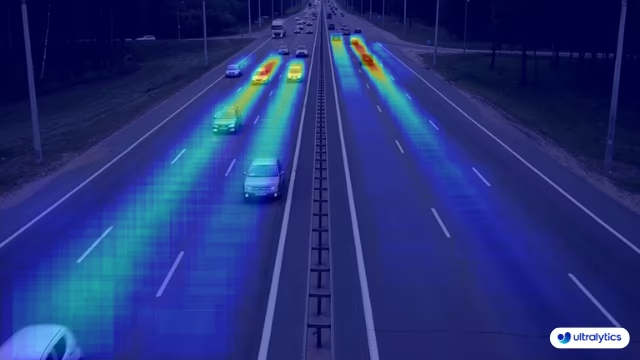 | 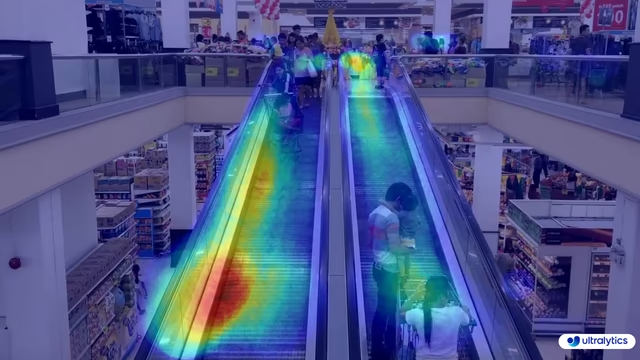 |
| Ultralytics YOLO Transportation Heatmap | Ultralytics YOLO Retail Heatmap |
How to Generate Heatmaps with Ultralytics YOLO#
Run the Heatmap solution on a video source from the CLI or Python. The Python example writes the processed frames to an output video file:
# Run a heatmap example
yolo solutions heatmap show=True

# Pass a source video
yolo solutions heatmap source="path/to/video.mp4"

# Pass a custom colormap
yolo solutions heatmap colormap=cv2.COLORMAP_INFERNO

# Heatmaps + object counting
yolo solutions heatmap region="[(20, 400), (1080, 400), (1080, 360), (20, 360)]"
Heatmap() Arguments#
Here's a table with the Heatmap arguments:
| Argument | Type | Default | Description |
|---|---|---|---|
model | str | None | Path to an Ultralytics YOLO model file. |
colormap | int | cv2.COLORMAP_DEEPGREEN | Colormap to use for the heatmap. |
show_in | bool | True | Flag to control whether to display the in counts on the video stream. |
show_out | bool | True | Flag to control whether to display the out counts on the video stream. |
region | list or dict | None | Points defining the region of interest, either a list of (x, y) tuples or a dictionary mapping region names to point lists for multiple regions (RegionCounter only). When None, solutions that require a region fall back to a predefined default. |
line_width | int | 2 | Line thickness for the boxes, keypoints and counts the solution draws. |
verbose | bool | True | Enables the solution's per-frame log of input shape, class counts and processing speed. The tracking call itself is always silent. |
You can also apply different track arguments in the Heatmap solution.
| Argument | Type | Default | Description |
|---|---|---|---|
tracker | str | 'botsort.yaml' | Specifies the tracking algorithm to use. Built-in options: botsort.yaml, bytetrack.yaml, ocsort.yaml, deepocsort.yaml, fasttrack.yaml, tracktrack.yaml. |
conf | float | 0.25 | Sets the confidence threshold for detections; lower values allow more objects to be tracked but may include false positives. |
iou | float | 0.7 | Sets the Intersection over Union (IoU) threshold for filtering overlapping detections. |
classes | list | None | Filters results by class index. For example, classes=[0, 2, 3] only tracks the specified classes. |
device | str | None | Specifies the device for inference (e.g., cpu, cuda:0 or 0). Allows users to select between CPU, a specific GPU, or other compute devices for model execution. |
imgsz | int or tuple | 640 | Target inference image size: an integer for a square or a (height, width) pair. Shapes are adjusted to the model stride. |
max_det | int | 300 | Maximum number of detections kept per frame before tracking, limiting the objects a solution processes in dense scenes. |
quantize | int or str | None | Inference precision: 16 (FP16) or 32/unset (FP32) for PyTorch and TorchScript models; other formats compute at the precision their artifact and runtime select. Replaces the deprecated half flag. |
Additionally, the supported visualization arguments are listed below:
| Argument | Type | Default | Description |
|---|---|---|---|
show | bool | False | If True, displays the annotated images or videos in a window. Useful for immediate visual feedback during development or testing. |
show_conf | bool | True | Displays the confidence score for each detection alongside the label. Gives insight into the model's certainty for each detection. |
show_labels | bool | True | Displays labels for each detection in the visual output. Provides immediate understanding of detected objects. |
Heatmap Colormaps#
The colormap argument accepts any OpenCV colormap. Pass the constant from the cv2 module, for example colormap=cv2.COLORMAP_INFERNO:
| Colormap Name | Description |
|---|---|
cv2.COLORMAP_AUTUMN | Autumn color map |
cv2.COLORMAP_BONE | Bone color map |
cv2.COLORMAP_JET | Jet color map |
cv2.COLORMAP_WINTER | Winter color map |
cv2.COLORMAP_RAINBOW | Rainbow color map |
cv2.COLORMAP_OCEAN | Ocean color map |
cv2.COLORMAP_SUMMER | Summer color map |
cv2.COLORMAP_SPRING | Spring color map |
cv2.COLORMAP_COOL | Cool color map |
cv2.COLORMAP_HSV | HSV (Hue, Saturation, Value) color map |
cv2.COLORMAP_PINK | Pink color map |
cv2.COLORMAP_HOT | Hot color map |
cv2.COLORMAP_PARULA | Parula color map |
cv2.COLORMAP_MAGMA | Magma color map |
cv2.COLORMAP_INFERNO | Inferno color map |
cv2.COLORMAP_PLASMA | Plasma color map |
cv2.COLORMAP_VIRIDIS | Viridis color map |
cv2.COLORMAP_CIVIDIS | Cividis color map |
cv2.COLORMAP_TWILIGHT | Twilight color map |
cv2.COLORMAP_TWILIGHT_SHIFTED | Shifted Twilight color map |
cv2.COLORMAP_TURBO | Turbo color map |
cv2.COLORMAP_DEEPGREEN | Deep Green color map |
How Heatmaps Work#
The Heatmap solution extends the ObjectCounter class. On the first processed frame it creates a blank intensity layer matching the frame size. Each frame is then processed in two steps:
- YOLO26 tracking detects and follows every object in the frame
- For each tracked object, the heatmap intensity increases within a circular region centered in its bounding box
Once per frame, the accumulated intensity layer is normalized, colorized with the selected colormap, and blended with the original frame. The overlay appears as soon as at least one object is tracked; frames without tracked objects are shown without the heatmap overlay.
The result is a dynamic visualization that builds up over time, revealing traffic patterns, crowd movements, or other spatial behaviors in your video data. When a region is set, the solution also counts objects entering and exiting that region while the heatmap builds.
Conclusion#
The Ultralytics YOLO26 Heatmap solution turns object tracking results into an intuitive activity overlay with a few lines of code. To go further, combine it with object counting, explore the other Ultralytics Solutions, or read about the underlying tracking mode.
FAQ#
Ultralytics YOLO26 generates heatmaps by tracking objects across video frames and accumulating an intensity value at each tracked object's location, then colorizing the result and blending it with the original frame. Areas where objects appear frequently or linger build up higher intensity and render in warmer colors. For configuration options, refer to the
Heatmap()Arguments section.Use OpenCV's
cv2.VideoWriterand writeresults.plot_imfor every processed frame, as shown in the main example. Theplot_imattribute holds the frame with the heatmap overlay already applied.Yes. Pass a
regionargument toHeatmap()with line, rectangle, or polygon points, and the solution counts objects entering and exiting that region while the heatmap builds. The returned results includein_count,out_count, and per-class counts. See the object counting guide for region configuration details.Pass the
classesargument toHeatmap()with the class indices you want to keep. For example,classes=[0, 2]builds the heatmap only from persons and cars (COCO class indices 0 and 2):import cv2 from ultralytics import solutions cap = cv2.VideoCapture("path/to/video.mp4") heatmap = solutions.Heatmap(show=True, model="yolo26n.pt", classes=[0, 2]) while cap.isOpened(): success, im0 = cap.read() if not success: break results = heatmap(im0) cap.release() cv2.destroyAllWindows()Ultralytics YOLO26 heatmaps integrate object detection, tracking, intensity accumulation, and overlay rendering into a single call, while generic tools like OpenCV or Matplotlib require you to build that pipeline yourself. The solution processes video streams in real time and supports persistent tracking and customizable colormaps out of the box. For details on the underlying model, see the YOLO26 model page.