Ultralytics VS Code Extension
Watch: How to use Ultralytics Visual Studio Code Extension | Ready-to-Use Code Snippets | Ultralytics YOLO 🎉
Features and Benefits#
✅ Are you a data scientist or machine learning engineer building computer vision applications with Ultralytics?
✅ Tired of writing the same blocks of code repeatedly?
✅ Are you always forgetting the arguments or default values for the train, val, predict, export, or track methods?
✅ Looking to get started with Ultralytics and wish you had an easier way to reference or run code examples?
✅ Want to speed up your development cycle when working with Ultralytics?
If you use Visual Studio Code and answered 'yes' to any of the above, then the Ultralytics-snippets extension for VS Code can help. The sections below cover what the extension does, how to install it, and how to use it.
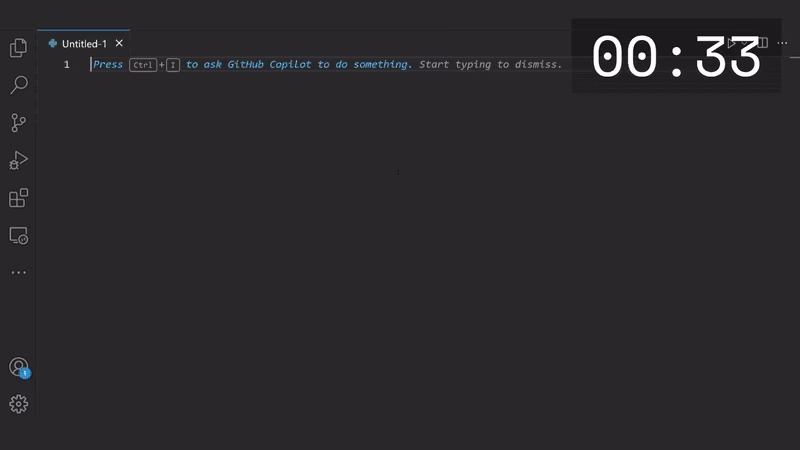
Run example code using Ultralytics YOLO in under 20 seconds.
Inspired by the Ultralytics Community#
The inspiration to build this extension came from the Ultralytics Community. Questions from the Community around similar topics and examples fueled the development for this project. Additionally, many members of the Ultralytics team use VS Code for their own work.
Why VS Code?#
Visual Studio Code is widely used by developers worldwide and has ranked most popular by the Stack Overflow Developer Survey in 2021, 2022, 2023, and 2024. Its popularity comes from its high level of customization, built-in features, broad compatibility, and extensibility. Given that popularity in the wider developer community and within the Ultralytics Discord, Discourse, Reddit, and GitHub Communities, it made sense to build a VS Code extension to help streamline your workflow.
To share which tools you use for developing code, vote in the Discourse community poll.
Installing the Extension#
Any code environment that will allow for installing VS Code extensions should be compatible with the Ultralytics-snippets extension. Neovim can also be made compatible with VS Code extensions.
Installing in VS Code#
-
Navigate to the Extensions menu in VS Code or use the shortcut Ctrl+Shift ⇑+x, and search for Ultralytics-snippets.
-
Click the Install button.
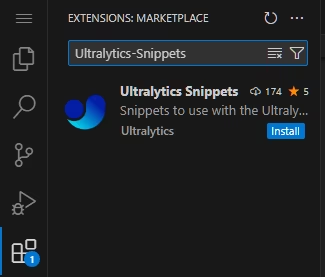
Installing from the VS Code Extension Marketplace#
-
Visit the VS Code Extension Marketplace and search for Ultralytics-snippets or go straight to the extension page on the VS Code marketplace.
-
Click the Install button and allow your browser to launch a VS Code session.
-
Follow any prompts to install the extension.
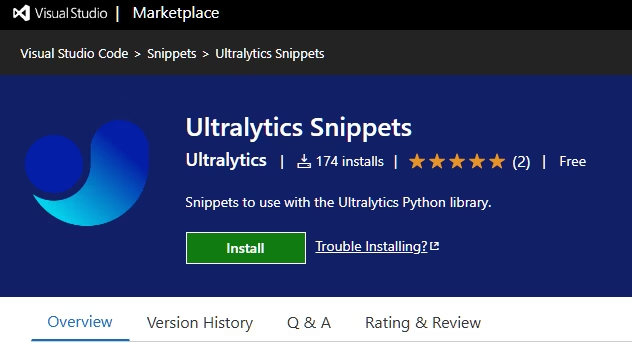
Visual Studio Code Extension Marketplace page for Ultralytics-Snippets
Using the Ultralytics-Snippets Extension#
-
Intelligent Code Completion: Write code faster and more accurately with advanced code completion suggestions tailored to the Ultralytics API.
-
Increased Development Speed: Save time by eliminating repetitive coding tasks with pre-built code block snippets.
-
Improved Code Quality: Write cleaner, more consistent code with fewer errors.
-
Streamlined Workflow: Stay focused on the core logic of your project by automating common tasks.
Overview#
The extension will only operate when the Language Mode is configured for Python. This prevents snippets from being inserted when working on any other file type. All snippets have a prefix starting with ultra; typing ultra in your editor after installing the extension displays a list of possible snippets to use. You can also open the VS Code Command Palette using Ctrl+Shift ⇑+p and running the command Snippets: Insert Snippet.
Code Snippet Fields#
Many snippets have "fields" with default placeholder values or names. For instance, output from the predict method could be saved to a Python variable named r, results, detections, preds or whatever else a developer chooses, which is why snippets include "fields". Using Tab ⇥ on your keyboard after a snippet is inserted, your cursor will move between fields quickly. Once a field is selected, typing a new variable name will change that instance, but also every other instance in the snippet code for that variable!
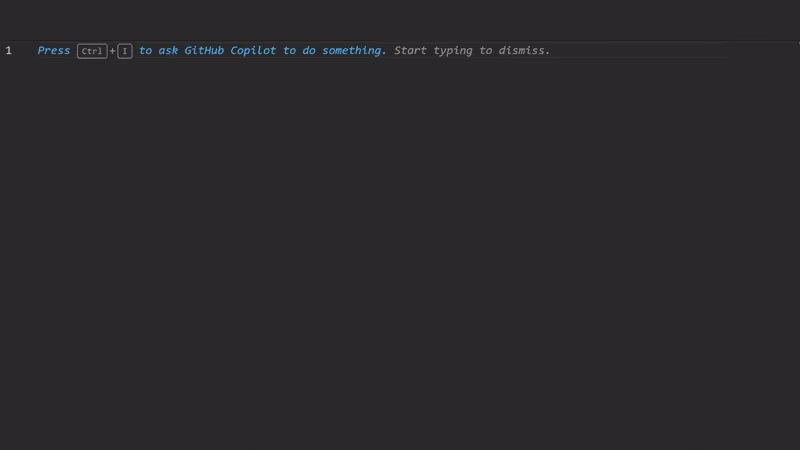
After inserting snippet, renaming model as world_model updates all instances. Pressing Tab ⇥ moves to the next field, which opens a dropdown menu and allows for selection of a model scale, and moving to the next field provides another dropdown to choose either world or worldv2 model variant.
Code Snippet Completions#
It's not required to type the full prefix of the snippet, or even to start typing from the start of the snippet. See example in the image below.
The snippets are named in the most descriptive way possible, but this means there could be a lot to type and that would be counterproductive if the aim is to move faster. Luckily VS Code lets users type ultra.example-yolo-predict, example-yolo-predict, yolo-predict, or even ex-yolo-p and still reach the intended snippet option! If the intended snippet was actually ultra.example-yolo-predict-kwords, then just using your keyboard arrows ↑ or ↓ to highlight the desired snippet and pressing Enter ↵ or Tab ⇥ will insert the correct block of code.
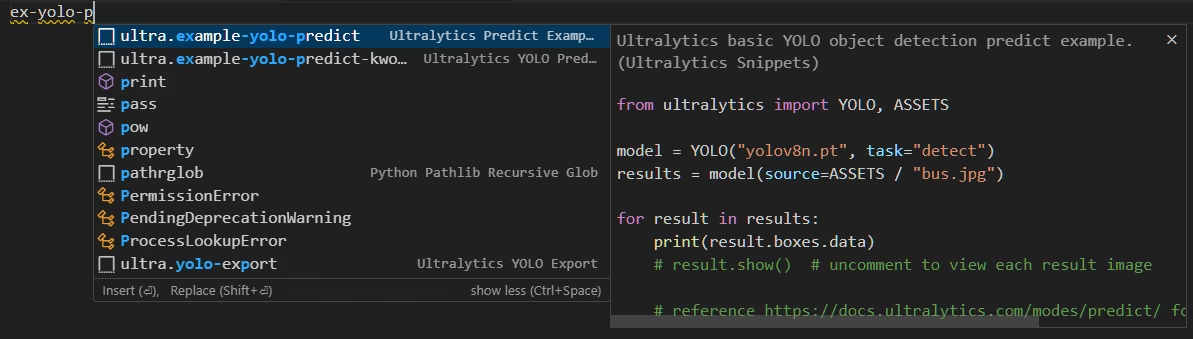
Typing ex-yolo-p will still arrive at the correct snippet.
Snippet Categories#
These are the current snippet categories available to the Ultralytics-snippets extension. More will be added in the future, so make sure to check for updates and to enable auto-updates for the extension. You can also request additional snippets to be added if any are missing.
| Category | Starting Prefix | Description |
|---|---|---|
| Examples | ultra.examples | Example code to help learn or for getting started with Ultralytics. Examples are copies of or similar to code from documentation pages. |
| Kwargs | ultra.kwargs | Speed up development by adding snippets for train, val, predict, and track methods with all keyword arguments and default values. |
| Imports | ultra.imports | Snippets to quickly import common Ultralytics objects. |
| Models | ultra.yolo | Insert code blocks for initializing various models (yolo, sam, rtdetr, etc.), including dropdown configuration options. |
| Results | ultra.result | Code blocks for common operations when working with inference results. |
| Utilities | ultra.util | Provides quick access to common utilities that are built into the Ultralytics package, learn more about these on the Simple Utilities page. |
Learning with Examples#
The ultra.examples snippets are very useful for anyone looking to learn how to get started with the basics of working with Ultralytics YOLO. Example snippets are intended to run once inserted (some have dropdown options as well). An example of this is shown in the animation at the top of this page, where after the snippet is inserted, all code is selected and run interactively using Shift ⇑+Enter ↵.
Just like the animation shows at the top of this page, you can use the snippet ultra.example-yolo-predict to insert the following code example. Once inserted, the only configurable option is for the model scale which can be any one of: n, s, m, l, or x.
from ultralytics import ASSETS, YOLO

model = YOLO("yolo26n.pt", task="detect")
results = model(source=ASSETS / "bus.jpg")

for result in results:
    print(result.boxes.data)
    # result.show()  # uncomment to view each result image
Accelerating Development#
Snippets other than ultra.examples aim to make development easier and quicker when working with Ultralytics. A common code block in many projects iterates over the list of Results returned by the model predict method. The ultra.result-loop snippet can help with this.
Using the ultra.result-loop will insert the following default code (including comments).
# reference https://docs.ultralytics.com/modes/predict#working-with-results

for result in results:
    result.boxes.data  # torch.Tensor array
However, since Ultralytics supports numerous tasks, when working with inference results there are other Results attributes that you may wish to access, which is where the snippet fields are useful.
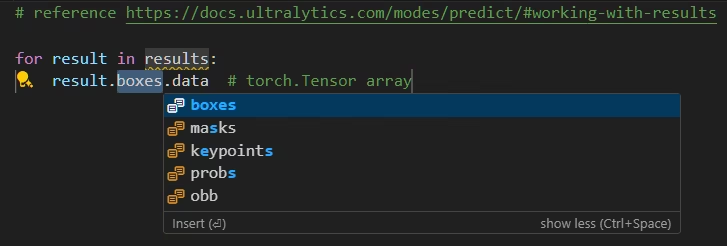
Once tabbed to the boxes field, a dropdown menu appears to allow selection of another attribute as required.
Keywords Arguments#
There are over 100 keyword arguments for all the various Ultralytics tasks and modes! That's a lot to remember, and it can be easy to forget if the argument is save_frame or save_frames (it's save_frames). This is where the ultra.kwargs snippets can help out!
To insert the predict method, including all inference arguments, use ultra.kwargs-predict, which will insert the following code (including comments).
model.predict(
    source=src,  # (str, optional) source directory for images or videos
    imgsz=640,  # (int | list) input images size as int or list[h,w] for predict
    conf=0.25,  # (float) minimum confidence threshold
    iou=0.7,  # (float) intersection over union (IoU) threshold for NMS
    vid_stride=1,  # (int) video frame-rate stride
    stream_buffer=False,  # (bool) buffer incoming frames in a queue (True) or only keep the most recent frame (False)
    visualize=False,  # (bool) save class activation heatmaps
    augment=False,  # (bool) apply image augmentation to prediction sources
    agnostic_nms=False,  # (bool) class-agnostic NMS
    classes=None,  # (int | list[int], optional) filter results by class, i.e. classes=0, or classes=[0,2,3]
    retina_masks=False,  # (bool) use high-resolution segmentation masks
    embed=None,  # (list[int], optional) return feature vectors/embeddings from given layers
    show=False,  # (bool) show predicted images and videos if environment allows
    save=True,  # (bool) save prediction results
    save_frames=False,  # (bool) save predicted individual video frames
    save_txt=False,  # (bool) save results as .txt file
    save_conf=False,  # (bool) save results with confidence scores
    save_crop=False,  # (bool) save cropped images with results
    stream=False,  # (bool) for processing long videos or numerous images with reduced memory usage by returning a generator
    verbose=True,  # (bool) enable/disable verbose inference logging in the terminal
)
This snippet has fields for all the keyword arguments, but also for model and src in case you've used a different variable in your code. On each line containing a keyword argument, a brief description is included for reference.
All Code Snippets#
The best way to find out what snippets are available is to download and install the extension and try it out! If you're curious and want to take a look at the list beforehand, you can visit the repo or extension page on the VS Code marketplace to view the tables for all available snippets.
Conclusion#
The Ultralytics-Snippets extension for VS Code helps data scientists and machine learning engineers build computer vision applications with Ultralytics YOLO more efficiently. Its pre-built code snippets and examples let you spend less time on boilerplate and more on your project logic. Please share your feedback by visiting the extension page on the VS Code marketplace and leaving a review.
FAQ#
New snippets can be requested using the Issues on the Ultralytics-Snippets repo.
The extension is free.
VS Code uses the key combination Ctrl+Space to show more/less information in the preview window. If you're not seeing a snippet preview when you type in a code snippet prefix, using this key combination should restore the preview.
If you use VS Code and have started to see a message prompting you to install the Ultralytics-snippets extension, and don't want to see the message any more, there are two ways to disable this message.
-
Install Ultralytics-snippets and the message will no longer be shown.
-
You can use
yolo settings vscode_msg=Falseto disable the message from showing without having to install the extension. You can learn more on the Ultralytics Settings page if you're unfamiliar.
-
Visit the Ultralytics-snippets repo and open an Issue or Pull Request!
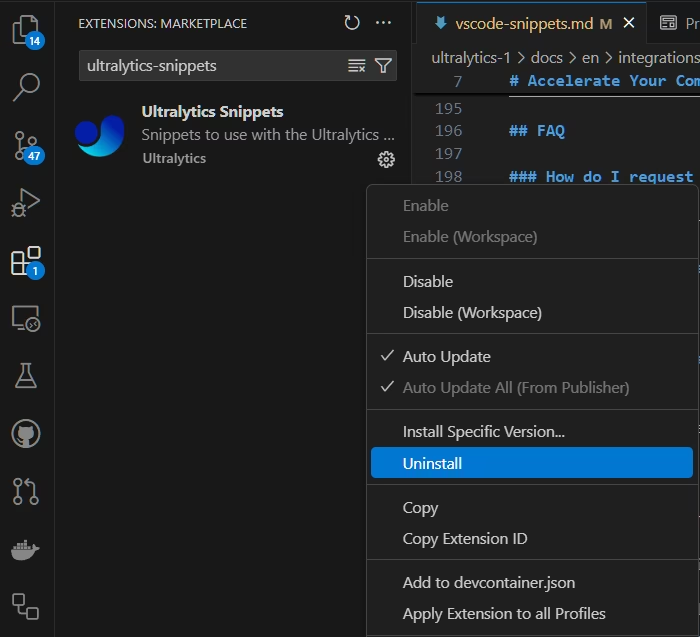
Like any other VS Code extension, you can uninstall it by navigating to the Extensions menu in VS Code. Find the Ultralytics-snippets extension in the menu and click the cog icon (⚙) and then click on "Uninstall" to remove the extension.


Comments3
Ask a question, share your results, or help someone else.
Hugofox07
Hi, I'm new to YOLO, but I'd like to know how to program it directly from VS Code instead of Google Colab. Does anyone have any videos with simple examples of how to display an image, or even a video on YOLO detection? Thanks for the help.
 Glenn JocherUltralytics
Thanks for posting here—yes, you can run Ultralytics YOLO locally in VS Code; install the package, then use these minimal examples, and the VS Code Snippets extension lets you insert
ultra.example-yolo-predictto get a runnable template (the extension page linked above has a short walkthrough video); for setup see the Install Ultralytics guide and for options see the Predict mode guide.pip install ultralyticsfrom ultralytics import YOLO # Image model = YOLO("yolo11n.pt", task="detect") model.predict(source="path/to/image.jpg", show=True) # Video model.predict(source="path/to/video.mp4", show=True, save=True)See Install Ultralytics and the Predict mode guide; drop any follow-ups here so the team can see them.
1Thanks very much , for your help. thanks dude.