Explorer GUI#
ultralytics>=8.3.12以降、Ultralytics Explorerは削除されています。Explorerを使用するには、pip install ultralytics==8.3.11をインストールしてください。同様の(拡張された)データセット探索機能はUltralytics Platformで利用できます。
Explorer GUIは、Ultralytics Explorer APIを基盤として構築されています。LLMを利用するAsk AI機能を使って、セマンティック/ベクトル類似度検索、SQLクエリ、自然言語クエリを実行できます。
視聴: Ultralytics Explorer ダッシュボードの概要
インストール#
pip install "ultralytics[explorer]==8.3.11"Ask AI機能はOpenAIを使用するため、GUIの初回起動時にOpenAI APIキーの設定を求められます。 yolo settings openai_api_key="..."で設定してください。
ベクトル・セマンティック類似検索#
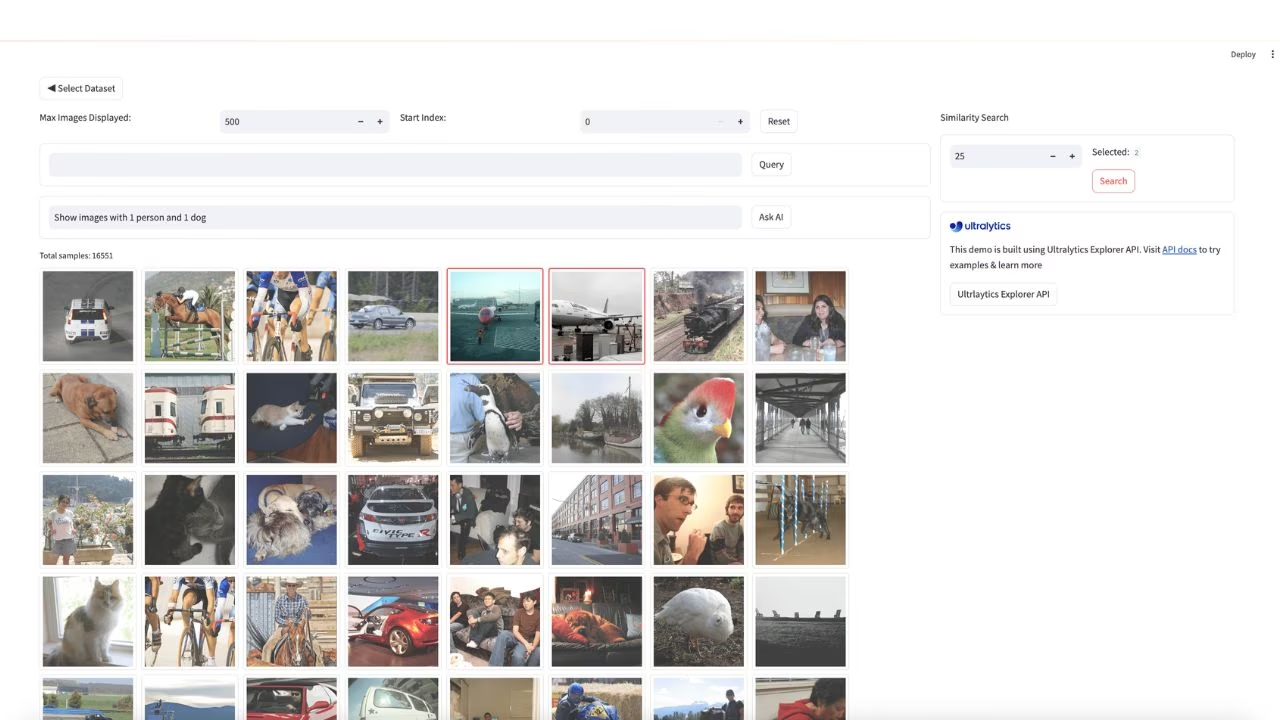
セマンティック検索は、指定した画像に類似する画像を見つける手法です。類似画像は類似した埋め込みを持つという考えに基づいています。UIでは1枚以上の画像を選択し、それらに類似する画像を検索できます。指定した画像や、期待どおりに機能しない画像のセットに類似する画像を見つけたい場合に役立ちます。
たとえば、このVOC探索ダッシュボードでは、ユーザーが数枚の飛行機の画像を選択しています。
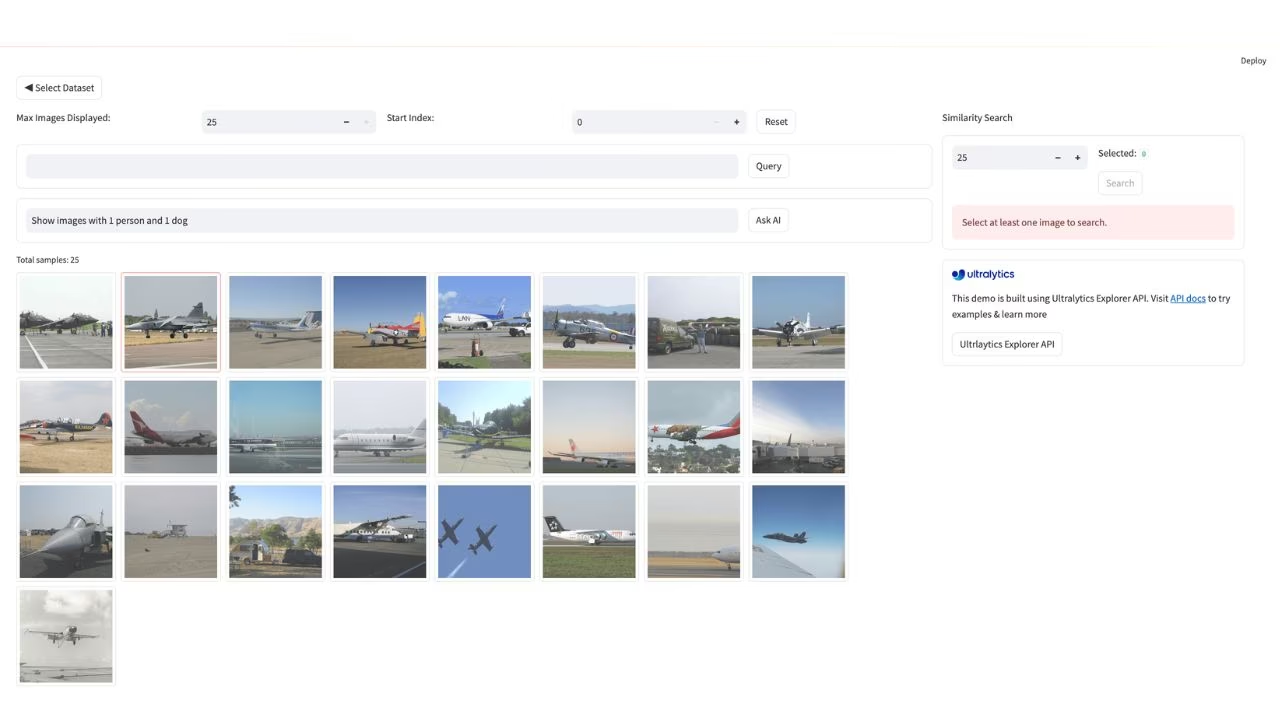
類似検索を実行すると、類似した結果が表示されます。
Ask AI#
この機能を使うと、SQLを記述せずに自然言語でデータセットをフィルタリングできます。AIを活用したクエリ生成機能がプロンプトをクエリに変換し、一致する結果を返します。たとえば、「人物がちょうど1人、犬が2匹写っている画像を100枚表示してください。他のオブジェクトが写っていてもかまいません」と質問すると、クエリが生成され、該当する結果が表示されます。「人物がちょうど5人写っている画像を10枚表示してください」と質問した場合の出力例を次に示します。
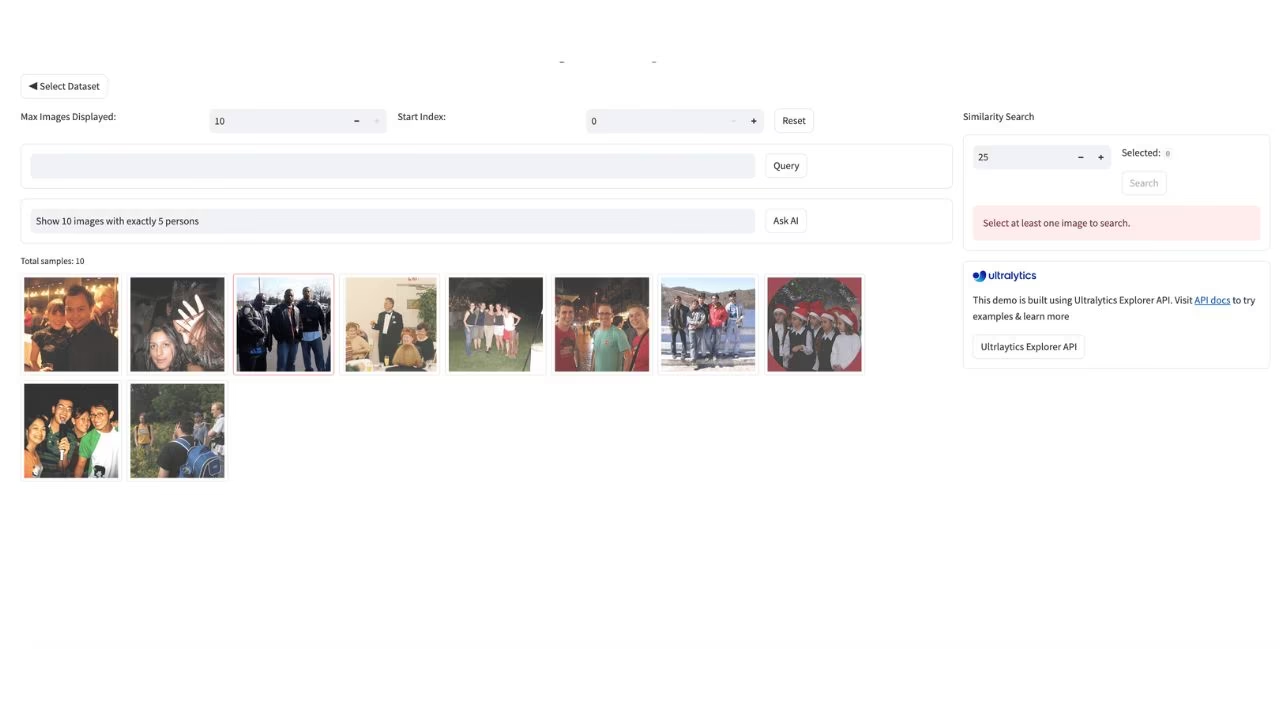
注: この機能は大規模言語モデルを使用するため、結果は確率的であり、不正確な場合があります。
CVデータセットに対するSQLクエリの実行#
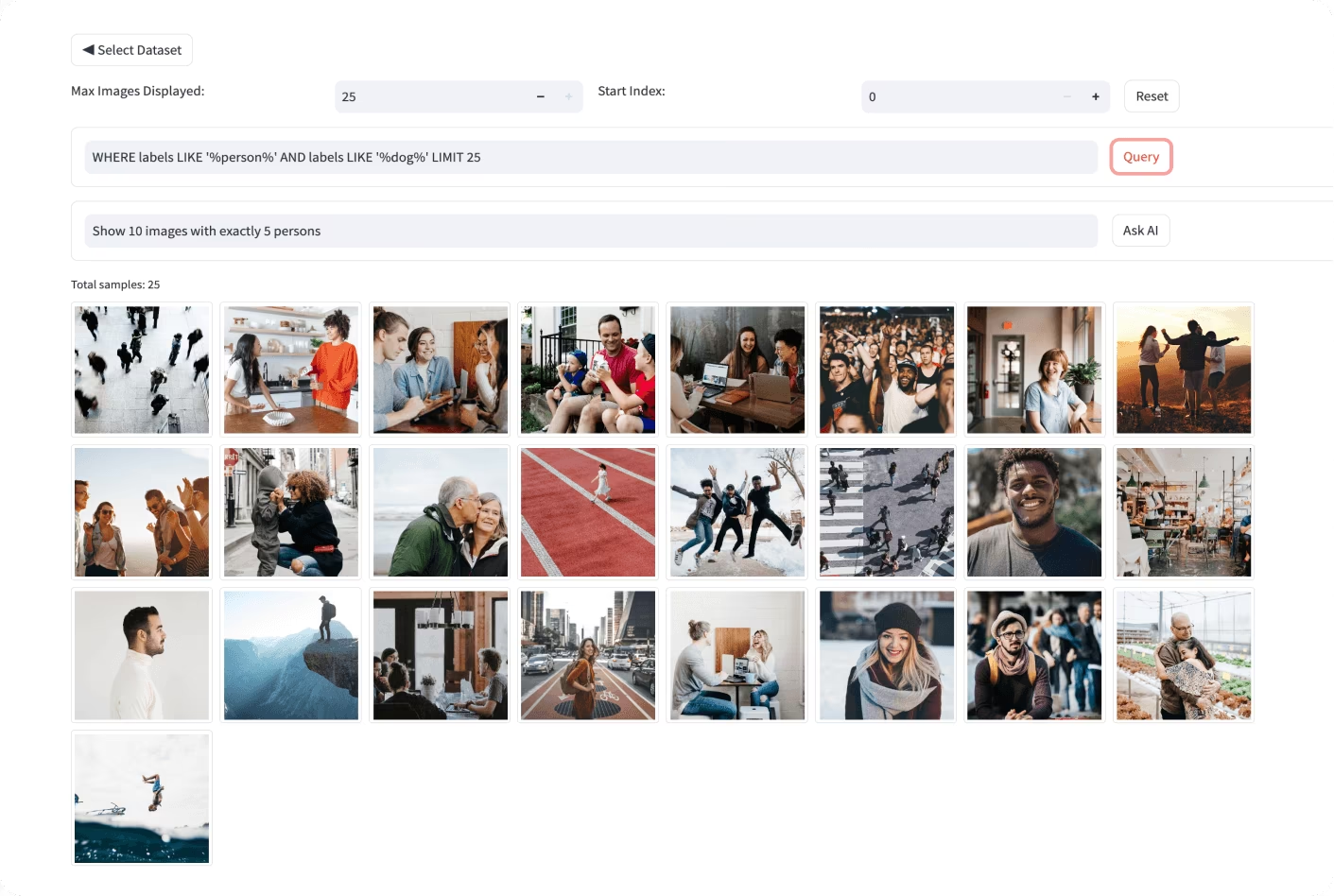
データセットに対してSQLクエリを実行し、データをフィルタリングできます。WHERE句のみを指定する方法も利用できます。たとえば、次のWHERE句は、人物が少なくとも1人、犬が少なくとも1匹含まれる画像を返します。
WHERE labels LIKE '%person%' AND labels LIKE '%dog%'
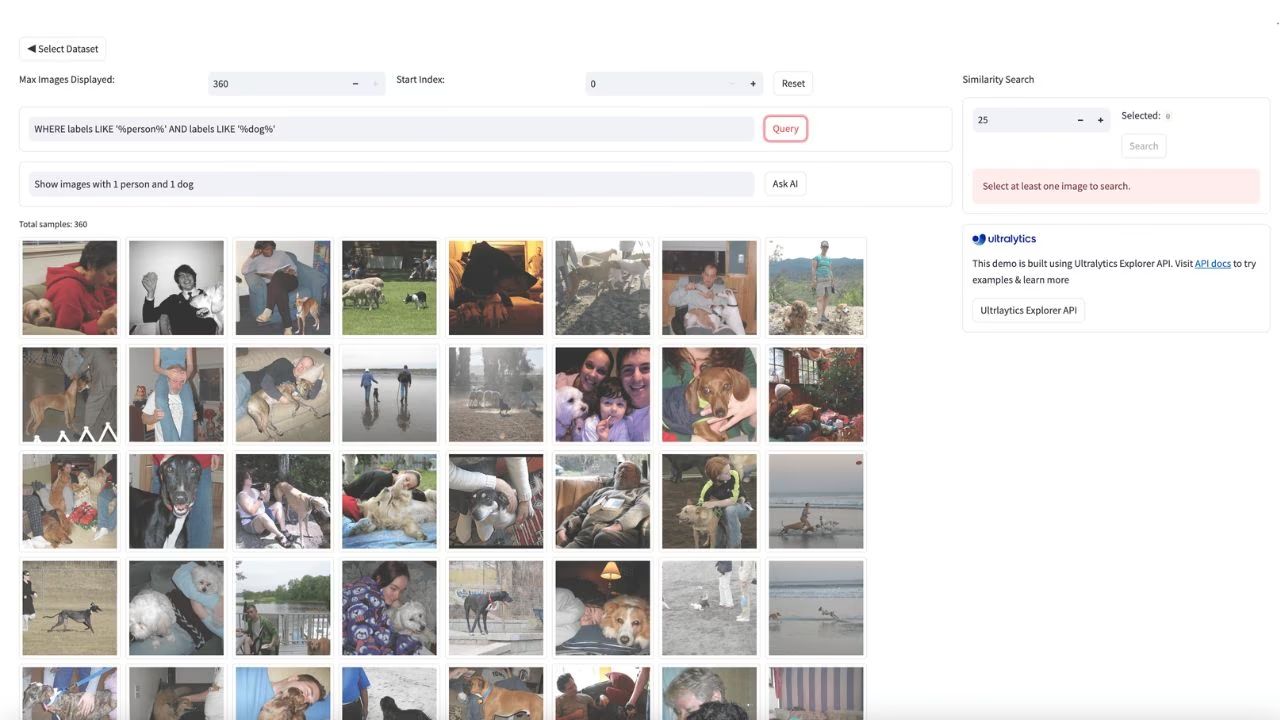
このデモはExplorer APIを使用して構築されています。Explorer APIを使うと、データセットの分析情報を得るための独自の探索用ノートブックやスクリプトを作成できます。使い始めるには、Explorer APIのドキュメントをご覧ください。
よくある質問#
Ultralytics Explorer GUIは、Ultralytics Explorer APIを基盤とする、データセット探索用のブラウザーインターフェースです。大規模言語モデル(LLM)を利用するAsk AI機能を使って、セマンティック/ベクトル類似度検索、SQLクエリ、自然言語クエリを実行できます。
Explorer GUIをインストールするには、pipを使用します。
pip install "ultralytics[explorer]==8.3.11"注: Ask AI機能を使用するには、OpenAI APIキーを設定する必要があります:
yolo settings openai_api_key="..."。Ultralytics Explorer GUIのセマンティック検索機能では、埋め込みに基づいて、指定した画像に類似する画像を検索できます。この手法は、視覚的に類似した画像を特定し、探索するのに役立ちます。この機能を使用するには、UIで1枚以上の画像を選択し、類似画像の検索を実行します。結果には選択した画像によく似た画像が表示されるため、データセットを効率的に探索し、異常検知を行えます。
はい。大規模言語モデル(LLMs)を活用したAsk AI機能を使うと、自然言語のクエリでデータセットをフィルタリングできます。SQLに精通している必要はありません。たとえば、「人物がちょうど1人、犬が2匹写っている画像を100枚表示してください。他のオブジェクトが写っていてもかまいません」と質問すると、AIがバックグラウンドで適切なクエリを生成し、目的の結果を返します。
Ultralytics Explorer GUIでは、データセットに対してSQLクエリを直接実行し、効率的にデータをフィルタリングおよび管理できます。クエリを実行するには、GUIのSQLクエリセクションに移動し、クエリを記述します。たとえば、人物が少なくとも1人、犬が少なくとも1匹写っている画像を表示するには、次のように記述します。
WHERE labels LIKE '%person%' AND labels LIKE '%dog%'WHERE句のみを指定することもできるため、クエリをより柔軟に実行できます。
詳しくは、SQLクエリのセクションを参照してください。
Ultralytics Explorer GUIは、セマンティック検索、SQLクエリ、Ask AI機能による自然言語での操作などの機能でデータ探索を強化します。これらの機能により、次のことが可能になります。
- 視覚的に類似する画像を効率よく見つけられます。
- 複雑なSQLクエリを使用してデータセットをフィルタリングできます。
- 高度なSQLの知識がなくても、AIを活用して自然言語検索を実行できます。
これらの機能は、開発者、研究者、データサイエンティストがデータセットを理解し、キュレーションするのに役立ちます。
コメント7
ws1065 I executed yolo Explorer to try to open Explorer dashboard, but it shows that it should be a port monitoring error? I don't know what port it is listening on, and yolo explorer doesn't have a help command?
Glenn JocherUltralytics(編集済み) Note: Ultralytics Explorer was removed in
ultralytics>=8.3.12; to use it, installultralytics==8.3.11. Similar dataset exploration features are available in Ultralytics Platform.@ws1065 it sounds like you're encountering a port conflict issue when trying to run the Explorer dashboard. By default, the Explorer GUI listens on port 8080. You can specify a different port by using the
--portargument when launching the GUI. For example, you can tryyolo explorer --port 8081. If the issue persists, please ensure you are using the latest version of the package by updating it withpip install --upgrade ultralytics[explorer]. For further details, you can refer to the Ultralytics Explorer documentation.
hannaliavoshka How can I run the Explorer GUI with my custom dataset and my own model?
jakhon37 Glenn JocherUltralytics(編集済み) @jakhon37 the Ultralytics Explorer GUI has been removed as of
ultralytics>=8.3.12. However, you can use Ultralytics Platform for similar functionality, including data exploration and management. For more details, visit the Ultralytics Platform.
vonzo How do I run this with my own data? and my own model?
Glenn JocherUltralytics(編集済み) To run Ultralytics YOLO with your own data and model, you'll need to follow these steps:
- Prepare your dataset in a format that YOLO can understand, typically consisting of images and corresponding annotation files.
- Train your model using the
yolo traincommand, specifying your dataset and model configuration file. - After training, you can validate, make predictions, or use other features like tracking with your trained model.
Here's a quick example of how you might train your model:
from ultralytics import YOLO

# Create a new YOLO model from your custom config
model = YOLO('path/to/your/model.yaml')

# Train the model on your custom dataset
model.train(data='path/to/your/dataset.yaml')
And to make predictions:
# Load your trained model
model = YOLO('path/to/your/best.pt')

# Predict on new images
results = model.predict('path/to/your/images')
Remember to replace
'path/to/your/...'with the actual paths to your files. If you need more detailed guidance, our documentation is a great place to start. 😊