VSCode 터미널에서 YOLO 추론 결과 확인하기#
libsixel 웹사이트의 이미지입니다.
배경#
SSH를 통해 원격 머신에 연결하면 일반적으로 이미지 결과를 시각화할 수 없거나, GUI가 있는 로컬 장치로 데이터를 옮겨야 합니다. VSCode 통합 터미널에서는 이미지를 직접 렌더링할 수 있으므로, 파일을 노트북으로 복사하지 않고도 추론을 실행하는 바로 그곳에서 예측 결과를 확인할 수 있습니다. 이 가이드에서는 설정을 활성화하고, 코드를 연결하는 방법을 안내하며, 자주 묻는 질문에 답변합니다.
Linux 및 macOS에서만 호환됩니다. sixel을 사용해 터미널에서 이미지를 확인하는 Windows 지원 업데이트는 VSCode 저장소, 이슈 상태 또는 문서에서 확인하세요.
통합 터미널에서 이미지를 확인할 때 VSCode와 호환되는 프로토콜은 sixel과 iTerm입니다. 이 가이드에서는 sixel 프로토콜의 사용 방법을 설명합니다.
절차#
-
먼저 VSCode에서
terminal.integrated.enableImages및terminal.integrated.gpuAcceleration설정을 활성화해야 합니다."terminal.integrated.gpuAcceleration": "auto" # "auto" is default, can also use "on" "terminal.integrated.enableImages": true
-
가상 환경에
python-sixel라이브러리를 설치하세요. 이 라이브러리는 더 이상 유지 관리되지 않는PySixel라이브러리의 포크입니다.pip install sixel -
모델을 불러와 추론을 실행한 다음, 결과를 플로팅하고 변수에 저장하세요. 추론 인수와 결과 작업에 대한 자세한 내용은 predict mode 페이지를 참조하세요.
from ultralytics import YOLO # 모델 로드 model = YOLO("yolo26n.pt") # 이미지에서 추론 실행 results = model.predict(source="https://ultralytics.com/images/bus.jpg") # 추론 결과 플로팅 plot = results[0].plot() # (1)!- 사용할 수 있는 인수는 plot 메서드 매개변수를 참조하세요.
-
이제 OpenCV를 사용해
np.ndarray을bytes데이터로 변환하세요. 그런 다음io.BytesIO을 사용해 "파일과 유사한" 객체를 만드세요.import io import cv2 # 결과 이미지를 바이트로 변환 im_bytes = cv2.imencode( ".png", # (1)! plot, )[1].tobytes() # (2)! # 이미지 바이트를 파일과 유사한 객체로 변환 mem_file = io.BytesIO(im_bytes)- 다른 이미지 확장자도 사용할 수 있습니다.
- 반환된 객체 중 인덱스
1에 있는 객체만 필요합니다.
-
SixelWriter인스턴스를 만든 다음,.draw()메서드를 사용해 터미널에 이미지를 그리세요.from sixel import SixelWriter # sixel writer 객체 생성 w = SixelWriter() # 터미널에 sixel 이미지 그리기 w.draw(mem_file)
추론 결과 예시#
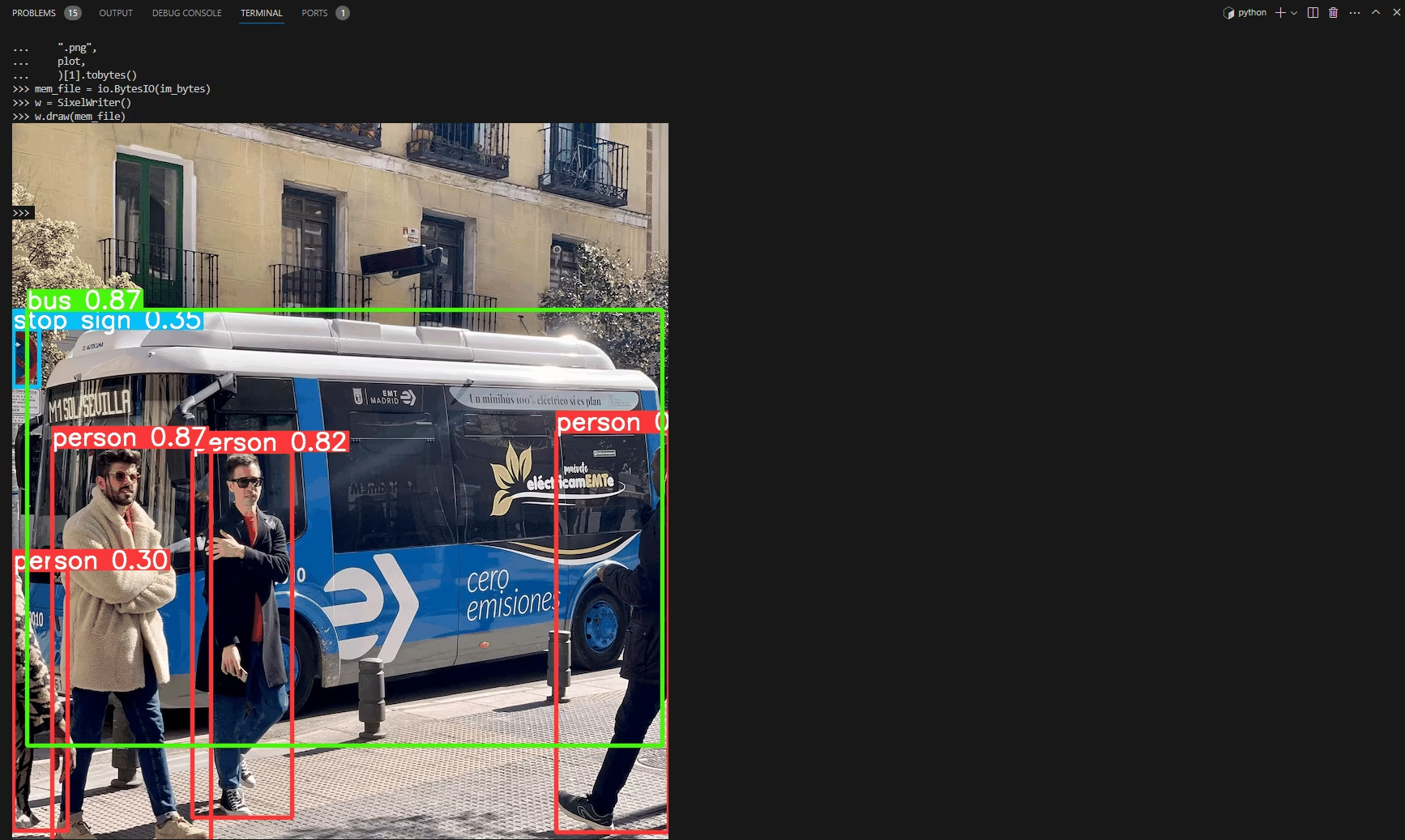
이 예시를 동영상이나 애니메이션 GIF 프레임에 사용하는 방법은 테스트되지 않았습니다. 사용 시 위험을 감수해야 합니다.
전체 코드 예시#
import io

import cv2
from sixel import SixelWriter

from ultralytics import YOLO

# 모델 로드
model = YOLO("yolo26n.pt")

# 이미지에서 추론 실행
results = model.predict(source="https://ultralytics.com/images/bus.jpg")

# 추론 결과 플로팅
plot = results[0].plot()  # (3)!

# 결과 이미지를 바이트로 변환
im_bytes = cv2.imencode(
    ".png",  # (1)!
    plot,
)[1].tobytes()  # (2)!

mem_file = io.BytesIO(im_bytes)
w = SixelWriter()
w.draw(mem_file)- 다른 이미지 확장자도 사용할 수 있습니다.
- 반환된 객체 중 인덱스
1에 있는 객체만 필요합니다. - 사용할 수 있는 인수는 plot 메서드 매개변수를 참조하세요.
터미널에서 이미지 표시를 "지우려면" clear을 사용해야 할 수 있습니다.
자주 묻는 질문#
macOS 또는 Linux의 VSCode 터미널에서 YOLO 추론 결과를 확인하려면 다음 단계를 따르세요:
-
필요한 VSCode 설정을 활성화합니다:
"terminal.integrated.enableImages": true "terminal.integrated.gpuAcceleration": "auto" -
sixel 라이브러리를 설치합니다:
pip install sixel -
YOLO 모델을 불러와 추론을 실행합니다:
from ultralytics import YOLO model = YOLO("yolo26n.pt") results = model.predict(source="https://ultralytics.com/images/bus.jpg") plot = results[0].plot() -
추론 결과 이미지를 바이트로 변환한 다음 터미널에 표시합니다:
import io

import cv2
from sixel import SixelWriter

im_bytes = cv2.imencode(".png", plot)[1].tobytes()
mem_file = io.BytesIO(im_bytes)
SixelWriter().draw(mem_file)
자세한 내용은 predict mode 페이지를 참조하세요.
-
sixel 프로토콜은 현재 Linux와 macOS에서만 지원됩니다. 이 플랫폼에는 sixel 그래픽과 호환되는 터미널 기능이 내장되어 있기 때문입니다. sixel을 사용한 터미널 그래픽의 Windows 지원은 아직 개발 중입니다. Windows 호환성 업데이트는 VSCode 이슈 상태와 문서에서 확인하세요.
아무것도 렌더링되지 않으면 다음 점검을 순서대로 진행하세요:
- 절차 섹션의 설명대로
terminal.integrated.enableImages및terminal.integrated.gpuAcceleration이 모두 활성화되어 있는지 확인한 다음, 설정을 적용하려면 통합 터미널을 다시 시작하세요. - 스크립트가 실행되는 동일한 가상 환경(
pip install sixel)에sixel이 설치되어 있는지 확인하세요. - 인코딩하기 전에
plot이 유효한np.ndarray인지 확인하세요. 이미지가 비어 있거나 유효한 배열이 아니면cv2.imencode에서 오류가 발생합니다.results[0].plot()가 허용하는 값은 plot 메서드 매개변수를 참조하세요.
문제가 계속되면 터미널 이미지 지원 상태를 VSCode 저장소에서 확인하세요.
- 절차 섹션의 설명대로
sixel을 사용해 터미널에 동영상 추론 결과나 애니메이션 GIF 프레임을 표시하는 기능은 현재 테스트되지 않았으며 지원되지 않을 수 있습니다. 정적 이미지로 시작해 호환성을 확인하는 것이 좋습니다. 성능 제약을 고려하고 위험을 감수한다면 동영상 결과를 시도할 수 있습니다. 추론 결과 플로팅에 대한 자세한 내용은 predict mode 페이지를 참조하세요.
sixel패키지는 유지 관리가 중단된PySixel라이브러리의 포크이며, Pillow(PIL)를 감싸는 얇은 Python 래퍼입니다.import sixel가 실패하거나SixelWriter().draw()에서 오류가 발생하면 패키지가 활성 가상 환경에 설치되어 있는지 확인하고, Pillow를 사용할 수 있는지 점검한 다음, 플랫폼별 참고 사항은 python-sixel GitHub 저장소에서 확인하세요.draw()에 전달할 이미지를 생성하는 방법은 predict mode 문서를 참조하세요.