Weights & Biases Integration#
Import YOLO best.pt checkpoints from Weights & Biases (W&B) into Ultralytics Platform. Imported checkpoints become regular Platform models, ready to inspect, predict, export, or deploy.
To log new training runs to W&B, see the YOLO experiment tracking guide.
Import from W&B#
- Switch to the Platform workspace that should receive the models.
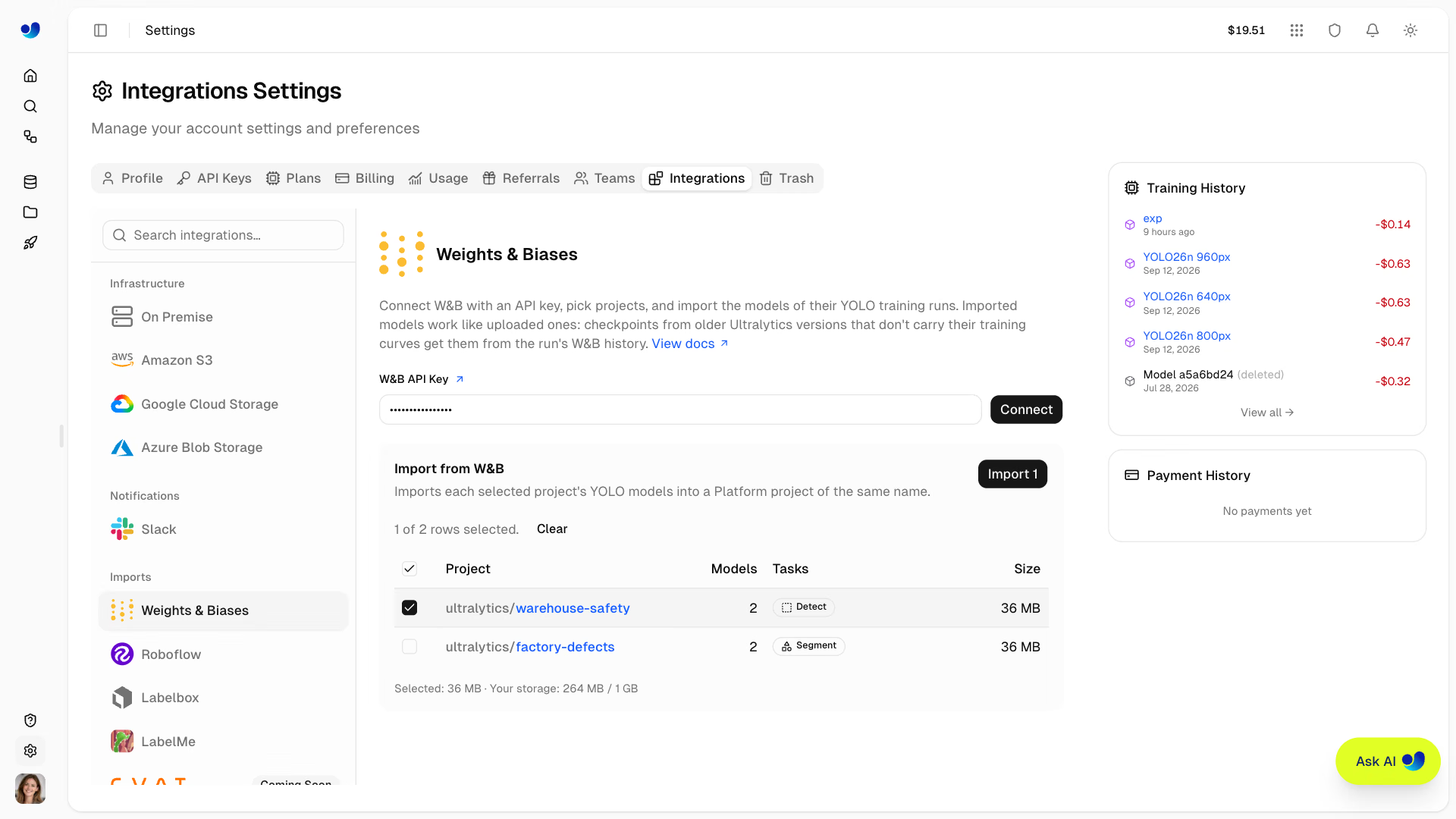
- Go to Settings > Integrations and select Weights & Biases.
- Paste your W&B API key and click Connect.
- Review the projects with logged models from your W&B entity and teams. Model counts, tasks, and sizes load as you browse the table.
- Select the projects to import. Nothing is selected by default, and a project becomes selectable once its importable models have loaded.
- Click Import N, where N is the number of selected projects. Platform imports all eligible models from each selected project.
Imports appear in the background upload tracker and as in-flight rows in the destination project's models sidebar. Keep the browser tab open until uploads finish; you can navigate within Platform while they continue. The preview remains available afterward so you can select more projects without reconnecting.
Eligible Checkpoints and Training Results#
A run is eligible when it has a W&B model artifact containing best.pt, reports a supported Platform task, and the checkpoint is within the 1 GB model upload limit. The Ultralytics W&B integration logs this artifact after training when saving is enabled and a best checkpoint exists. Projects without eligible runs cannot be selected.
Platform reads the checkpoint's training arguments, task, metadata, and available metrics just as it does for a model upload. When a checkpoint lacks per-epoch results, Platform tries to fill the training curves from the run's W&B history. Metrics that were not logged remain unavailable; a history retrieval failure does not prevent the checkpoint from importing.
Destination Projects and Re-imports#
Each selected W&B project imports into a Platform project of the same name, created if needed. Existing model names receive a numeric suffix when necessary.
W&B runs are not deduplicated against previous imports. Importing the same project again creates additional models rather than updating the existing ones.
If a destination project is in Trash, restore it or permanently delete it before retrying. A W&B project whose name resolves to the reserved Platform project name deploy cannot be imported directly; download its checkpoints from W&B and upload them into another Platform project instead.
Storage and Permissions#
W&B imports are available on every plan and require the workspace editor role or higher. Imported checkpoints count against that workspace's storage and model limits.
The preview disables importing when the selected checkpoints exceed the displayed storage headroom. Click Connect again to refresh storage usage; limits are checked again during upload. Projects that cannot be queued stay selected for a retry, and a notification reports failed model imports.
Platform does not save the W&B API key as a connection. Enter it again when starting a new import session; there is no saved connection to disconnect.