Slack Integration#
Connect Slack to Ultralytics Platform to learn when long-running work finishes without keeping Platform open. You choose one Slack channel and the results that matter to your workspace.
You do not need a Slack API key, webhook, or technical setup. Before you start, sign in to Slack and decide which channel should receive Platform alerts. If you use a team workspace in Platform, you must be a workspace admin or owner.
Connect Slack#
- Open Settings > Integrations and select Slack from the integration list.
- Review the setup summary and click Continue to Slack.
- Choose a channel and click Allow. Platform requests permission to post only to that channel. If Slack shows Request approval, send the request and ask your Slack workspace admin to approve the app.
- After returning to Platform, Training complete, Training failed, Annotation complete, and Annotation failed are already selected and saved. To post fewer results, uncheck alerts and click Save changes.
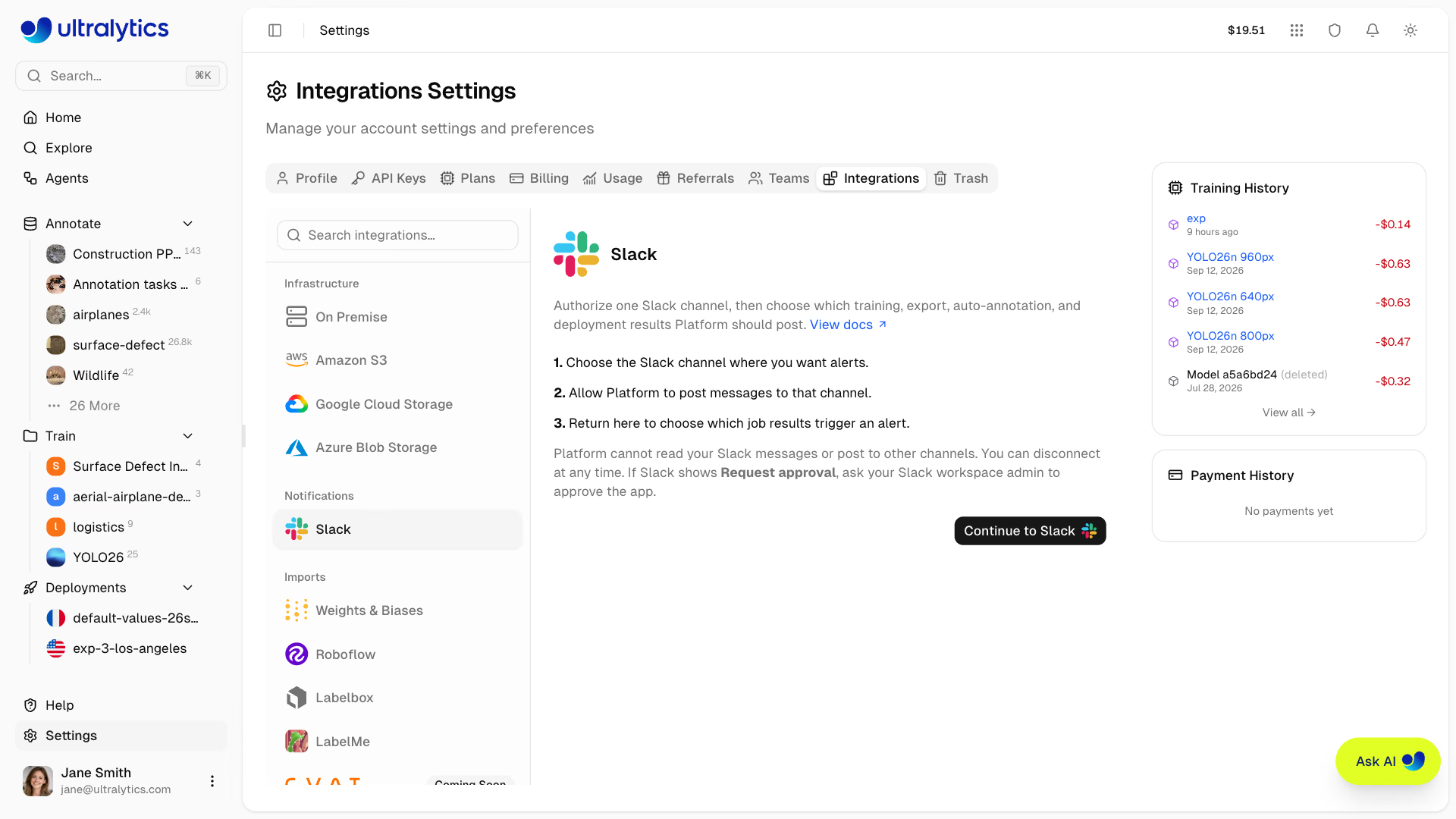
Platform posts a confirmation in the selected channel as soon as the connection succeeds, and the integration then shows which Slack workspace and channel it is connected to. Workspace admins manage the connection and alert choices for the whole workspace from the Integrations tab.
Slack lets Platform post messages to the channel you choose. Platform cannot read your Slack messages or post to other channels through this connection.
Available Alerts#
| Alert | When it is sent |
|---|---|
| Training complete | A model finishes training |
| Training failed | A training run stops with an error |
| Export complete | A model export is ready |
| Export failed | A model export stops with an error |
| Annotation complete | A dataset finishes batch auto-annotation |
| Annotation failed | Auto-annotation stops with an error |
| Deployment ready | A deployment is ready |
| Deployment failed | A deployment fails to start |
Each message says what finished and links straight to the related model, dataset, or deployment in Platform. Training alerts add the dataset name, the model's primary metric, how long the run took, and what it cost; export alerts add the format, file size, and duration; auto-annotation alerts add the number of images processed and annotations created; deployment alerts add the region and CPU and memory size. Failed-job alerts include a short error summary when one is available, as an inline note or a code block for longer messages. Platform posts alerts in the background and retries automatically if Slack is briefly unavailable or rate-limits the channel, so Slack delivery never delays or changes the result of the training, auto-annotation, export, or deployment. Review the current result from the model's training or export page, or from the Deployments tab.
Agents Workflow Messages#
Use a Slack block in Agents to send a message when a workflow condition matches. It uses the same connected channel. Configure the message in the block and include {output} for the upstream result. These messages are separate from the job notification choices above.
Change or Disconnect Slack#
To change which results are posted, check or uncheck alerts and click Save changes. At least one alert must remain selected.
To use a different channel, click Change channel, choose the new channel in Slack, and click Allow. Your alert selection is kept, and Platform posts a confirmation in the new channel.
To stop all Slack alerts, click Disconnect. Disconnecting takes effect immediately and does not affect Platform jobs or resources. To also remove the app from your Slack workspace, remove it from Slack's app management settings.
Troubleshooting#
- The Slack integration says a workspace admin can manage it: ask a Platform workspace admin or owner to complete the connection.
- Slack shows Request approval instead of Allow: send the request and ask your Slack workspace admin to approve the app. You do not need to create an API key or webhook.
- Your Slack workspace or channel is missing: confirm that you are signed in to the correct Slack workspace and that you can add apps to the channel.
- The integration shows Slack stopped accepting alerts: Slack rejected the last alert because the app was removed, the channel was archived or deleted, or a Slack admin restricted posting. Click Change channel to reconnect Slack and choose an active channel; the warning clears when you reconnect or the next alert is delivered.
- A job finished without a Slack message: check the selected alerts in Settings > Integrations, then open the related model or deployment in Platform. Slack alerts are informational and never control job processing.
Return to the Platform integrations overview to connect data, storage, or On Premise services.
FAQ#
No. Connecting Slack is an OAuth flow: click Continue to Slack, choose a channel, and click Allow. Platform only receives permission to post to that one channel.
Each workspace connects to a single channel. To switch channels, click Change channel and choose the new channel in Slack; your alert selection is kept.
In a team workspace, the admin or owner role manages the connection and the alert selection for everyone. Alerts are available on all plans.
Check that the matching alert is selected in Settings > Integrations. If the integration shows Slack stopped accepting alerts, click Change channel to reconnect Slack. Alerts are informational only and never affect the training, export, or deployment itself.