Google Cloud Storage Integration#
The Google Cloud Storage integration connects your GCS buckets to Ultralytics Platform. Your images stay in your buckets — Platform indexes them in place, so you can browse, annotate, and train YOLO models without uploading a copy.
Google Cloud Storage datasets require a Pro or Enterprise plan. Free workspaces see the integration and are prompted to upgrade when connecting. Existing Google Cloud Storage datasets stay fully accessible if a subscription ends — only new connections and imports require Pro.
Create a Read-Only Service Account#
Platform only ever reads from your storage — it never writes, modifies, or deletes your objects. Create a dedicated service account with read access only:
- In the Google Cloud console, go to IAM & Admin > Service Accounts and create a service account.
- Grant it the Storage Object Viewer (
roles/storage.objectViewer) role on the buckets you want to connect. - Open the service account, choose Keys > Add key > Create new key, select JSON, and download the key file.
roles/storage.objectViewer covers everything Platform does with your data, but it does not allow listing the
buckets in a project. Add a role carrying storage.buckets.list if you want Platform to find your buckets for you;
otherwise type each bucket name manually when connecting.
Connect to Platform#
- Go to Settings > Integrations and select Google Cloud Storage from the integration list.
- Paste the contents of the service account JSON key.
- Click Find available buckets, then select the buckets to connect. If the service account can't list buckets, enter a known bucket name manually.
- Click Connect. Platform verifies it can list and read each selected bucket before saving anything.
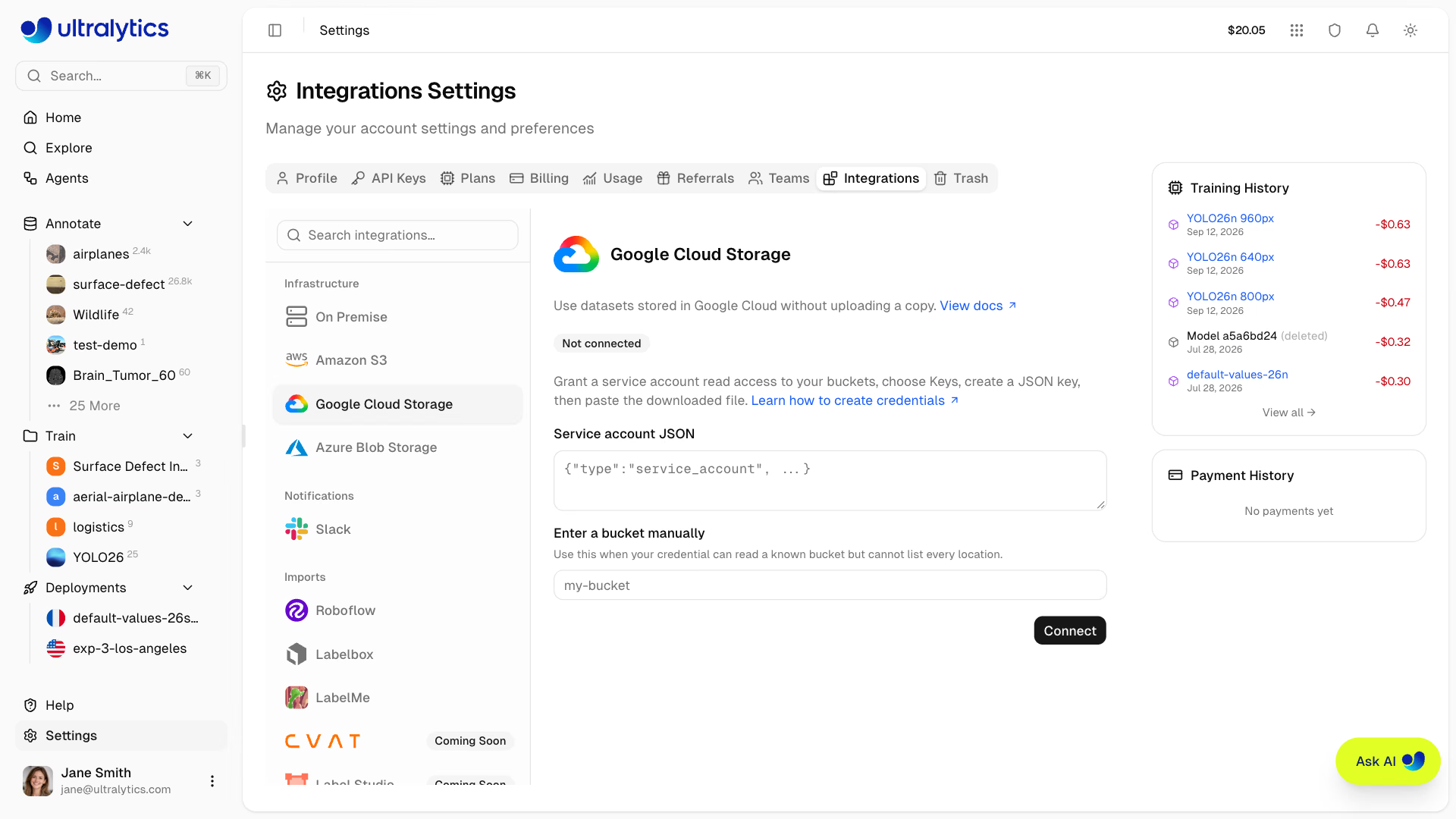
You need the workspace admin or owner role to connect cloud storage. You can add up to 50 buckets at a time, and discovery lists up to 300 of the buckets the service account can see.
Your browser reads the pasted key file and sends only the three fields Platform needs — client_email, private_key,
and project_id. The rest of the JSON never leaves the page.
Reconnecting the same service account later adds new buckets to the existing integration. A saved credential is only replaced once its replacement can still read every bucket you've already connected. If any bucket can't be read, the error names it, including buckets connected earlier with the same service account.
Credentials are encrypted at rest with AES-256-GCM, are never returned to the browser, and are never exposed to training workloads. To revoke access, delete the service account key in Google Cloud.
Create a Dataset from a GCS Bucket#
- Click New Dataset and open the Cloud tab.
- Pick a connected bucket and browse to the folder containing your data.
- Confirm the folder, adjust the dataset name, and create the dataset.
Platform lists the folder once and indexes what it finds:
- Images —
.jpg,.jpeg,.png,.webp, and.avifobjects are indexed with dimensions read through bounded requests. Platform does not persist a second copy of the source image. - Labels — YOLO
.txtsidecars are parsed into Platform annotations, matched by the standardimages/→labels/layout or as same-folder siblings. - Metadata — a YAML file provides class names and pose keypoint shape, exactly like an archive upload.
data.yamlanddata.ymlare preferred when the folder holds several. - Task — a sample of the label files decides the task, so segment, pose, and OBB folders are recognized from their label shape rather than the task you picked in the dialog.
- Splits —
train,val, andtestfolder names in the object path assign splits automatically.
The dataset then behaves like any other: browse and annotate it, set it public or private, share it with your team, and train on it through managed training. Originals are streamed on demand, and indexed images do not consume your Platform storage quota.
A single import indexes up to 500,000 objects, and label or YAML files up to 1 MB each. Larger buckets should be split across multiple datasets.
Every indexed image is pinned to its GCS object generation, and Platform fails closed if an object changes underneath it. Add new objects instead of overwriting existing ones.
Failed Imports#
If an import fails — an empty folder, a typo in the path, or revoked permissions — the dataset shows the error on its page. Editors can click Retry import to restart it with the stored bucket and folder, or create a new dataset pointing at the corrected path.
A retry re-lists the folder rather than resuming: objects added since the first attempt are picked up, and objects that are no longer there are dropped from the dataset.
Training#
Managed training works through the normal training flow. Training uses Platform's own copies of the pinned images for the duration of the run, and your Google Cloud credentials are never exposed to training workloads.
Disconnect a Connection#
Disconnecting deletes the stored credentials without touching anything in Google Cloud. Datasets built from those buckets stay in your workspace with their classes, labels, and annotations, but their images cannot be loaded, previewed, or trained on until the same service account is connected again. You can still rename them, edit their labels, or delete them while disconnected.
To disconnect, go to Settings > Integrations, select Google Cloud Storage, click Disconnect next to the credential, and confirm. Opening one of its datasets then shows Google Cloud Storage Disconnected with a link back to these settings, and the dataset returns automatically once you reconnect.
You can also disconnect with the REST API, using the integration ID returned by GET /api/integrations/buckets:
curl -X DELETE \
  -H "Authorization: Bearer YOUR_API_KEY" \
  https://platform.ultralytics.com/api/integrations/buckets/INTEGRATION_ID
from ultralytics_platform import Platform
client = Platform() # reads ULTRALYTICS_API_KEY
integrations = client.storage_integrations.list()
client.storage_integrations.delete("INTEGRATION_ID")To revoke access at the source instead, delete the service account key in Google Cloud.
Current Limitations#
GCS-backed datasets currently exclude features that require Platform-owned copies of your images: auto-annotation, clustering analysis, dataset cloning, and immutable version snapshots.
Deleting a GCS-backed dataset, or individual images from it, removes Platform's references only — your objects are never touched.
Also see the Amazon S3 and Azure Blob Storage integrations.
FAQ#
No. Platform lists the bucket once and indexes the image dimensions and labels it finds. Originals are streamed on demand for browsing and annotation, and managed training works from Platform's own copies of the pinned images only for the duration of the run. Indexed images do not count against your storage quota.
A dataset is indexed once when it is created. New objects are not picked up until you create a new dataset or retry a failed import, and every indexed image is pinned to its version, so overwriting an object makes Platform fail closed on that image. Add new objects instead of replacing existing ones.
Disconnect the integration in Settings > Integrations to delete the stored credentials, or delete the service account key in Google Cloud. Neither action touches the data in your buckets.